
Build summary for Modern POS version 9.8.1, including what new features and changes it contains
| Theme | Feature | Benefit |
|---|---|---|
| SPI | Configuring & Printing Shipping Labels via SPI | New SPI allows integration with third party shipping services to select and print shipping labels from fulfillment flows (BOFIS, Store-to-Store transfers, and Return to vendor). Preconfigured boxes and item weights can be added to CMS to speed flow of store operations. |
| SPI | Supporting Loyalty Across the Customer Experience with Salesforce’s SPI | Shopper rewards can be redeemed through the POS. New enhancements provide tags for printing loyalty rewards on receipts and having loyalty rewards tracked in Electronic Journal (EJ). |
| Inventory Management | Bulk Adding Inventory to Store to Store Transfers | Ability to enter item quantity rather than scanning individually for a Store to Store transfer. |
| Webhook | Suspended Cart Data via Webhook | Webhook provides real-time export of suspended carts for use in external audit systems. |
| EJ/tlog/JSON | EJ Save and Share Reports in CMS | Ability to save EJ filters as reports for regular review—can select to share access or keep private. |
| Receipts | PS email and Print Receipt Tags for Attributed Associate (Line and Order) | New receipts tags permit you to show the associate number and name of the attributed associate on the sale. |
| Core Platform | Orders as a Separate Permission Option for CMS Roles | More granular control to separate CMS user permissions between order reports vs other analytic reports (previously it was all or none) |
| Core Platform | Offline Register Logs | Access logs for offline events to view details such as the reason for going offline and a descriptive explanation. |
| Other | Other Feature Enhancements |
SPI
Configuring & Printing Shipping Labels via SPI
What it does: Integration with shipping services provides item weights and box dimensions for online, BOFIS, Store to Store transfers, and Return to Vendor transfers. Further enhanced capability to print labels right from POS and to create multiple boxes as needed during the packing process.
Generating a shipment label with box dimensions:
- Tap the to ship ready orders.
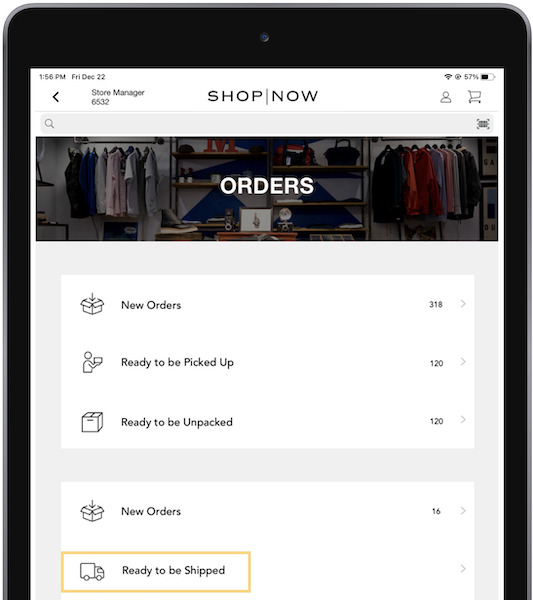
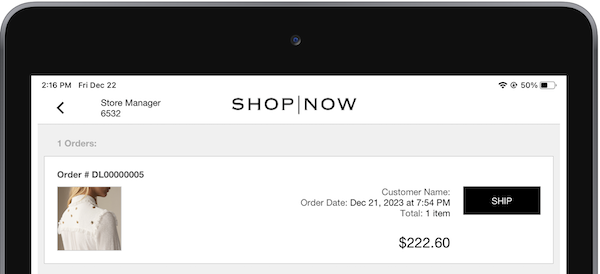
- Locate the order and tap to the right of it. On the shipping screen, the number of boxes are shown on the
list of ready-to-ship orders. Hit to start the shipping label flow.
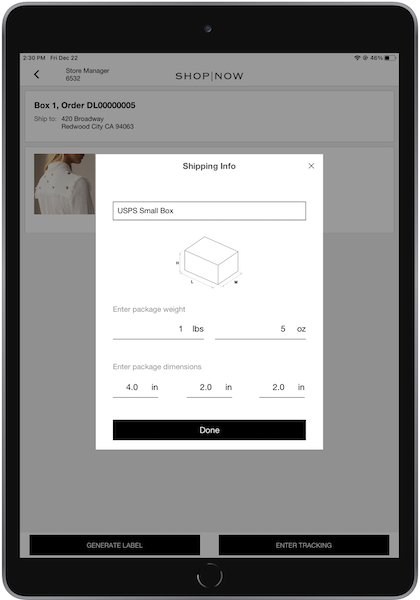
- You see predefined weights and dimensions if dynamically obtained from your feeds.
Alternatively, you can enter your own.
- Tap and the next screen permits you to select a shipping option.
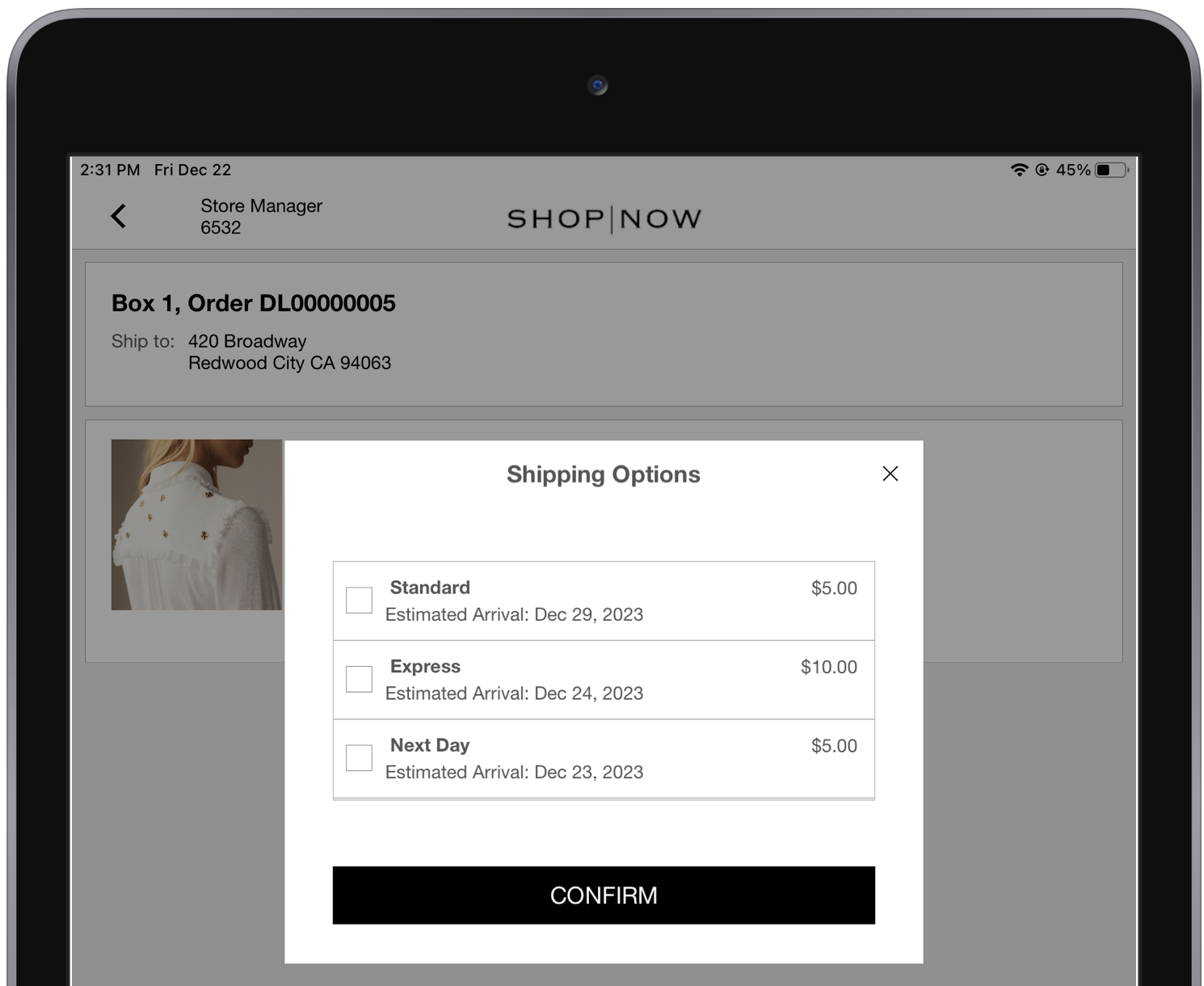
- Select and you can print the shipment label.
Learn how to configure end-to-end: Configuring & Printing Shipping Labels via Point of Sale SPI
Supporting Loyalty Across the Customer Experience with Salesforce’s SPI
Point of Sale has added a new system to its loyalty rewards system. This system prints the loyalty points that customers have redeemed on their receipts, so they can see them right away. New print and email tags provide more visibility of discount rewards on receipts. Additionally, loyalty transactions are now recorded in the Electronic Journal and Reconciliation Report, streamlining tracking.
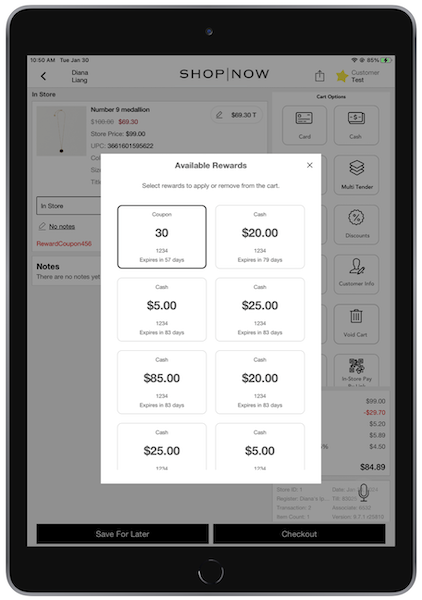
Learn how to configure end-to-end: Point of Sale Loyalty SPIs
Inventory Management
Bulk Adding Inventory to Store to Store Transfers
What it does: Ability to enter item quantity rather than scanning individually for a Store to Store transfer if bulk scanning is enabled in CMS.
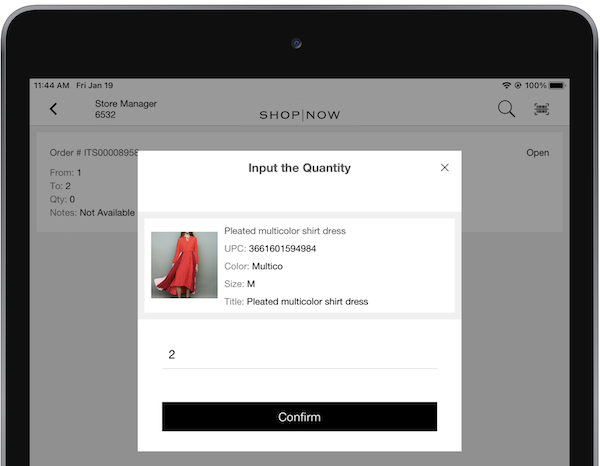
How to configure:
- In CMS, go to .
- Expand .
- Turn on .
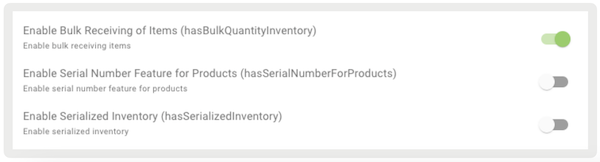
Learn more: Manage Store to Store Inventory Transfers in Point of Sale
EJ/TLog/JSON
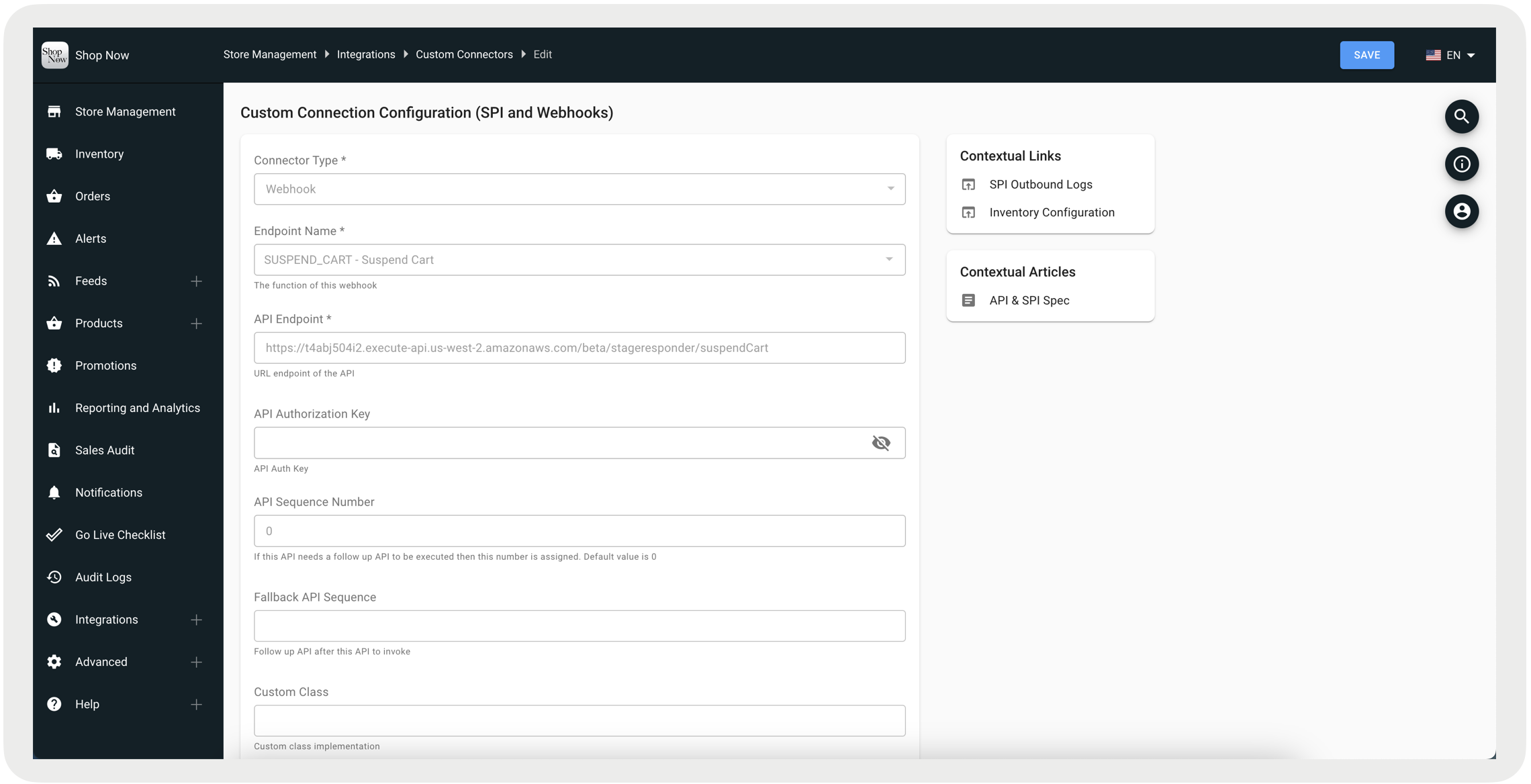
Suspended Cart Data via Webhook
What it does: Measure and track suspended carts in downstream systems in real time if integrated with Salesforce’s webhook APIs.
How to configure:
- In CMS, go to .
- Select in the upper right.
- Under , select "".
- Under , select "".
- Configure the rest of the fields and save your changes.
EJ Save & Share Reports in CMS
What it does: Expanded ability to save EJ filters as reports and add them to public saved lists for quicker access to standard queries,
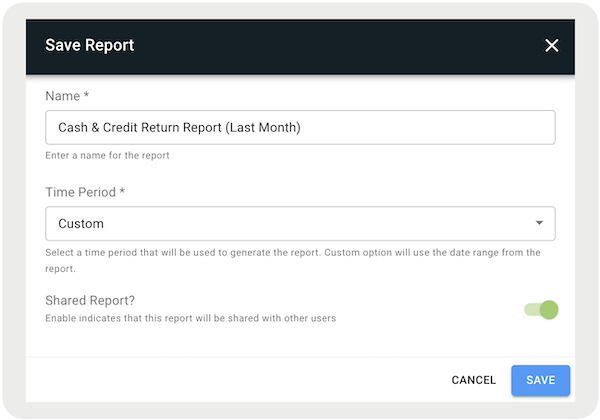
Learn how to generate EJ reports: Viewing & Generating Electronic Journal (EJ) Reports
Learn how to save reports: Saving and Sharing Electronic Journal Reports
Receipts
Core Platform
Orders as a Separate Permission Option for CMS Roles
What it does: Provide greater security and visibility to reporting with the ability to assign reporting access to a CMS user role.
How to configure:
- In CMS, go to .
- Select the to create a custom role.
- Give the role a name and define its permissions.
- Save your changes.
Learn more: CMS User Management
Offline Register Logs
What it does: Ability to access logs for offline events to view details such as the reason for going offline and a descriptive explanation.
How to access:
- In CMS, go to
- Select , , and
Learn more: View Offline Register Logs in Point of Sale
Enhanced Speech Recognition
What it does: We partnered with a customer to seed our voice search model with brand-specific terminology so that it can be recognized in a voice search. Reach out to your CSM if you're interested in further using voice search and customizing our model to your needs as part of our beta development of this feature.
Learn more about speech recognition: Configure Speech Recognition (Beta) in Point of Sale
Other Feature Enhancements
| Title | Description | Help Center Link |
|---|---|---|
| Handling Online Payment Restrictions During Intermittent Network Failures | Handling scenarios if the POS system is online but operating in Adyen's Store-and-Forward (SAF) mode, and a payment confirmation from Adyen is pending. Now, during return transactions, if the payment status remains unverified, the system prevents the return from proceeding. Users will be notified with the error message, "Payment is still processing for this order, return can't be initialized". | Payment Error Handling |
| Date Format on Email Receipts | Date and time displayed in the date format and language of the store's location. | Receipt Layouts |
| Enhance monitoring to include Advanced Shipping Notice (ASN) feed | ASN as new event type in feed monitoring so you can track failures and performance | Configure Advanced Shipping Notice (ASN) Receiving |
| JSON and XML Parity | Introduction of new fields to both JSON and XML to bring to parity | N/A |
| Deposit requirements update | Deposits for orders now enforce full payment for items carried out of the store (cash and carry) and show a warning if the deposit is less than 25%. | Support Layaways & Deposits in POS App |