
Build summary for Modern POS version 10.1.1, including what new features and changes it contains
| Theme | Feature | Benefit |
|---|---|---|
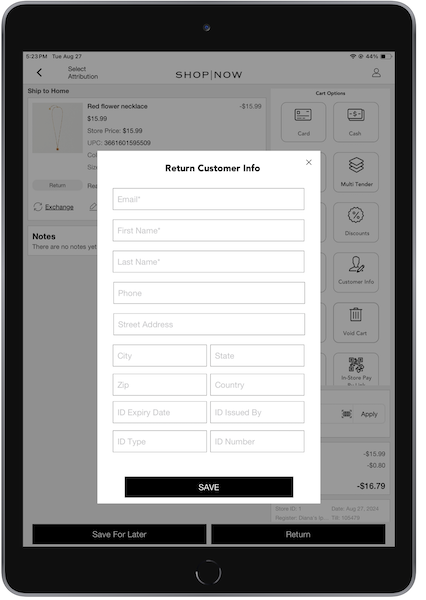
| Core Platform | Capture Customer Information on Returns | You can now capture customer information for both online and offline returns so you never miss a clienteling moment |
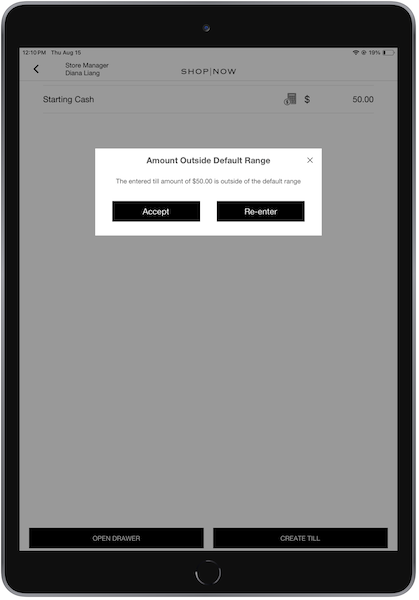
| Core Platform | Verify Starting Till Amounts | Set minimum and maximum cash alert limits to prevent incorrect starting till amounts from being entered, creating issues in closing downstream |
| Omni | Customize Credit Refund Policies | Configure refund processors according to the order type (in-store, online, mixed cart, or web order), and the order controller for credit card orders |
| Omni | Serialized Products at Checkout | Support serialized products for all in-store fulfillment types. If a serialized product is added to the cart, users are prompted to enter or scan its serial number. |
| SPI | Validate SUPCs Promotions via SPI | New SPI validates Single-Use Promotion Codes (SUPCs) outside the Point of Sale Promotion Engine. Codes are first checked in the Point of Sale system, then in the merchant's external system if not found |
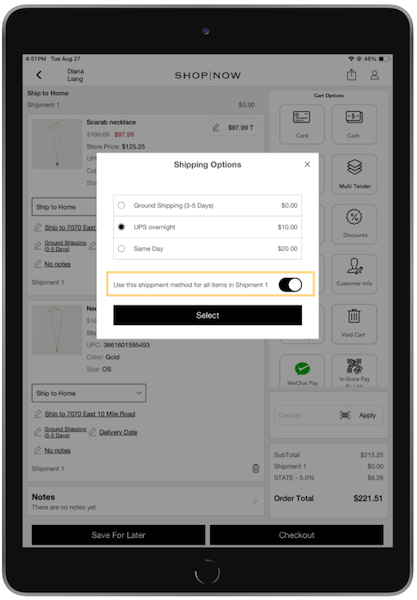
| SPI | Shipping Method by Delivery Group SPI | Assign a single shipping method to all items in a delivery group |
| SPI | SPI Validation for Employee Discounts Enhancement | Assign a promotion based on employee eligibility via SPI |
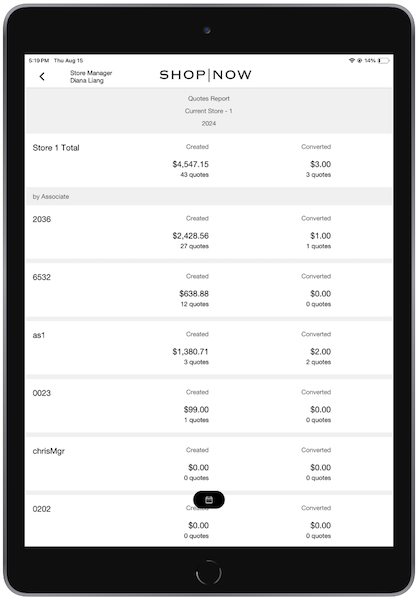
| Analytics / Reporting | Quotes Report | New report allows store teams to track quotes that have been created and converted for a given period. Store managers can use this report for a snapshot of store-level performance, or to view and compare creation and conversion metrics across their associates. |
| Monitoring and Alerting | Email Alerts for Order Export Failures | Use this alerting system to know about order failures |
| Other | Various |
Core Platform
Capture Customer Information on Returns
What it does: You can now capture customer information for both online and offline returns so you never miss a clienteling moment
How to configure:
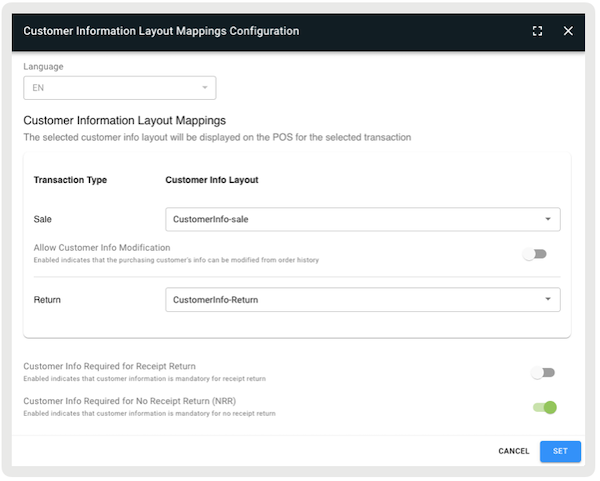
- Create a Customer Information Layout (refer to this article).
- In CMS, go to to customize the Customer Information Layout Mappings.
- Edit the setting, "".
- Select a layout for the . This store setting functions similarly to the app configuration setting "." From app builds 10.3.1 onwards, it's advised to use the .
- Optionally, turn on "" to mandate customer information for receipted returns. Select a layout for Return to turn on this setting.
- Optionally, turn on "" to mandate customer information for nonreceipted returns. Select a layout for
Return to turn on this setting.
Learn more: Capturing Customer Information for Returns with Point of Sale
Verifying Starting Till Amounts
What it does: Set minimum and maximum cash alert limits to prevent incorrect starting till amounts from being entered, creating issues in closing downstream.
How to configure:
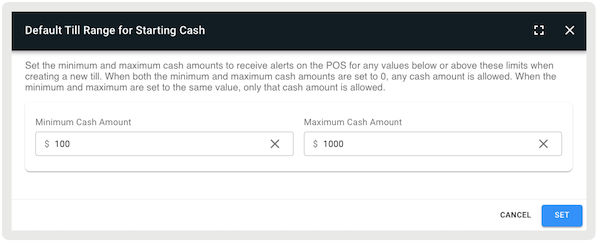
- In CMS, go to .
- Under "", select the pencil icon to edit this setting.
- Set the minimum and maximum amounts. This is an optional setting. If no amounts are set, the app won't check against the entered starting cash amount.
- Set and save your changes.
Learn more: Managing Tills in Point of Sale
Omni
Customize Credit Refund Policies
What it does: Configure refund processors according to the order type (in-store, online, mixed cart, or web order), and the order controller for credit card orders.
How to configure:
- In CMS, go to .
- Under "", edit a policy for the order type. In-store, Endless Aisle, and Mixed Cart
orders are placed in-store. Endless aisle orders are online orders placed in-store. Web Order
refers to ecommerce orders placed outside Salesforce.
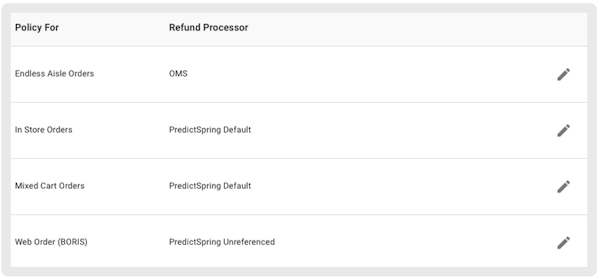
- On the next screen, select a processor under Refund Processor. For more information on
available processor types, refer to Refund System Options.
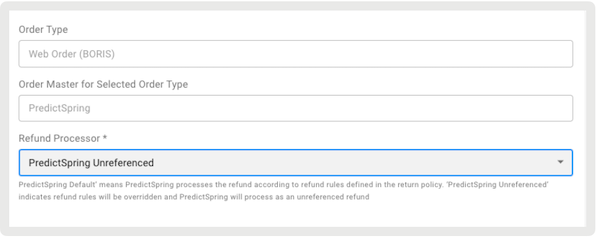
- Save your changes.
Learn more: Configure Point of Sale Refund Processing Policies for Credit Cards
Serialized Products at Checkout
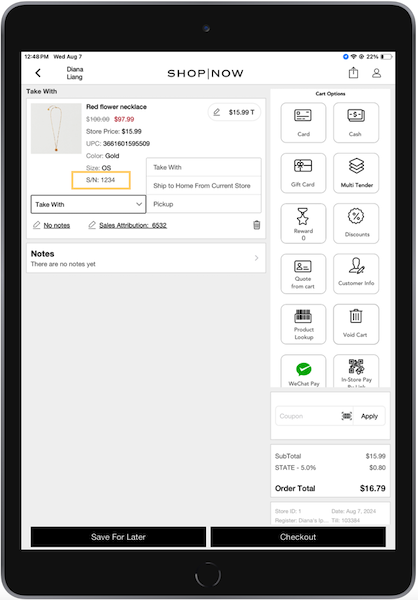
What it does: Support serialized products for all in-store fulfillment types. If a serialized product is added to the cart, users are prompted to enter or scan its serial number.
How to configure:
- Configure Product Feed - Serialized products are configured through the Product Feed
- In the Product Feed, for each serialized product, create a dedicated boolean column indicating whether serialization is required. Products marked require a serial number for in-store checkout. You can label this column as needed, as is later be mapped to the field on the Product Field Mappings. A Sample Feed is provided for reference.
- Upload the feed manually or schedule it.
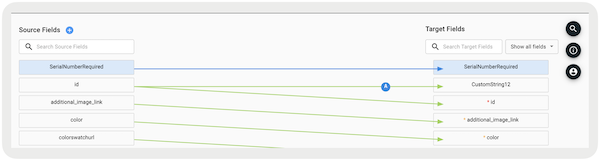
- Configure Product Field Mappings—Validate serialized products on the POS app by configuring Field Mappings
- After successfully uploading the feed, configure Field Mappings in the CMS by going to.
- Locate the serialized column under and map it to "" under .
- Save your changes.
Learn more: Omnichannel: Serialized Products
SPI
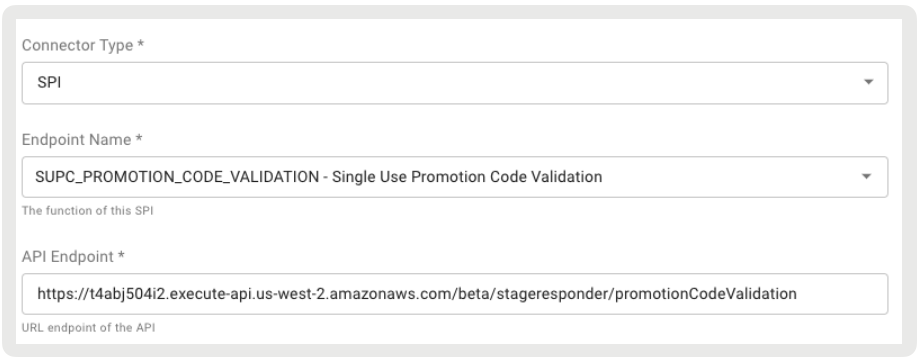
Validate Single-Use Promotion Codes (SUPCs) Promotions via SPI
What it does: New SPI validates SUPCs outside the Point of Sale Promotion Engine. Codes are first checked in the Salesforce system, then in the merchant's external system if not found.
How to configure:
- In CMS, go to .
- Select in the upper right.
- Under , select "".
- Under , select "."
- Under , provide the external endpoint for validating SUPCs.
- Under I, select "."
- Under , provide headers to be passed.
- Configure the rest of the fields as needed.
- Save your changes.
Shipping Method by Delivery Group SPI
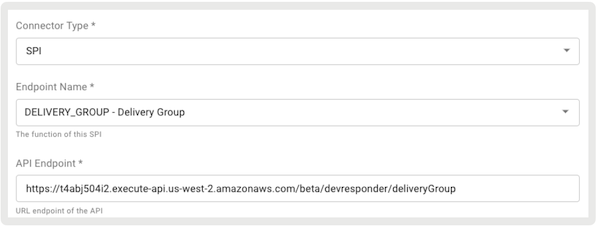
What it does: Assign a single shipping method to all items in a delivery group
How to configure:
- In CMS, go to .
- Select in the upper right.
- Under , select "".
- Under , select "."
- Under , provide the external endpoint to get delivery groups.
- Under , select "."
- Under JSON Headers, provide headers to be passed.
- Configure the rest of the fields as needed.
- Save your changes.
SPI Validation for Employee Discounts Enhancement
What it does: Employee Discount Validation SPI now includes support for promotionID.
How to configure:
- In CMS, go to .
- Select in the upper right.
- Under , select "".
- Under , select ""
- Under , provide the external endpoint to get delivery groups.
- Under , select "."
- Under JSON Headers, enter "
{"contentType": "application/json"}". - Save your changes.
Learn more: Configure Employee Discounts in Point of Sale
Analytics/Reporting
Quotes Report
What it does: New report allows store teams to track quotes that have been created and converted for a given period. Store managers can use this report for a snapshot of store-level performance, or to view and compare creation and conversion metrics across their associates.
Learn more: Access Quotes Report in Point of Sale
Monitoring and Alerting
Email Alerts for Order Export Failures
Point of Sale's Monitoring Policy alerts merchants about important events and problems related to feed uploads, failed orders, and more. By setting up a monitoring policy, users can specify email addresses to receive alerts for subscription or application-based events.
Learn more: Policy Management & User Subscription Setting
Other Feature Enhancements
| Title | Description | Help Center Link |
|---|---|---|
| Adyen PBL updates for EU regulation changes | New mandatory fields required by the EU in the Pay by Link authentication request. | Adyen 2024 Pay by Link (PBL) Updates in Point of Sale for EU Merchants |
| Vertex Tax Integration | Point of Sale is now integrated with Vertex for Taxes | Integrate Vertex |
| Support refund tender status as REFUND_APPROVED in refund/failed API call | If there's a refund due to a failed API call, we pass that order as REFUND_APPROVED to prevent duplicate refunds from happening | View Failed Orders Report |
| Scanning & Parsing Barcodes on POS App | This feature allows the use of scanned barcodes (including QR codes if supported by the scanner) to input customer search data (for example customer ID or Loyalty ID) using the iPad camera or an external scanner. | Set Up Scanning and Parsing Barcodes on POS App |