Create an app that customers use to scan a product’s bar code to get the current price. Change the layouts, visibility settings, and other important settings.
Creating a Dedicated App Configuration
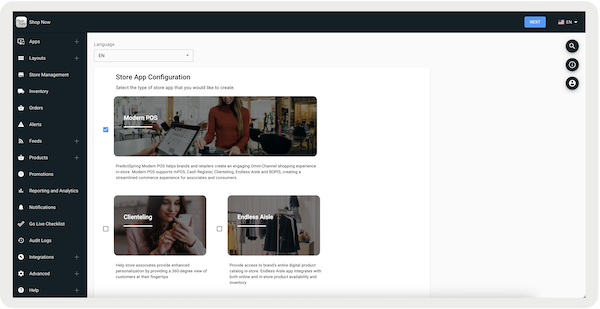
- In CMS, go to .
- Create an app configuration by selecting the symbol.
- Select and configure the necessary fields for the app configuration. For detailed instructions, refer to Creating an App Config.
-
Select .
Creating Role and Approval Policies
Create a dedicated role and assign approval policies.
- To create a dedicated role, in CMS, go to .
- Select in the top right corner and configure the necessary fields. For detailed instructions, refer to CMS Store Associate Custom Roles.
- To assign approval policies, in CMS, go to .
- Select in the top right corner and configure the necessary fields. For detailed instructions, refer to CMS Store Associate Approval Policies.
Creating Dedicated Login and Device Settings
Establish a dedicated login for associates.
- In CMS, go to .
- Select in the top right corner and configure the necessary fields. For detailed instructions, refer to Store Associates.
Customizing Layouts
Customize the appearance of the app configuration by configuring layouts.
- In CMS, go to .
- Select .
- Select a template and edit it to match your requirements.
Disabling Clienteling Search & Store Locator Picker
Prevent customer access to Personally Identifiable Information (PII) and store locator picker.
- In CMS, go to .
- Edit the customer-facing app config.
- Go to .
- Turn off .
- Go to .
- Turn off .
- Save your changes.
Disabling Location Picker
- In CMS, go to .
- Edit the customer-facing app config.
- Go to .
- Turn off .
- Save your changes.
Configuring Timeouts
Set timeouts on both the device and app configuration to make sure that customers remain logged in during their sessions.
Store Settings
With the Store Settings, the timeout is applied globally to all the registers.
- In CMS, go to .
- Under , enter the timeout in seconds.
- Save your changes.
App Config
With the App Config, the timeout is applied to a specific app configuration and overrides the Store Settings.
- In CMS, go to .
- Edit the app configuration you want to configure the timeout.
- Go to .
- Under , turn on this flag.
- Under , enter the timeout in seconds. The minimum is 120 seconds.
- Save your changes.
Store Associate Session
You can configure the amount of time a store associate can be logged into the app before being automatically logged out. If this isn't configured, the timeout defaults to eight hours.
- In CMS, go to .
- Under , enter the timeout in seconds.
- Save your changes.