
Use Point of Sale (POS) App to localize the content of the paper receipt based on the user’s choice in the order confirmation screen.
Prerequisites
- Modern POS App Build: 6.3.1 and later
- Platform Support: iPad, iPhone
- Offline Support: yes
Paper Receipt Configuration In Mobile Configuration Settings
- Go to .
- Select the languages to be supported in the field.
- Set the desired default language in field.
- Go to the section and find a tab for all the supported languages.
- Set the localized text for all the text fields in this section for each tab and click .
Configuration Receipt Language Option in Order Confirmation Layouts
- Complete the previously-mentioned mobile configuration setting for the receipt language support
-
Select the cell where the language dropdown needs to be added
- Select
- Add “” in field
- Add any place-holder text if needed
- Select add options and use the key for each language
- : English, : en
- : French, : fr
- : Dutch, : nl
- : Spanish, : es
- : Polish, : pl
- : Portuguese, : pt
- : Japanese, : ja
- Save to view the dropdown list in the layout.
- Save the layout.
User Documentation
Users can see the preconfigured language in the order confirmation screen and select the language to print the receipt.
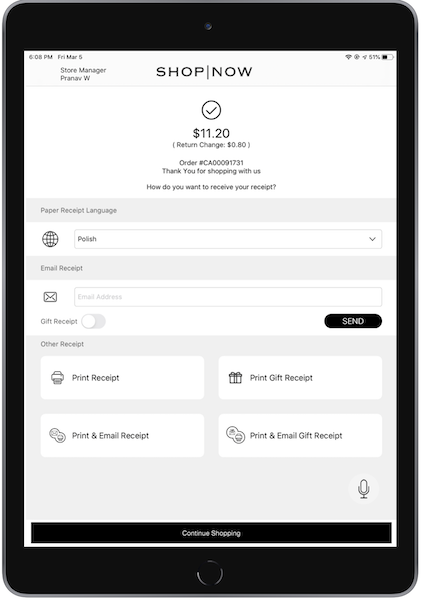
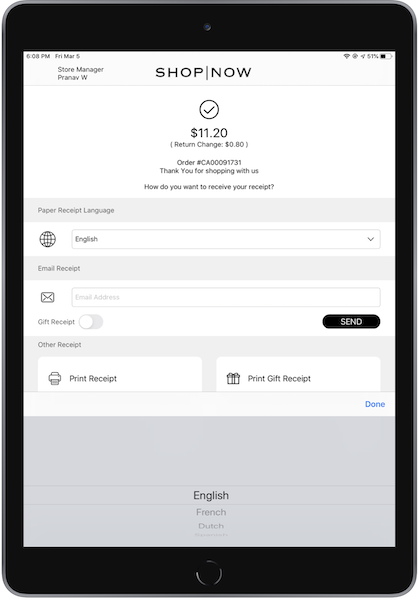
Limitations
Users can see the preconfigured language in the order confirmation screen and select the language to print the receipt.
- The terminal translates the EMV lines in Elavon and receipt lines for Adyen only based on the end customer’s language choice with their card issuer
- POS App supports only English, French, Dutch, Spanish, Polish, Portuguese, Japanese
- The product names, store addresses, and tax names are from the data feeds for the specific feed uploaded in CMS. These won't be localized to the selected language.
- The POS app supports printing Japanese characters on Epson printers starting with build 11.1.1.
- TM-m30II-NT or newer models will work out of the box, as they support all Unicode characters, including Japanese.
- TM-m30II or older models require additional considerations:
- The printer has to be purchased in the target region (for example, to print in Japanese, purchase a Japan-region model).
- If the printer isn't purchased in the target region, a language-specific font file has to be loaded onto the printer via a firmware update.