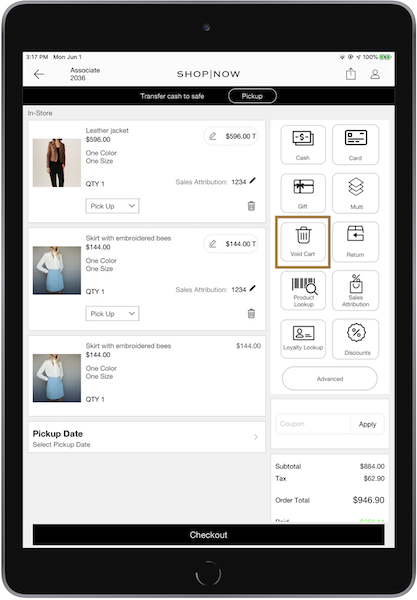
Add features that appear on the right side panel of the POS app, such as overrides, void cart, tax-exempt, and so on.
Prerequisites
- Modern POS App Build: 7.7.1 later
- Platform Support: iPad, iPhone (iPhone support from 7.14.5 or greater)
- Offline Support: 7.13.5 and later
Set Up Point of Sale CMS for Custom Cart Options
Add and configure features in Point of Sale CMS that will appear on the right side panel of the Point of Sale (POS) app.
Creating & Assigning Cart Options Layout
- In CMS, go to .
- Select .
- Configure the layout and save your changes.
- Assign the layout to an app configuration by going to .
-
Select the layout and save your changes.
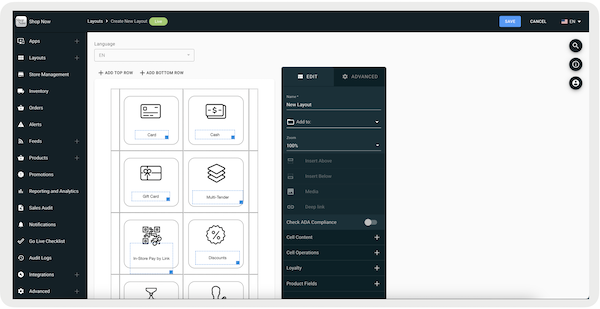
Advanced Cart Options Layout
Advanced Cart Options allows you to add more cart options on the POS app.
- In CMS, go to.
- Select .
- Configure the layout and save your changes.
- Assign the layout to an app configuration by going to .
- Select the layout and save your changes.
-
Configure the cell in the as an . .

Configure Cart Options Deep Links
The table lists the deep links available to configure on the layout.
| Deep Link | Definition |
|---|---|
| Add Product Not on File | Adds products not on file |
| Custom Order | Displays the custom order screen |
| Loyalty Lookup | Displays the Loyalty lookup screen |
| Override Tax | Displays the override tax screen |
| Product Lookup | Displays the product lookup screen |
| Sales Attribution | Displays the sales attribution screen |
| Set Cash Tender | Displays the cash tender configuration screen |
| Set Check Tender | Displays the check tender configuration screen |
| Set Credit Card Tender | Displays the credit card configuration screen |
| Set Finance Tender | Displays the finance configuration screen |
| Set Gift Card Tender | Displays the gift card configuration screen |
| Set Miscellaneous Tender | Displays the miscellaneous configuration screen |
| Set Reward Tender | Displays the reward configuration screen |
| Set Store Credit Tender | Displays the tender type to store credit |
| Set Transaction Discount | Displays the transaction discount configuration screen |
| Set WeChat Pay Tender | Displays the WeChat pay tender configuration screen |
| Start Loyalty Reward Payment | Applies to the Loyalty Reward payment |
| Start In-Store Pay By Link | Send the in-store pay-by link |
| Start Loyalty Reward Payment | Displays the interface for the Loyalty rewards screen |
| Start Multi-Tender Flow | Starts the multitender flow |
| Start Remote Pay By Link | Starts the remote pay by link |
| Start Standalone Transaction | Starts the standalone transaction |
| Tax Exempt | Displays the tax exemption screen |
| Void Cart Before Tendering | Voids cart before tendering |
| Employee Discount | Displays an interstitial that allows the user to add an employee discount |
| Create Quote From Cart | Creates quotes directly from the cart |
Configure Cart Session Timeout
If items are in the cart and the POS app isn't used, they'll be removed from the Salesforce backend and can't be used by the user. Sessions can be configured in the CMS in App Config and Store Settings.

Other Cart Options
There are additional settings available to customize the cart's behavior. Next are some examples:
| Setting | Definition |
|---|---|
| Maximum Quantity Allowed Per Product (MaxProductCount) | Setting specifies the maximum quantity allowed for each unique product in the cart. For example, if set to 5, it limits each distinct product to a maximum of 5 units in the cart. |
| Max Number of Items Allowed to Be Checked out in a Single Transaction (maxTotalQuantityAllowedInCart) | Setting determines the maximum total quantity of all products combined that can be in the cart for a single transaction. If set to 10, it limits the total number of all products in the cart to not exceed 10 units, no matter how many individual products are in the cart. |
View Custom Cart Options in Point of Sale
Access and configure customer information layouts for custom cart options in the POS app.
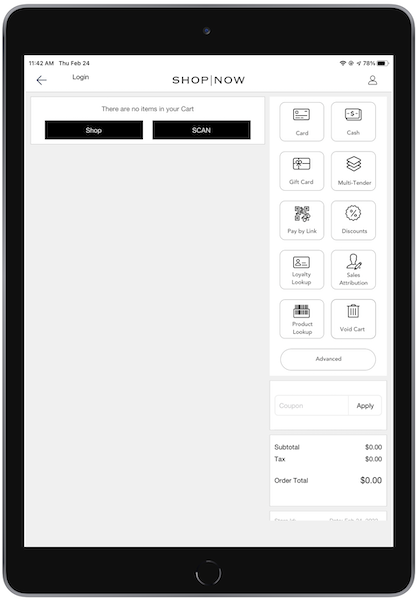
Cart Options
can be seen on the right side of the screen.
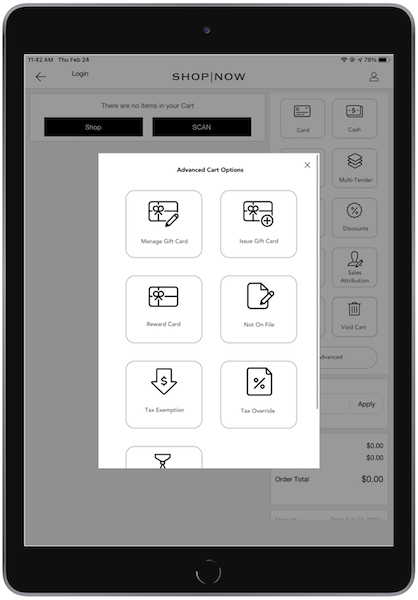
Advanced Cart Options
can be seen by tapping on the tile.
Void Cart
If the deep link is configured, store associates can cancel an order by tapping on the deep link. A Reason Code is required to complete the action.