Configure timeout sessions in the Point of Sale (POS) app to automatically log out users after a period of inactivity, enhancing security. Specify timeouts for cart items to clear abandoned carts, store associate logins to protect sensitive data, and customer profile logins to maintain privacy. Adjusting these settings helps maintain security and manage cart contents efficiently.

Regardless of the configurations, the POS app has a set timeout of eight hours from the last time it was used. After eight hours, the store associate is logged out and all cart items are removed.
Cart Session Timeout
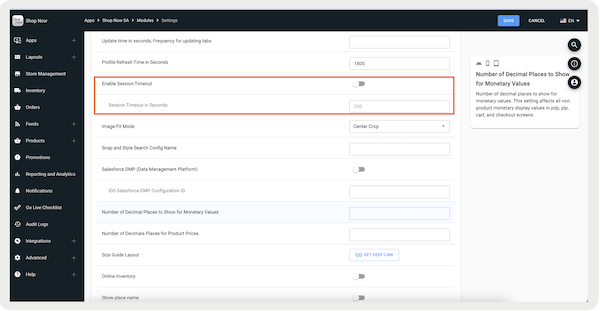
After reaching the cart session timeout, the store associate is logged out and items in the cart are removed. There are two ways to configure this feature, via Store Settings or App Config. With the Store Settings, the timeout is applied globally to all the registers. With the App Config, the timeout is applied to a specific app configuration and overrides the Store Settings. For example, the Manager’s app configuration can have a longer timeout than the Associate's app configuration.
App Config
You can configure the amount of time a store associate can be logged into the app before being automatically logged out. If this isn't configured, the timeout defaults to eight hours.

This setting doesn't show a warning to the user and automatically logs the associate out of the application.
- In CMS, go to .
- Edit the app configuration you want to configure the timeout.
- Go to .
- Turn on .
- Under , enter the timeout in seconds. The minimum is 120 seconds.
-
Save your changes.
Store Associate Session
You can configure the amount of time a store associate can be logged into the app before being automatically logged out. If this isn't configured, the timeout defaults to eight hours.
This setting doesn't show a warning to the user and automatically logs the associate out of the application.
- In CMS, go to .
- Under , enter the timeout in seconds.
- Save your changes.
Customer Profile Login Session
You can also configure the amount of time a customer profile can be logged. This only logs out the customer as the store associate remains logged in and items remain in the cart.
- In CMS, go to .
- Expand .
- Under , enter the timeout in minutes.
- Save your changes.
iPad
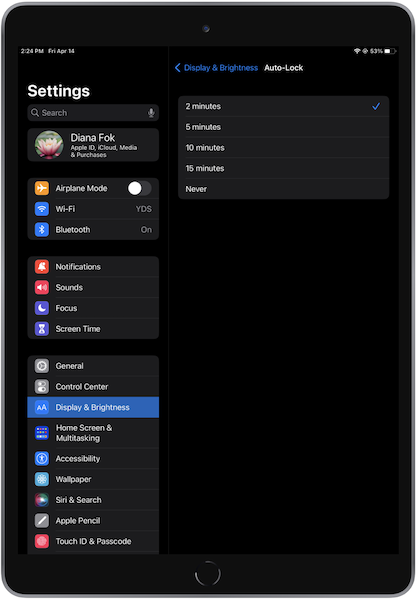
You can also configure the amount of time that elapses before the iPad turns off the display and you can swipe the screen to resume. This only affects the device's lockout. This won't log out the store associate, customer profile, or remove cart items if the native device timeout settings are set less than the cart session and the customer profile session.
- On the iPad, go to .
- Tap .
-
Select the timeout.