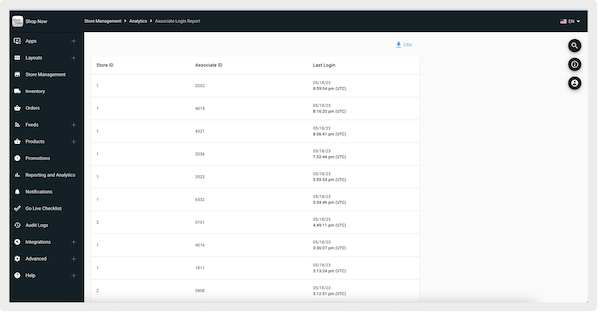
View a store associate's ID, full name, and last login date and time. Use the report in both Point of Sale CMS and the Point of Sale (POS) app to monitor associate activity. Customize the report by date to view specific timeframes.
Prerequisites
- Modern POS App Build: 9.0.1 and later
- Platform Support: iPhone & iPad
- Offline Support: no
View and Generate Reports in Point of Sale CMS
- Go to .
-
(Optional) Select to download a CSV-formatted file of the results.
Configure A POS App Deep Link
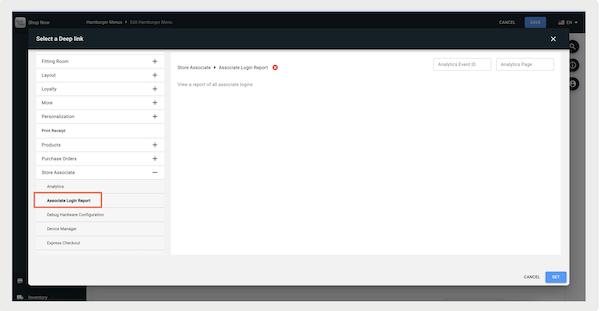
To view the report on the POS app, configure a deep link. The deep link can be configured in a Hamburger Menu or a layout, but not as a Tab.
- Go to .
- Edit an existing menu or create one.
- Using the deep link picker, go to .
-
Set and save the changes.
Access Associate Login Reports in the POS App
View and customize the Associate Login Report in the Point of Sale (POS) app.
After you've set the deep link with the steps in POS App Deep Link, close and relaunch the app. Tap the deep link and this screen appears.
The report includes this information:
- Store associate's ID and their full name
- Store associate's last login date and time (in UTC)
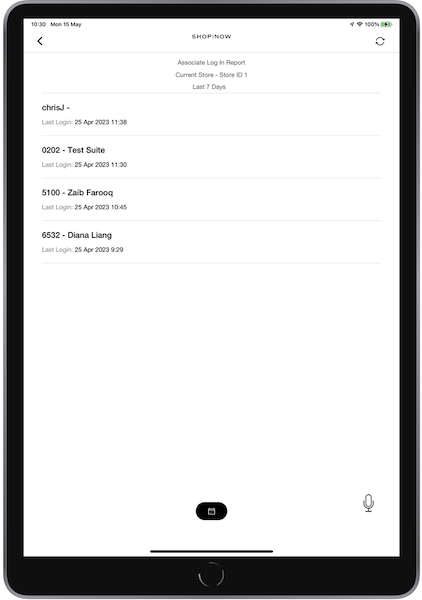
The report can be reloaded, on-demand, by selecting on the refresh icon at the top right. This launches a fresh new query, using the currently selected date for the data filtering.
Customizing Report by Date
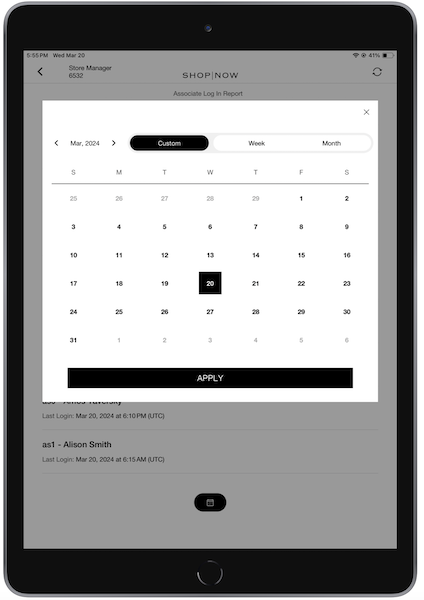
The report allows date range filtering through the calendar icon at the bottom, with the default view initially set to cover the last seven days. For app builds 9.9.1 and earlier, the report can be filtered by the current day, last three days, last seven days, and last 30 days.
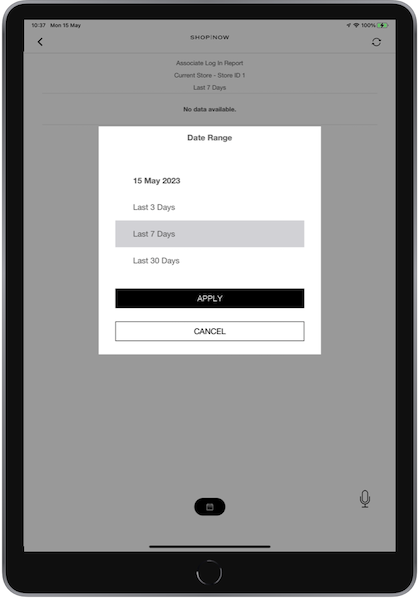
For builds 9.9.1 and later, users can customize the filter by day, week, month, year, or a specific range.There's a maximum limit of 31 days for a specific range.