To show status indicators for pickup orders in the Salesforce POS, set the threshold in CMS.
- In CMS, go to Store Management | Store Settings | Store Fulfillment.
- Enter a percentage in the Pickup SLA Threshold field. For example, if the pickup deadline is 24 hours and the threshold is 80, the order has an orange indicator after 19 hours and 12 minutes.
- Save your changes.
- To apply the changes in the POS app, close out the app and log back in.
-
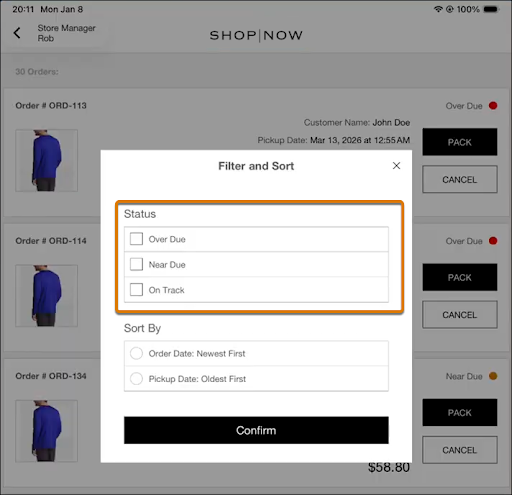
On the Pickup Order List page, review the status indicator for each order or filter orders by status.
Status Description On Track Order is still within the pickup deadline and shows a green indicator.
Near Due Order is getting close to the pickup deadline and shows an orange indicator.
Overdue Order has passed the pickup deadline and shows a red indicator.