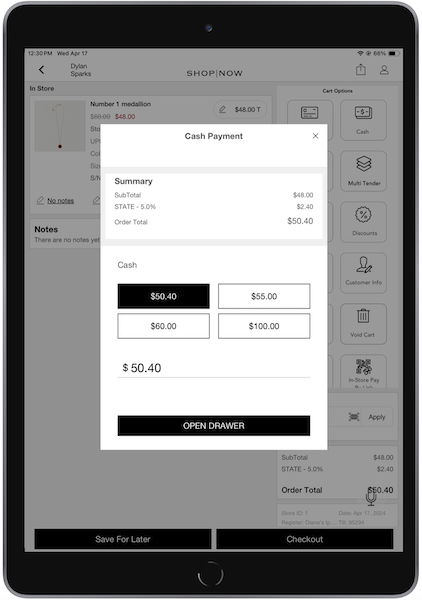
Check cash amounts in register tills for changes within a day and do audits, avoiding the need for end-of-day till reconciliation.
Prerequisites:
-
Modern POS App Build: 9.10.1 or greater
-
Platform Support: iPad, iPhone
-
Offline Support: Yes, however, audits performed offline are reported to the Electronic Journal after being back online.
Point of Sale supports loss prevention by tracking canceled cash transactions. It records if a cash drawer is opened during a sale that is later voided and the cart emptied. Additionally, we also facilitate cash auditing of tills, as part of till management. By setting up a deep link and a manager's approval policy, users can start cash audits at any time during the day.
To use the cash auditing feature, configure an approval policy, reason codes, and deep links. Note that for managing canceled transactions, no additional configurations are required beyond verifying support for cash tenders. For more information, refer to this article.
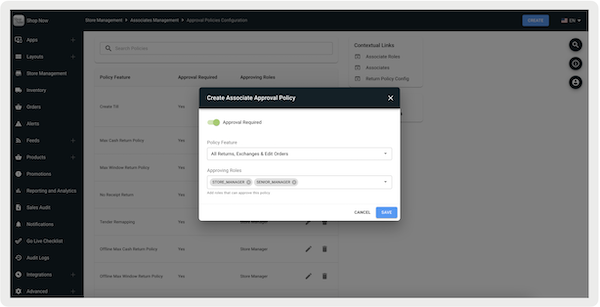
Set Up Mnager Approval Policy
Set up cash auditing to require manager approval.
- In CMS, go to .
- Select .
- Turn on .
- Under , select "".
-
Under , select roles that can approve the policy.
Configure Reason Codes
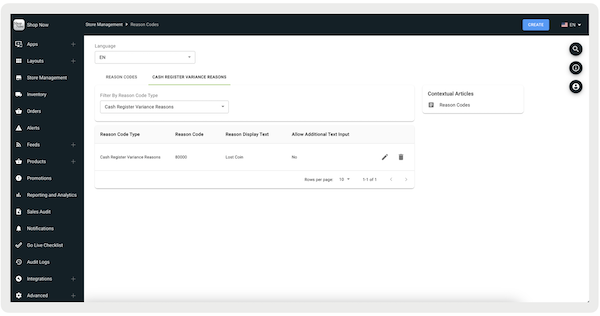
Configure reason codes if there's a cash variance.
- Go to.
- Select .
-
Create reason codes by referring to this article.
Configure Deep Link
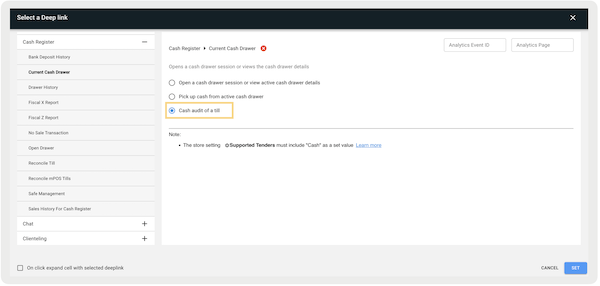
Configure reason codes to initiate cash auditing.
- Edit a layout or a hamburger menu.
- Access the deep link picker.
- Go to .
-
Save your changes.
Audit a Cash Till in the POS App
Manage till audits and view transaction variances in the Point of Sale (POS) app.
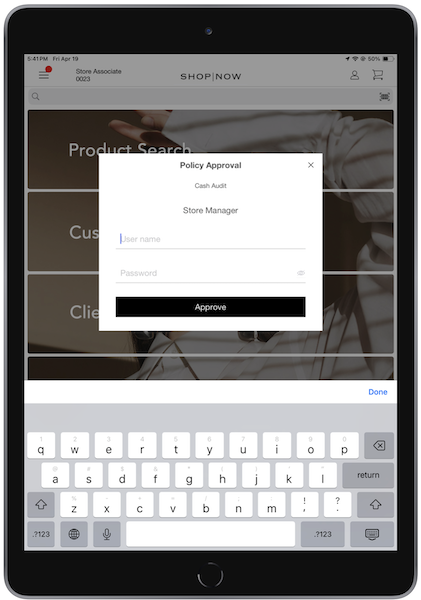
On the POS app, select the . If a manager approval policy is in place, the app requires the entry of manager credentials to begin the audit. If a manager is logged in, this prompt won't appear. Any active cart shall be completed or voided before proceeding with the audit.
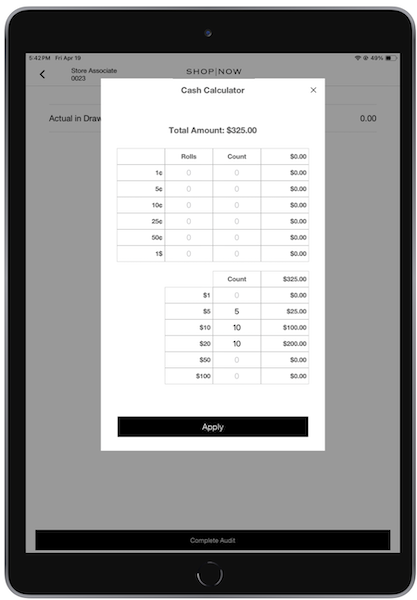
The user is prompted to open the till to count the cash. After counting, enter the total in the field. Optionally, use the calculator icon to input amounts as rolls or counts of change and bills, which automatically calculates the total. After the count is complete, tap .
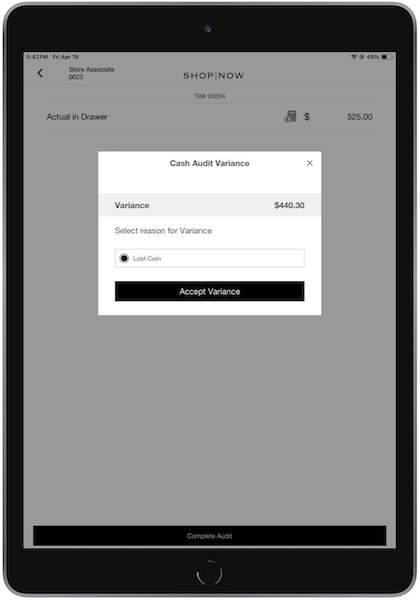
If the counted amount differs from the expected till total, a window appears showing the variance amount and prompting the user to select a reason code for the discrepancy. Tap to proceed.
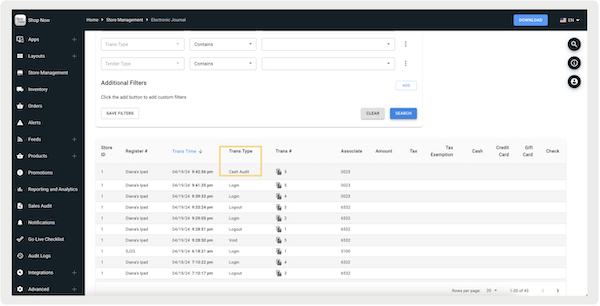
Cash audits are documented in the Electronic Journal and listed under the Transaction Type "Cash Audit". Any variances are also recorded, including the amount, reason codes, and the till ID.
Canceled Cash Transactions
On the POS app, if checking out a customer and a cash transaction is canceled, it'll be recorded in the Electronic Journal as "Cash Transaction Cancelled." The record includes details such as the store ID, register ID, date and time, transaction number, and the associate handling the transaction. Additionally, the cash amount specified is listed under the and columns.