
The POS app lets store associates and managers create a collection of products. You can share collections directly with customers or curate it for browsing purposes. The collection feature is configured using a deep link, and then implemented in a layout or from a hamburger menu. To access a collection, tap on the deep link you created in the POS app.
- Create a layout or hamburger menu, or use a pre-existing one.
- Add the deep link by going to .
- Set and save your changes.
Create a Collection
The store associate can create and delete collections, add and delete products, and share the collections.
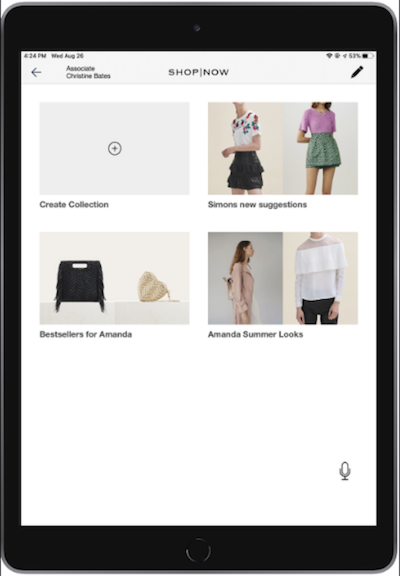
- Click the + sign in the Create Collection card.
- Enter the name.
- Click OK.
Delete a Collection
- Tap the pencil icon on the top-right of the navigation bar.
- Tap on the red - icon to make the deletion.
- Tap the check icon to exit the deletion mode.
Add Products to a Collection
- Select a collection.
- Tap the + icon on the top-right of the navigation bar.
- Use the product search to locate products and tap on the Product Image to make selections.
- Tap the check icon on the top-right of the navigation bar to save and add the products.
