View key sales transaction data such as order date, store ID, gross sales, and external order references in Point of Sale CMS. Monitor and analyze your sales operations.
Point of Sale's Successful Orders Report shows all orders that have been processed. It gives you useful information about different parts of the sales transactions. The report uses a table to show important information about each order. This lets users watch and analyze how their sales operations are doing.
To see a report of successful orders:
- In CMS, go to .
- Configure the search filter and select .
- (Optional) To download the report, select in the upper right-hand of the screen.
While processed orders can show up instantly in the Electronic Journal report, they can be delayed in the Successful Order report. Allow up to one day before checking the latter.
You can also filter through the search with order ID(s), order source, order type, and date range. Doing so will help you extract important information from relevant orders. For the use cases of order source, order type, and general information on how to read the report, refer to the table next:
| Field Name | Description |
|---|---|
| Order Date | Date of the order |
| Store ID | ID of the store |
| Associate ID | ID of the associate who completed the order |
| Order # |
ID of the order Note: Return or exchange transactions will have different order IDs than the original sale transaction. |
| Gross Sales | Gross sales of the order |
| External Order |
Select View References to show all external/NetSuite artifacts that are created for this order. This CTA is only available if the order is posted to NetSuite and an External Order ID is available. If an External Order ID isn't available, a Repost CTA will be displayed instead. If clicked, it triggers the webhook, which in turn posts the order to NetSuite. When triggered, External/NetSuite artifact references will be shown in the successful order report that the report is rerun. |
| External Logs | Select View External Logs to see more information including correlation ID, log entry type, and so on |
| Details | Select View to see more information including order status, items purchased, and so on |
| Transaction Log | For each order, you can download it as a JSON or XML file. You can also repost XML to an FTP server using the CTA. |
| Order Source |
In-Store: Orders that are placed via the POS app in the store. This can be Cash-and-carry, Online, or Mixed Cart. Web: The orders that are placed through the website and then imported to the Point of Sale system. This also includes all Omni orders as well as legacy POS orders that are imported into Point of Sale, that is, BOPIS, BORIS, and so on |
| Order Type |
Store Pickup—The order was bought online and picked up in the store. Store Fulfillment—The order was bought online and fulfilled in the store. |
| File Exported On |
Date and time that the order was successfully exported to an FTP via a scheduled job. If querying by this field:
|
| API Exported On |
Date and time that the order successfully attempts or posts via a connector. If querying by this field:
|

For a comprehensive list of updated sales terminology and definitions, refer to Sales Reporting Glossary of Terms and Definitions
Successful Orders Known Issues and Restrictions
Understand what problems can occur when working with orders in Point of Sale.
TLog Displays Incorrect Tender Information in Successful Orders
In cases of No Receipt exchanges, a proxy order (fake order) is created with a
fake tender, and then the proxy order is exchanged. Hence, the fake tender is carried forward to
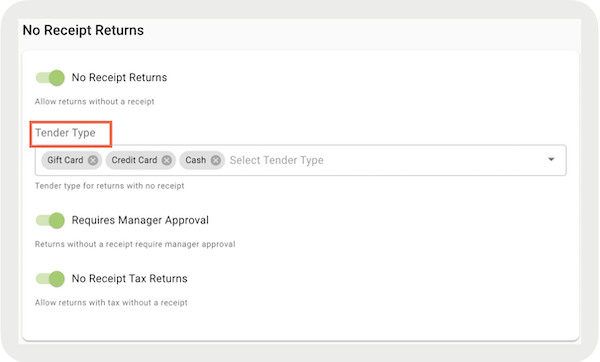
an exchanged order. Depending on the order of Tender Types in your CMS’s Return Policy
Configuration, the first tender under the No Receipt Return configuration is used as a fake
tender during an exchange. In the example next, the Gift Card is first in the order; hence, you
will see the fake Gift Card being shown in the exchange.