Track and document sales transactions in Point of Sale CMS. Include details such as the date, customer information, item description, quantity sold, and the corresponding financial amounts.
Merchants who use the Electronic Journal (EJ) to check their accounts can now save and share search queries in the report. This makes it easier to get to the report.
Saving and Sharing Reports
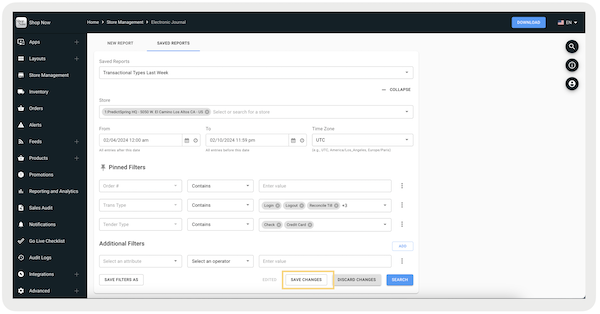
- Go to Store Management > Electronic Journal.
- Configure the search filter. For more information please read Viewing & Generating EJ Reports.
-
Select . A window appears where you can give the report a name and specify the time
period before saving. To use the time period already in the filters, select .
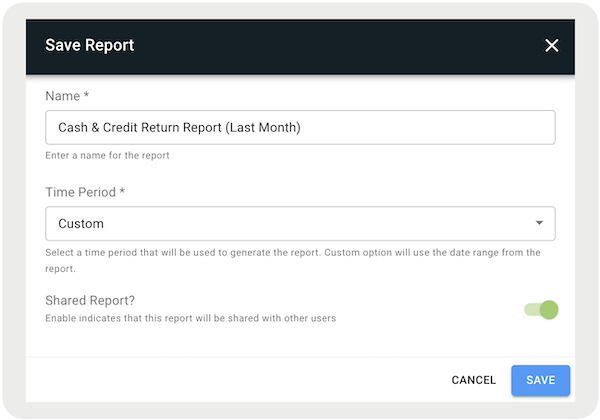
Saved reports can be shared with your organization by turning on the switch. This will allow other users in your organization to access the report. When the switch is off, it’s only accessible to you.
Viewing and Editing Saved Reports
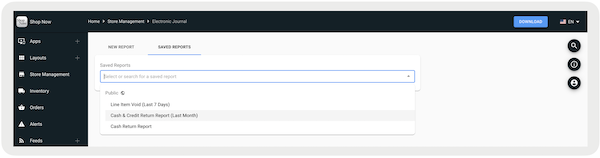
Saved reports can be viewed by switching to the tab. They can also be changed at any time by the report creator. If it’s a shared report, the changes reflect for all other users in your organization.
-
Select a report in the tab.
-
Add, remove, or edit the filters to update your saved report. After finishing, either
click to save this as a new report, or select to overwrite the existing report.