Generate order reports and analyze sales data by time. Generate reports such as store, store associates, and products sold to gain insights into your business performance.
These reports are available:
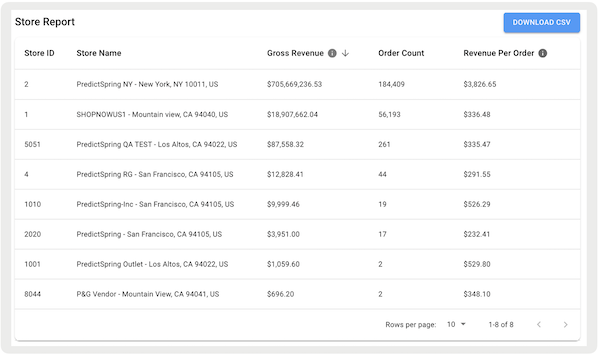
- : This will generate a report that includes the store ID, name, Gross Sales, order count, and AOV.
- : This will generate a report that includes the associate ID, store name, associate ID, Gross Sales, and order count.
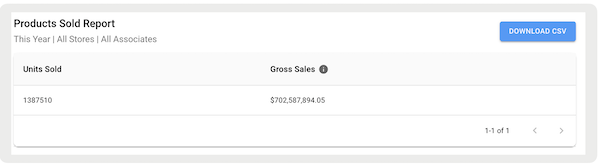
- : This will generate a report that includes the product ID, product name, and units sold.
- : This will generate a report that includes five stores with the highest Gross Sales.
- : This will generate a report that includes the five stores with the lowest gross sales.
- : This will generate a report that includes five associates with the highest Gross Sales.
- : This will generate a report that includes five associates with the lowest Gross Sales.
Using the Report Builder
- Go to .
- Select a from the dropdown.
- Specify a time period and time zone.
- (Optional) You can further filter the report by a specific store or location by checking or .
-
Select .
For a comprehensive list of updated sales terminology and definitions, refer to this glossary.
Products Sold
Point of Sale added a new filter to the Products Sold report that enhances search result granularity. This type of report can, for example, generate a view of all cash tips received in a specific period. For other use cases of this report, see this article.
To generate a report of cash tips:
- Go to .
- Under select
- Specify a time period and time zone.
- Check and select a store.
- Check and under where the attribute is, select .
- Under , select .
- Under , select .
-
Select .