
The Point of Sale Product Display Page (PDP) mappings allow retailers to customize product display pages for specific contexts, such as off-brands, enhancing user experience by showing relevant layouts. Retailers can tailor the PDP to meet their specific needs, improving engagement and conversion rates.
The merchant must be using PDP V2 to use PDP Mapping.
Enable PDP Mappings
- In CMS, go to Apps > All.
- Edit your selected app config.
- Under the UI tab, go to Go to UI > PDP Layouts.
- Click the pencil icon to the right of PDP Mappings.
- Click Add Mapping and configure the fields.
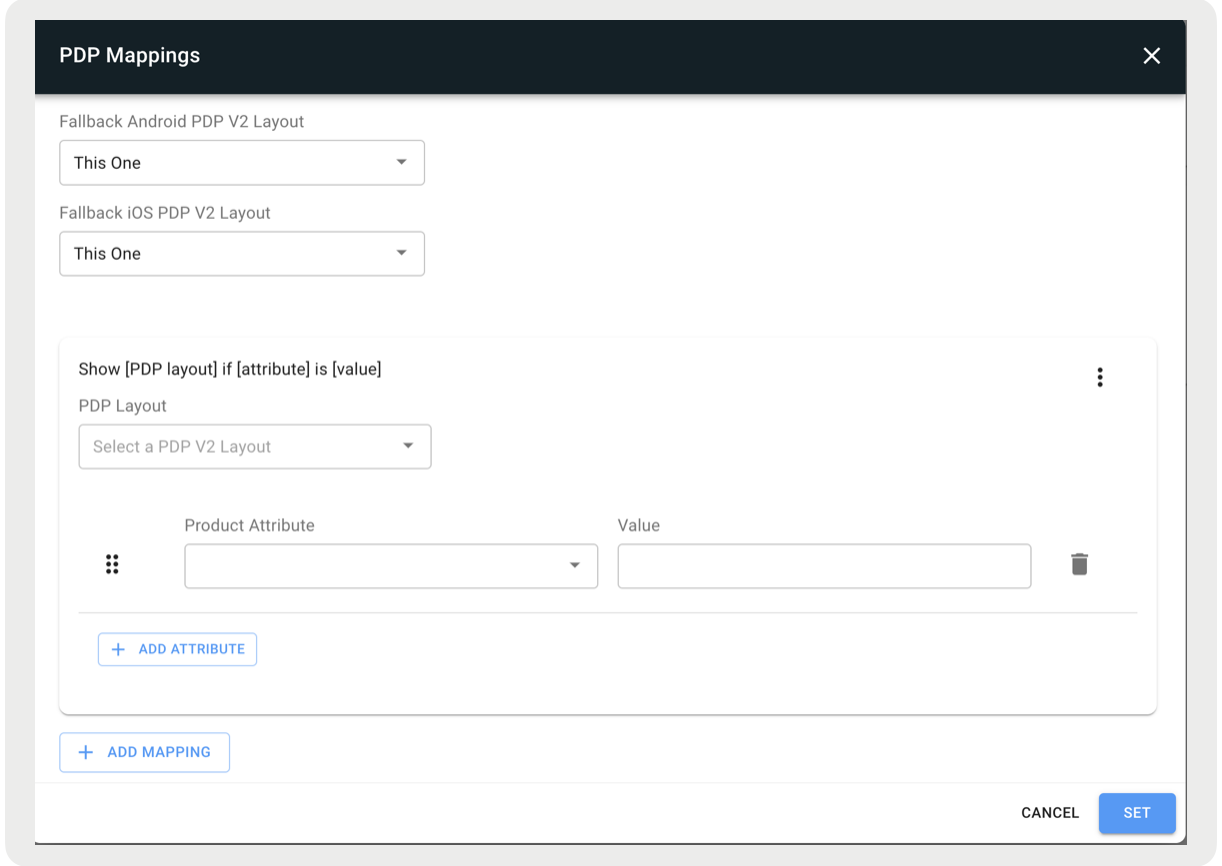
- Set and save your changes.
If the new PDP mappings setting is present then the app will conditionally render one of several possible PDPs based on the conditions defined in the setting. However, if no conditions are met then the default (fallback) PDP will be rendered.

Known Issues & Restrictions
PDP mappings can only be configured to String properties. Boolean, Int, Double, and all other data types are not supported. If you still wish to configure, for example, a Boolean property, add an extra column in your product feed file with the Boolean represented as a String (for example, isOnSale). Map that column to customString, and then you can add PDP mapping for the customString value.