Point of Sale quizzes consist of layouts, questions, and customer attributes. Understanding these components helps you to effectively create quizzes. Knowing these components also enables you to avoid errors while editing quizzes. Leverage this knowledge to build effective quizzes in Point of Sale.
Quiz Layouts
Quiz layouts are configured out of the box when you complete the quiz create workflow. However, if you start to tinker with these layouts it is important to understand the elements that make up these layouts and the relationships between the different elements.
To access quiz layouts:
- In CMS, go to Layouts > Personalization > Quiz Layouts.
- Click EDIT on a layout.
Multiple-Choice Questions
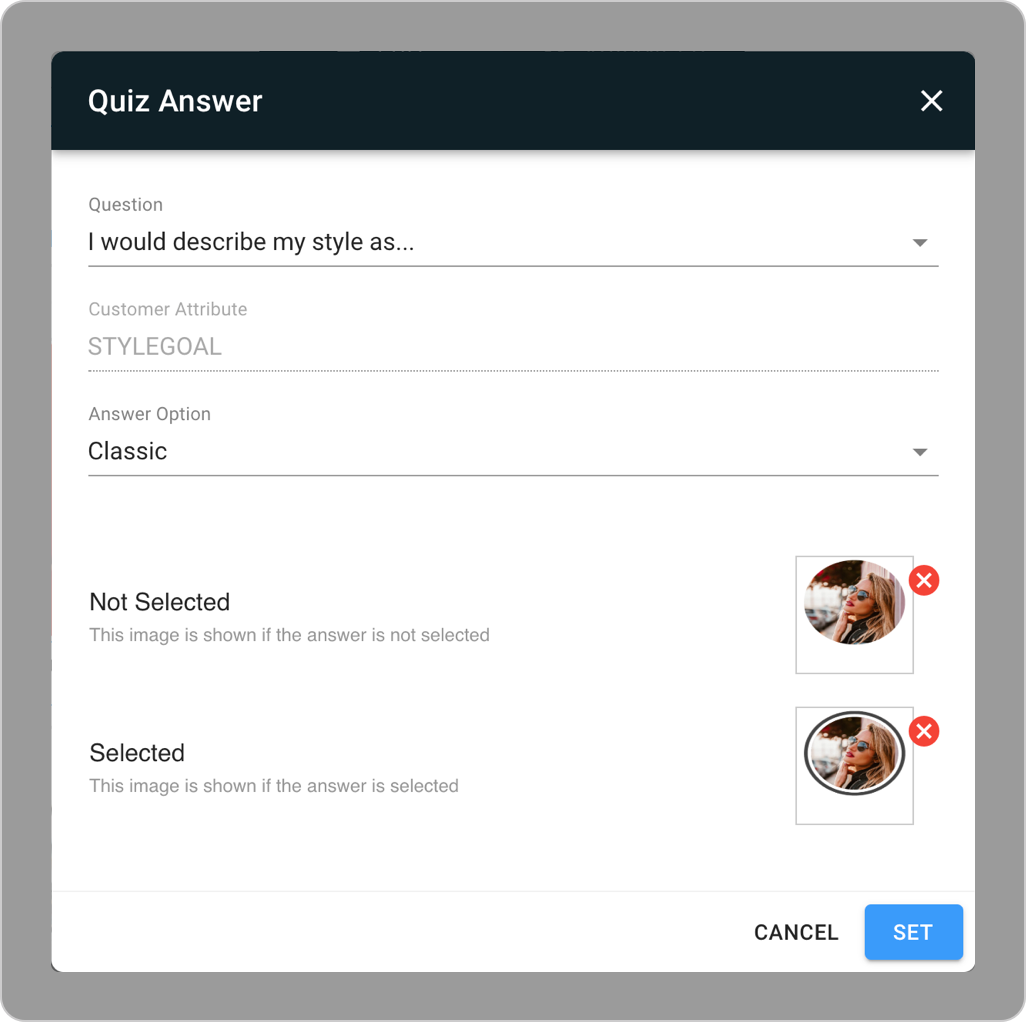
Multiple-choice questions display rows of possible answers with two answers per row (this was achieved with a vertical split). Each answer is configured as a "Quiz Answer" cell which can be edited by double-clicking on it.

Text Answers
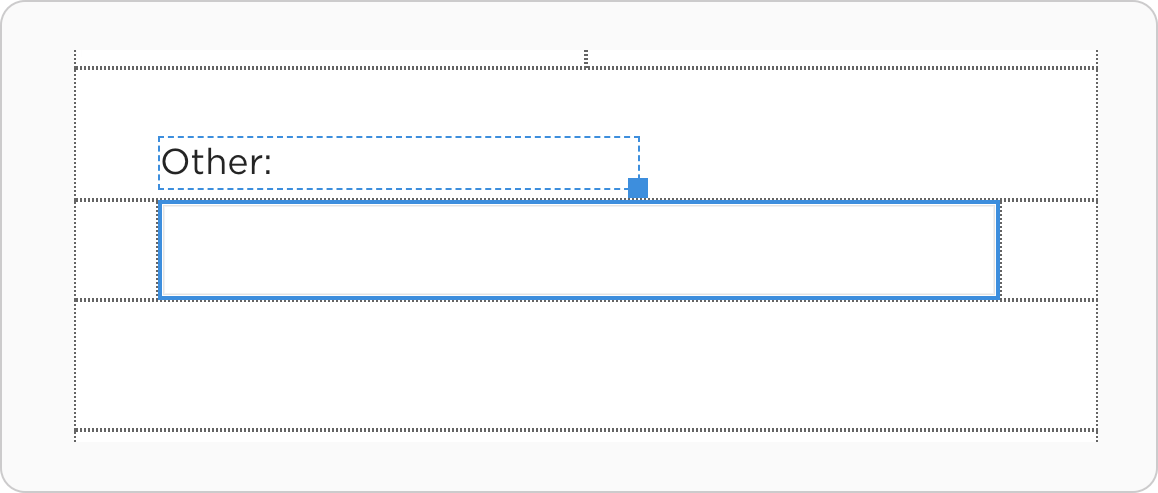
A quiz answer can be a free-form text input for (1) short answer questions and for (2) multiple-choice questions that have the "Other" option enabled. These types of questions are configured as a Form Element. To edit a text field or inspect its properties, double-click on it.
Next Button
In a multi-page quiz workflow, all but the last layout will contain a NEXT button that takes the user to the subsequent page. The next button is configured as a Form Element. You can edit the button or inspect its properties by double-clicking on it.
Save Button
On the last page, a SAVE button submits the answers and specifies where the user should be taken. If you include an "Answer Summary" layout then the user will be taken to this Layout. Otherwise, the user is taken to the home page by default. To edit this button or to inspect its properties double-click on it.
Answer Summary Layout
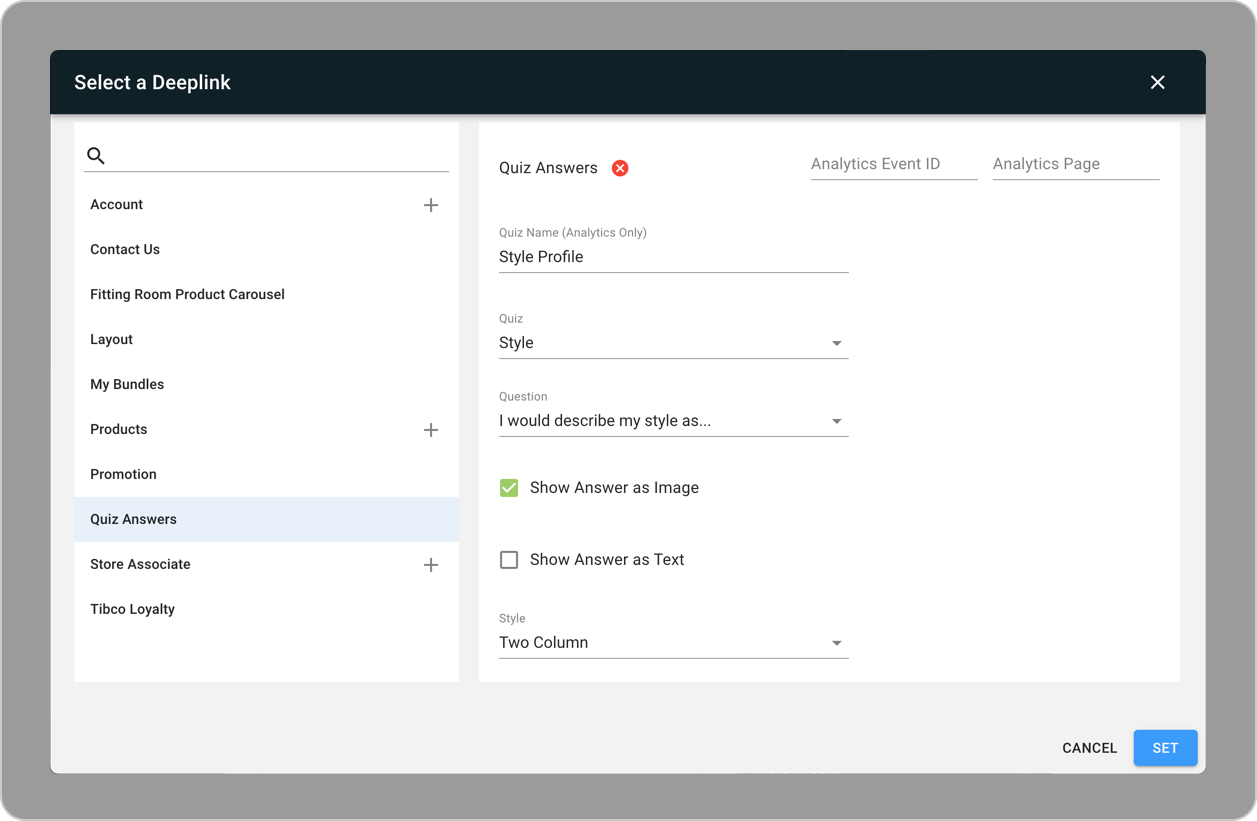
The "Answer Summary" layout can be optionally generated when creating a Quiz. It displays the user’s answers to each question. Additionally, if you include "Edit Answer" layouts then each question will also include a deep link to a layout where the user can edit each individual question. Below is an example of an "Answer Summary" layout that includes "Edit Answer" layouts.
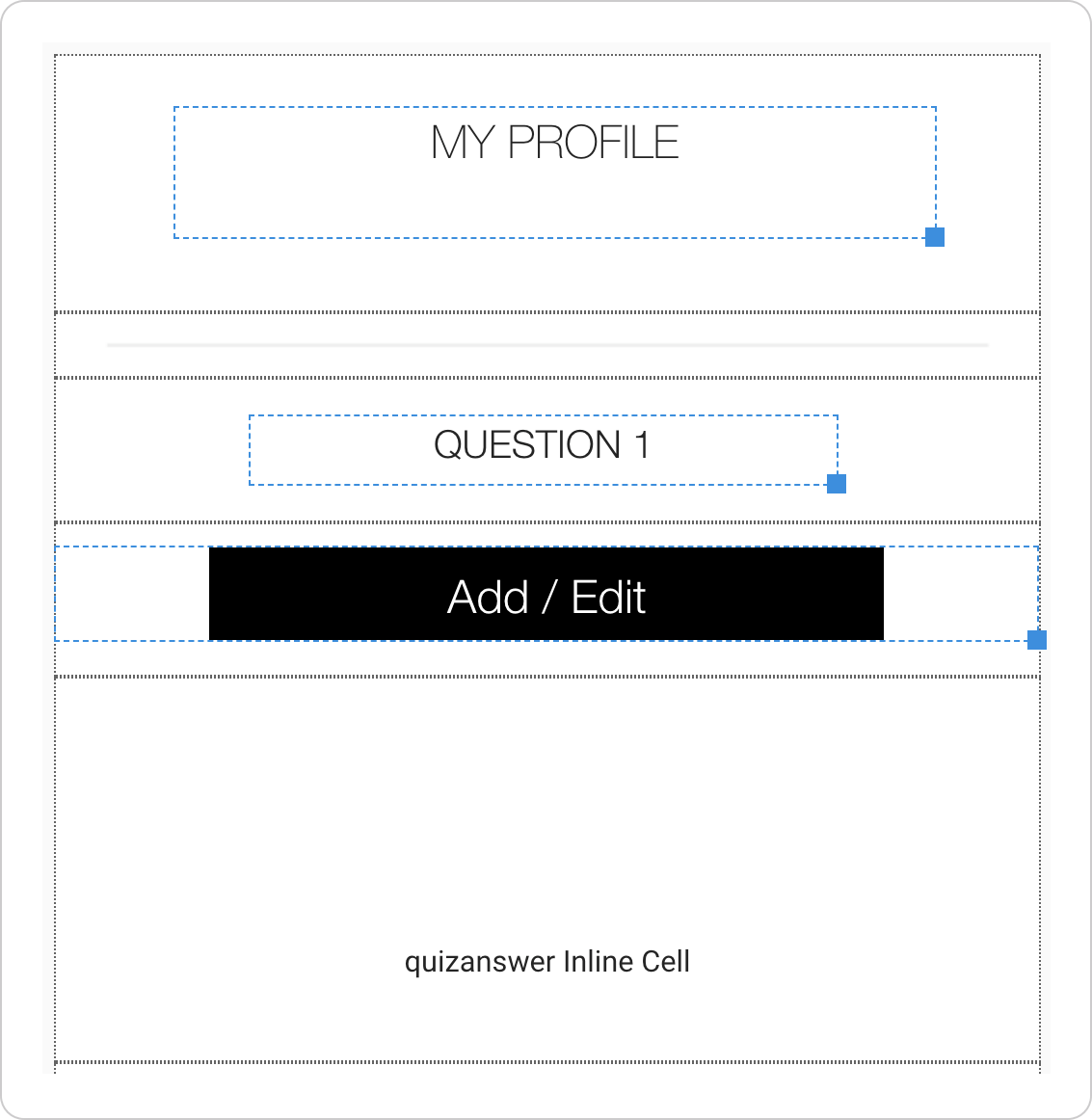
On this layout, the inline quiz deep links are used to show answers after the user has taken the quiz. You can edit the inline deep link or inspect its properties by double-clicking on it.
Customer Attributes & Quiz Questions
When a quiz is created, the customer attributes and quiz questions are created behind the scenes.
-
To view or edit customer attributes:
- Go to .
- (To Add) Click on the blue + sign in the top right corner.
- (To Delete) Click on the red trash icon to the left of the attribute.
-
To view, add, or edit quiz questions:
- Go to .
- (To Add) Click on the + icon.
- (To Edit) Click on the kebab menu (three vertical dots) in the top right corner of the question.

Quiz Exit Layout
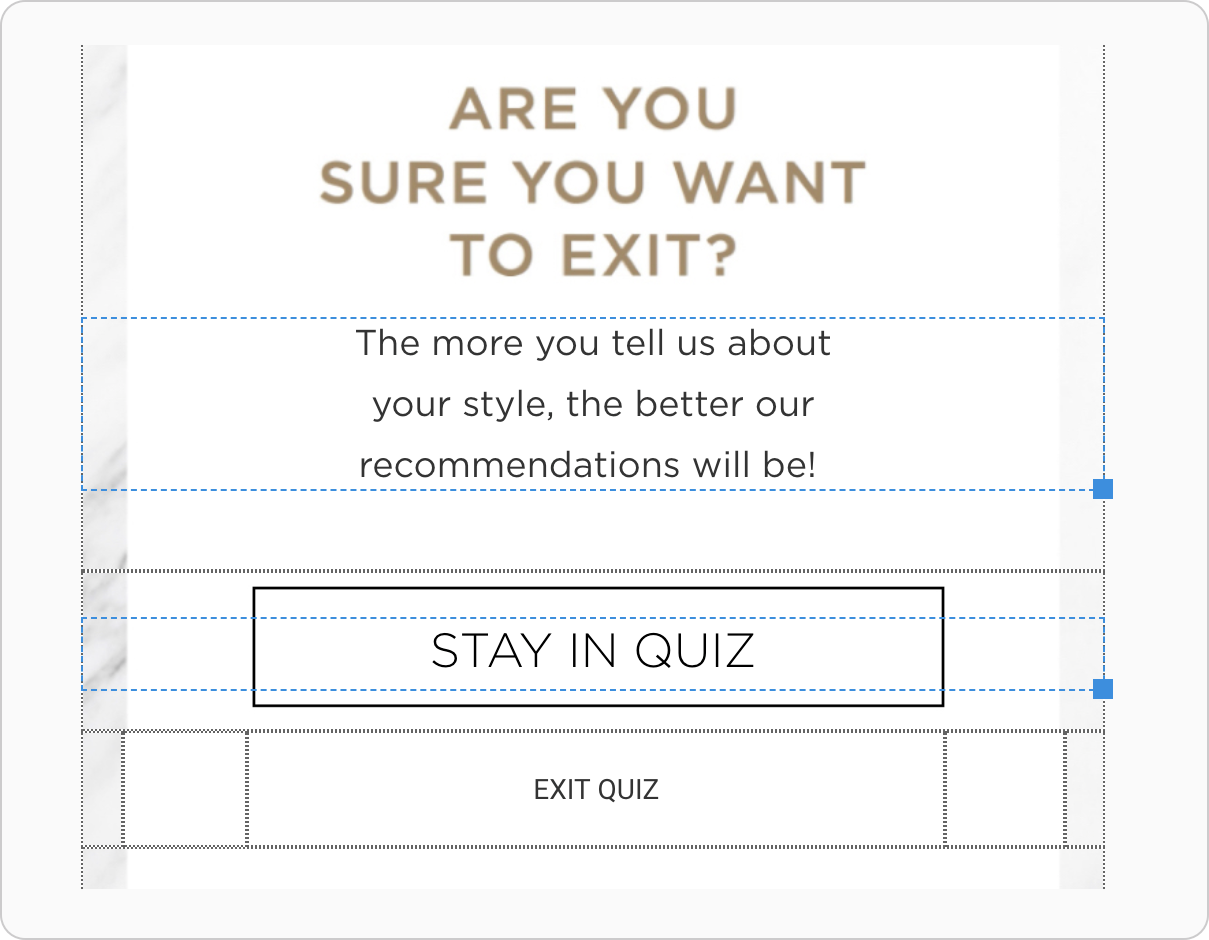
When a user departs the quiz without answering all questions, the user experience can be customized through a Quiz Exit layout. It's important to note that the quiz will not automatically save, even if the customer leaves or the app times out.
-
Inside of a new quiz layout:
- Create a STAY call to action that uses a Back deep link.
- Create an EXIT button that is a form element with a Quiz Submit button action and a deep link (usually to the home layout).
-
Next, assign the layout to the app config:
- Go to your app config and click EDIT.
- Go to.
- Select the Quiz Exit Layout from the dropdown.
- Click SAVE.