
Use quizzes in Point of Sale to understand your customers' preferences and gather valuable data. Create engaging quizzes, forms, or polls to capture user feedback and information. Add surveys after successful checkouts and include mandatory questions to ensure you get the data you need. You can create quizzes that will allow users to answer a question and see the results of the poll in real-time after submitting their answer.
There are three types of quizzes you can create:
- Quiz - Creates a quiz that is engaging and captures data to help you understand your users' preferences.
- Form - Creates a form to capture data or feedback from users. For example, a form can be used to capture feedback from users that have just completed a checkout.
- Poll - Creates a poll that allows users to answer a question and see the results of the poll in real-time after submitting their answer.
See Also
Create a Quiz

Note The maximum number of questions allowed in a quiz is 6.
- Go to .
- Click the + icon.
- Select the type of quiz that you would like to create (Quiz, Form, or Poll).
-
Fill out the fields and click Create in the top right of the
screen.
(Optional) You can make a question mandatory or not by checking Is Mandatory.
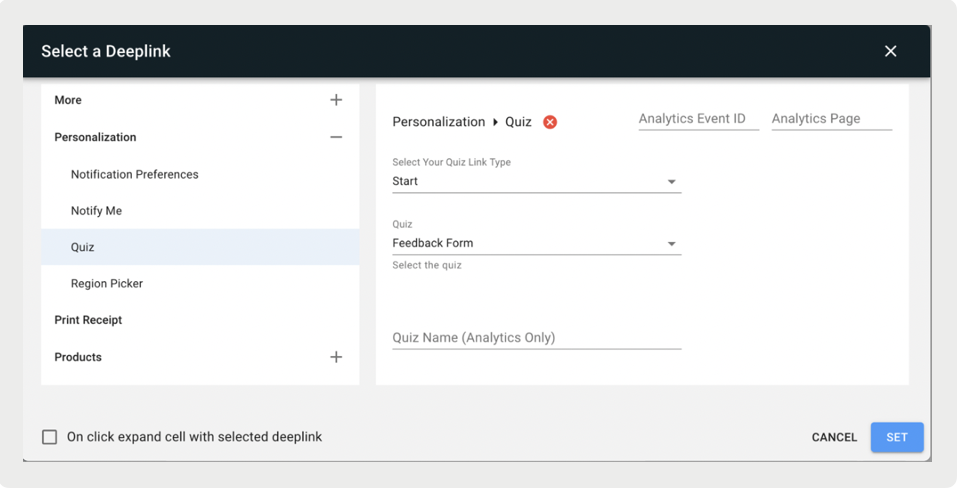
- After you've created the quiz, you'll need to set a deep link for accessibility in the POS app.
Set a Deep Link
- Go to your app configuration and click .
- Select the cell where you'd access the quiz/form/poll.
- Click Deep Link in the right toolbar menu.
- Go to .
-
Fill out the fields and click SET.
Add Survey After Successful Checkout
- In CMS, go to your app configuration and click EDIT.
- Go to the .
- Under Quiz After Order Layout, select a layout.
- Click SAVE.
Make Questions Mandatory
You can make some or all questions in your quizzes mandatory. When a question is skipped without answering, the user will be prompted with an error message to answer before they can proceed.
- In CMS, go to .
- Create a new quiz, form, or poll.
- For each question that is mandatory, check Is Mandatory.
- Click Create Quiz.
- (Optional) If you no longer wish to make a question mandatory, go to .
- Edit a question by clicking on the vertical ellipses (three dots) in the upper right of the question.
- Uncheck Is Mandatory and click Save.