
This article goes over the onboarding steps for using the Verifone Payments terminals with Point of Sale.
Prerequisites:
- Modern POS App Build: 9.1.2 and later
- Platform Support: iPhone & iPad
- Offline Support: no
- Verifone Payments terminals model: M400
- Merchant Checklist for Point of Sale Certification
- Provide Verifone Portal Access to ios@salesforce.com
- Retrieve Device Admin Password and SysMode Password
- Disable Line Item Display and Enable AutoPair by default at the time of terminal procurement
- Ship test terminals to Salesforce
Set up Card Reader Settings
- Go to .
- Edit the app configuration of your choice and then go to
- Set to "".
- Select .
Set up Payment Gateway Settings
- Go to .
- Create a Payment Gateway configuration for and keep the default values as is.
- Save your changes.
Verifone Terminal - Configuration & Setup
Configure your Verifone terminal for Verifone Payments by connecting to Wi-Fi or Ethernet, pairing with a PIN or QR code, and managing connections.
Prerequisites
All passwords mentioned in this article are set up and given by the Verifone team during deployment. To change or access them, get in touch with your Salesforce Customer Service Representative.
It is recommended to turn off the "IDLECARDENTRYENABLED" parameter for the terminal.
- Press 1+5+9 twice to access Sysmode.
- Go to , enter the password, and go to .
- Select , then , and .
- Add a new value and input the parameter name "".
- Set the value to "", press , and reboot the terminal.
Wi-Fi Connectivity
- Press 1 + 5 + 9 at the same time to open the Terminal Menu. Go to and select .
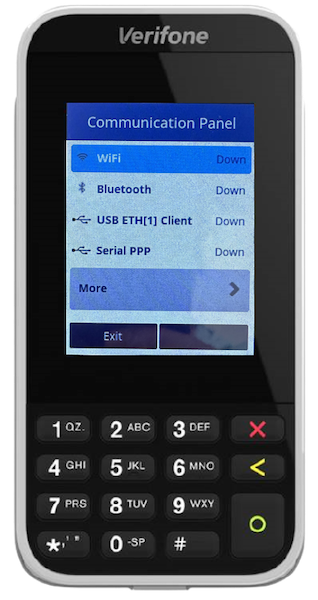
-
 Tip Customize the idle screen of the payment device, such as displaying marketing images directly on the Verifone portal.
 -
 Note If there's no previously configured network on the terminal, the Wi-Fi option will show as Down.
 - Tap and then . Enter your admin password to continue.
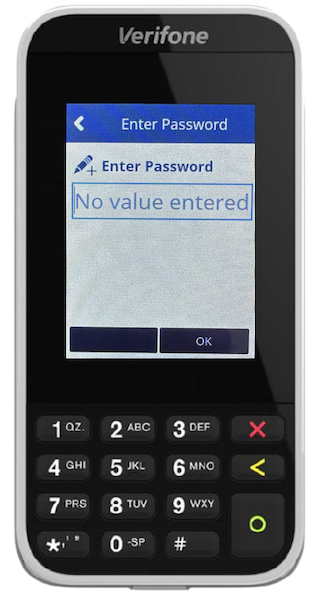
- Inside the configuration menu, tap . This will start a network discovery on the terminal. After the scan is
completed, you'll be presented with a list of all the Wi-Fi networks detected by the
terminal.
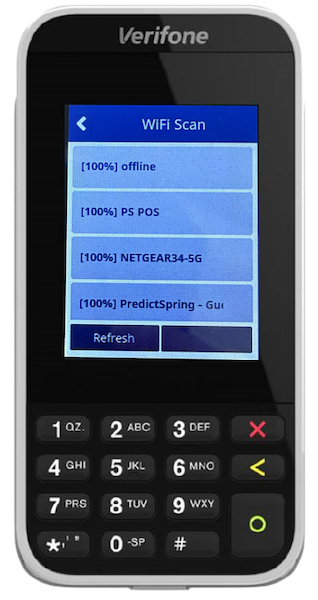
- Look for your network name on the list. Be sure you have good network strength (the number in the brackets indicates how strong is your signal network on the terminal).
- Tap your network's name in the list. The next screen shows you the details of your network.
Tap , which opens the Authentication menu. In the menu, select the option . Enter your network's password.
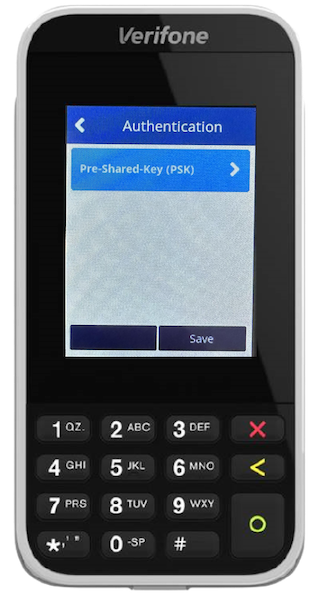
- After entering the network password, you'll be directed back to the menu. The section now shows that the password has been set. Tap , and after you get a screen confirmation, tap . If asked to apply the settings, tap .
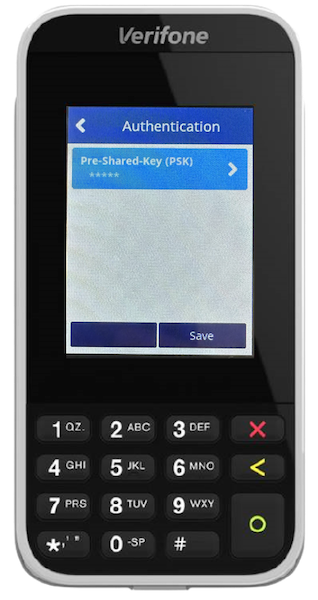
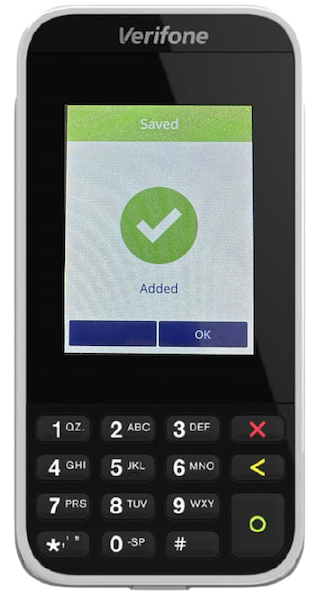
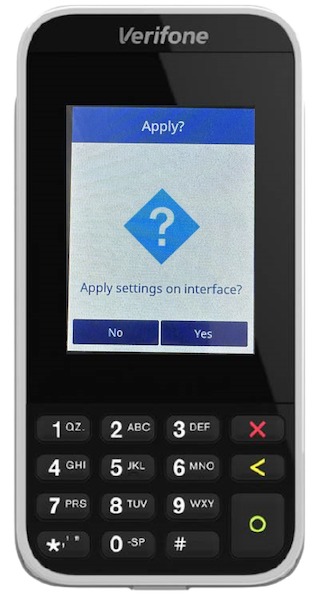
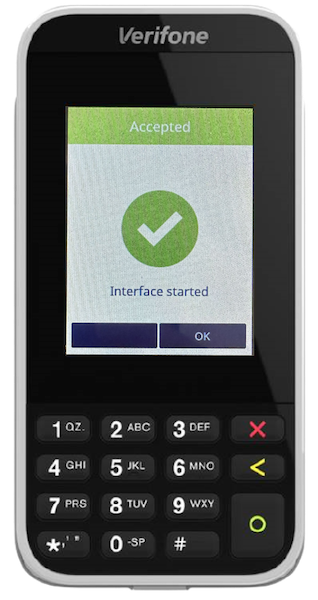
- Wait for the configuration process to complete. After you get the interface started,
confirm, and tap . Return to the Communication Panel and check the option. The status shows . Select the Wi-Fi option, and then . Here, you can find the IP for the terminal and the name of the network to which
it is connected.
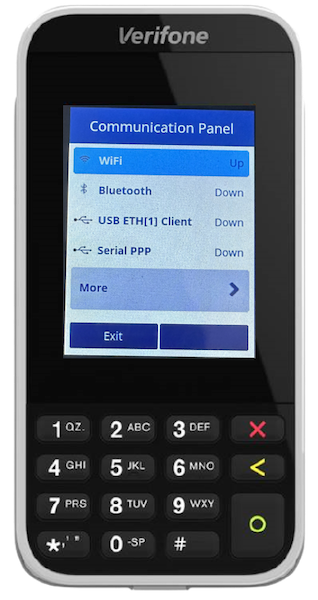
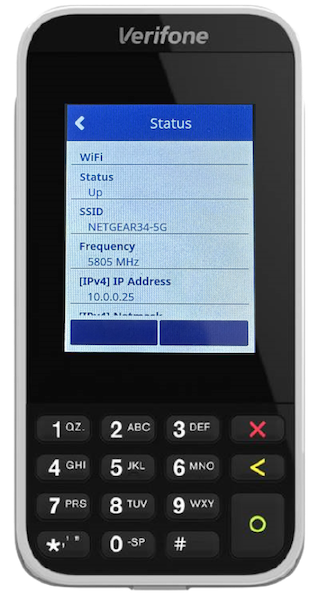
-
Tip In case you still see the Wi-Fi status as Down in the Communication Panel after correctly configuring your network, try starting the Network interface again. You can do that by tapping on the Wi-Fi option inside the Communication Panel and then selecting the option Start Network Interface.
Ethernet Connectivity
To connect to a LAN network, connect an ethernet cable from your router to the terminal. To
check the status of the network, press 1 + 5 + 9 to open the Terminal Menu. Go to and select the option . If the terminal is connected, the status shows as Up. To check the connection
details, tap the section, and then tap .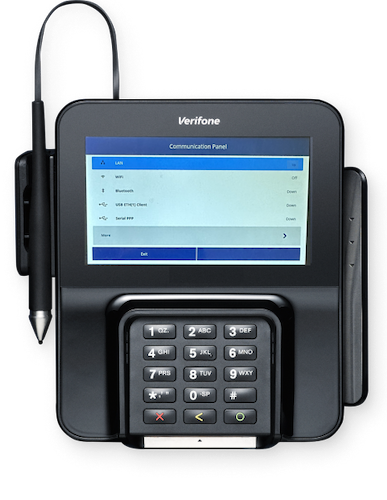
Connect Verifone Payments to Modern POS
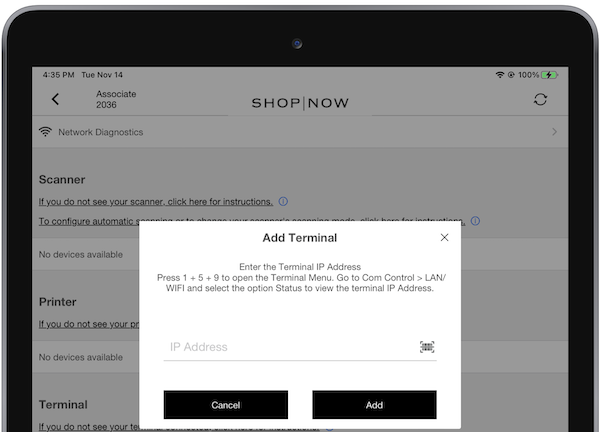
Go to the POS app's to manually add the Verifone Payments terminal. Tap in the section, this opens a new screen to enter the terminal IP.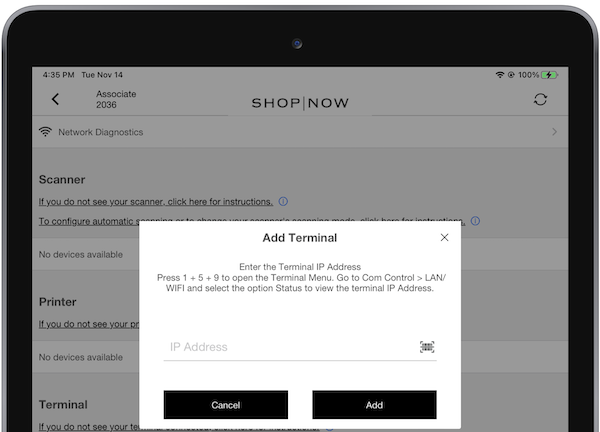

PIN Pairing Enabled on Terminal
If the terminal attempts to connect for the first time to the POS app, a basic pairing PIN
exchange process is needed. After entering correctly the terminal's IP, a new screen will be
shown with the instructions to proceed.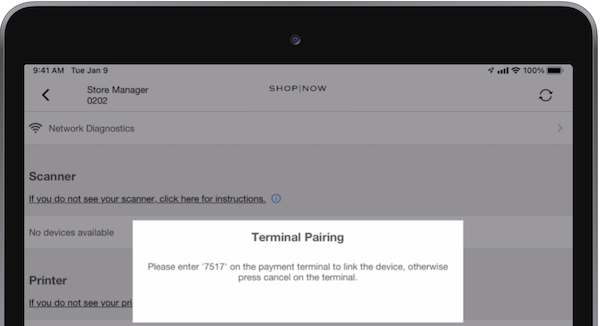
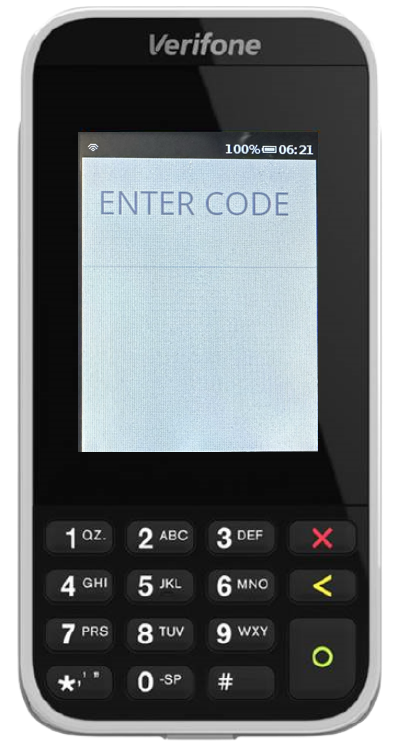
- To complete the pairing, enter the PIN on the terminal.
-
Important While pairing, always exit back to the home screen, otherwise, the code entry screen won't be presented until you go back to it.
-
Note Upon the pairing process starting, there's a timeout of 30 seconds to enter the pairing code in the terminal. After the time expires, the terminal's screen will reset and the POS will show an error alert with the message "". Tap on the terminal IP in the Device Manager to restart the pairing process.
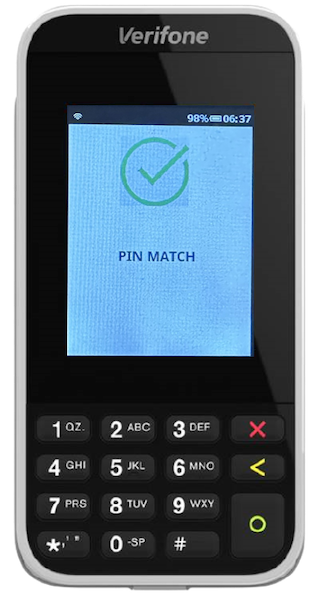
- If the PIN is correct, the terminal shows a confirmation screen:
PIN Pairing Turned Off on Terminal
If the pin for pairing is turned off on the terminal (refer to Disable pin entry for pairing section below) the interaction between the terminal and the POS, if the connection attempt happens, won't involve the PIN exchange. However, an alert still prompts the PIN to be entered. The difference is that the connection proceeds automatically (no PIN needs to be entered on the terminal), with the terminal showing immediately the screen.
On the POS app side, the terminal now shows as connected.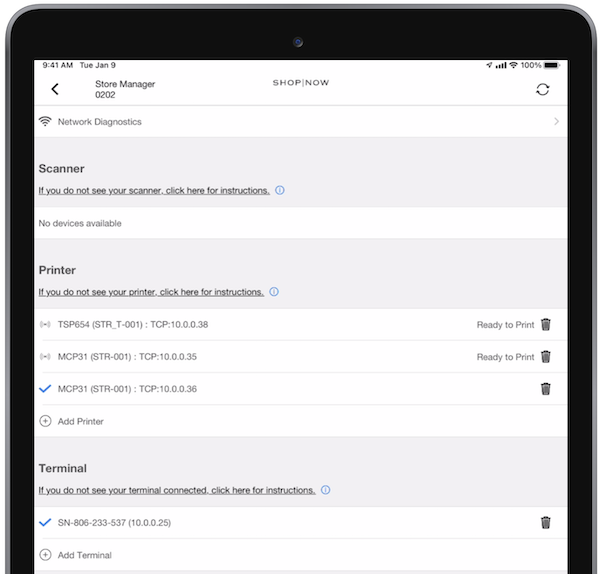
QR Code Pairing
- For pairing via QR Code, press 1 + 5 + 9 to open the Terminal Menu. Go to and select the option or depending on your configuration. Select and open the QR Code.
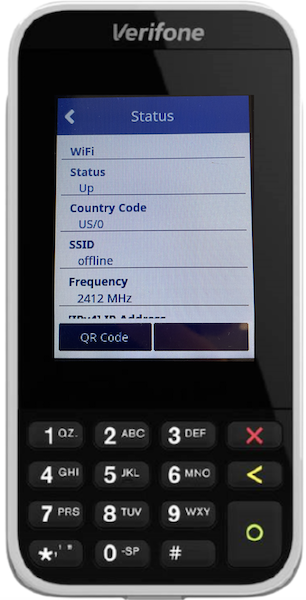
- On the screen, select the barcode to scan the terminal's QR Code.
Disconnect from Terminal
The app disconnects from the terminal if the WIFI/Ethernet connection drops. This can happen for multiple reasons (terminal was rebooted, iPad or terminal's Wi-Fi was switched off).
Reconnect to Terminal When Payment is Initiated
If, for some reason, the WIFI/Ethernet connection gets dropped (terminal rebooted; iPad or terminal's WIFI was switched off), the app will disconnect the terminal and show the option to connect to it again on the Device Manager screen.
1:N Topology
1:N Topology is supported by Verifone for app builds 9.5.1 or greater. For more details on
setting up 1:N topology in a CMS, refer to this article.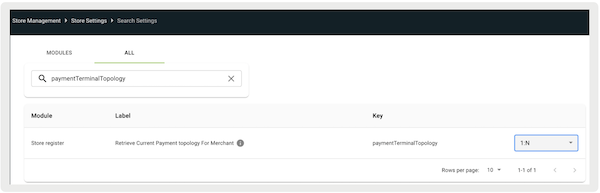
After a terminal is successfully paired, the POS saves the Terminal name and IP address locally. Then the POS uses this data to show all previously connected terminals in the 1:N terminal selection prompt. Users can select a terminal to pair with and proceed with the initiated terminal operation.
Verifone Terminal - Accessing SysMode
Use SysMode to update terminal settings and configurations. Access advanced terminal configuration updates, such as disabling line item display or request pin for pair.
The SysMode menu allows advanced terminal configuration updates. If using this menu settings like line item display or request pin for pair can be enabled/disabled on-line help
To access the sysMode menu, press 1 + 5 + 9 twice in the terminal.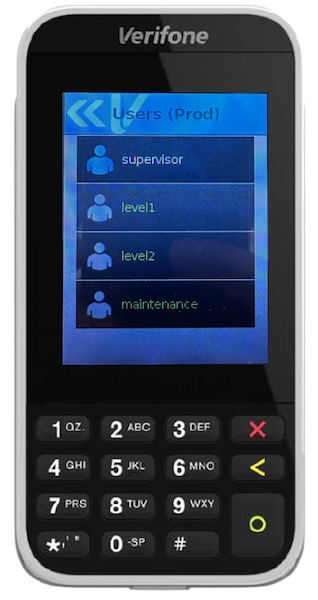
Select the "" user and enter the password to start sysMode.
Updating Terminal Settings Using SysMode
Depending on the configuration, change the administration panel or the terminal configuration. This section outlines both flows.
Updating settings on the Administration Panel
On the Main menu, select the Administration option. Then, go to the specific section in which
the setting to configure is set.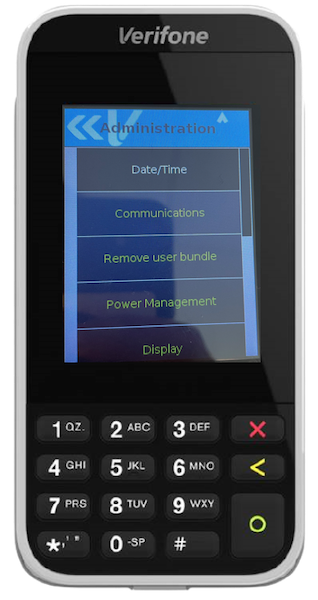
Updating settings in Terminal Configuration
To enter the configurations menu, go to . Tap the "config.usr1" option.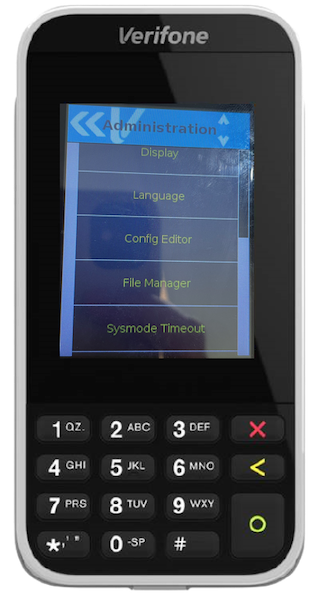
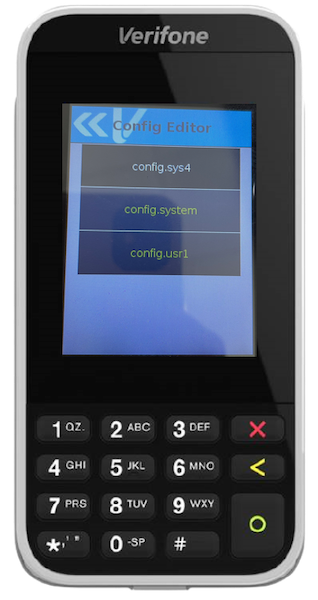
This opens the editor for the terminal configuration file, in there new values can be added to
update the behavior of the terminal. Depending on the configuration to be set, scroll down on
the screen to the option [] or [], tap it, and if this prompts a confirmation alert, tap .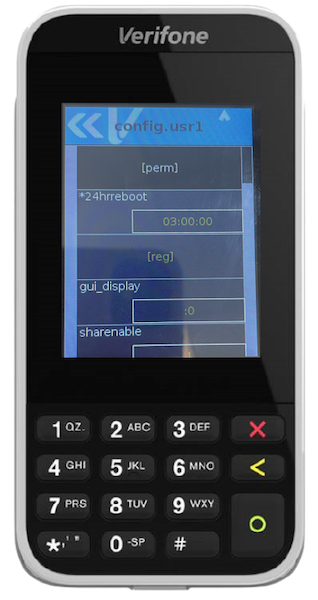
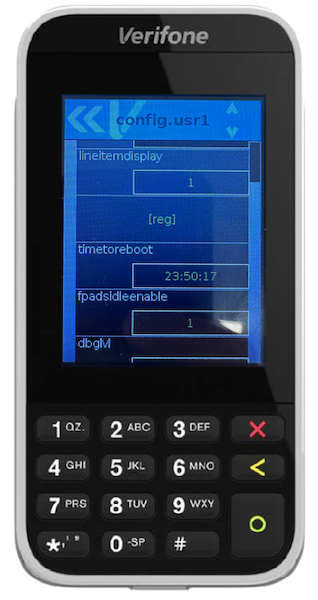
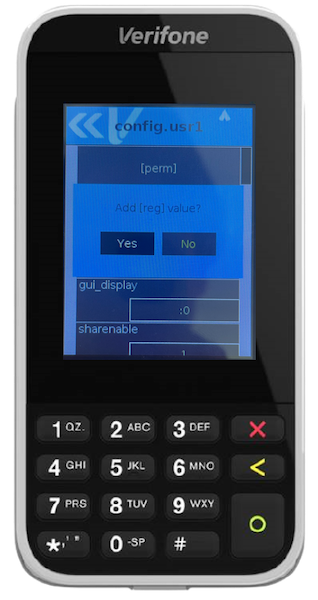
Afterwards, any supported configuration can be updated in the terminal, adding the corresponding key and value.
There are many configurations that can be set directly on the terminals to affect their behavior and the way they interact with the modern POS. The next sections will outline the configurations needed for the modern POS to work correctly and some additional ones that will only affect the way the associates interact with the terminals.
Mandatory Configurations
This section will list the set of configurations needed to be set on the terminals for the POS to work properly.
Disable Partial Authorization
The current integration of the modern POS doesn't support partial authorization, so this needs to be turned off at the terminal level.
To turn off this functionality, follow the instructions described on Updating settings on
Terminal Configuration section to get into the configuration editor and in there, add a value
for _ on the [] section, assigning it to .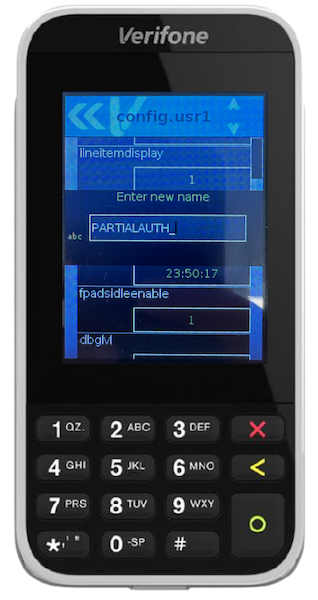
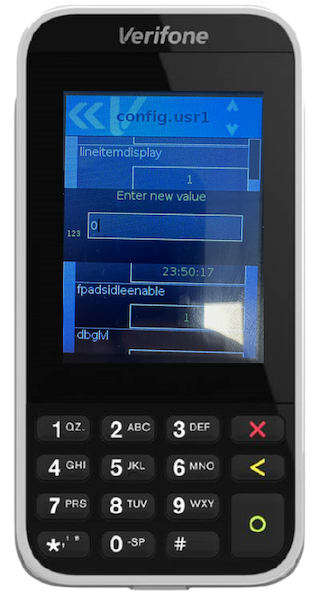
Reboot the terminal, the next time a payment is started the partial auth won't happen. Instead, the transaction is approved or declined
Disable Line Item Display
By default, terminals have been configured to show the line item screen before proceeding with a payment.
Follow the instructions
described on Updating settings in Terminal Configuration section to get into the configuration
editor. To turn off this functionality, add a value for in the [] section, assigning it to .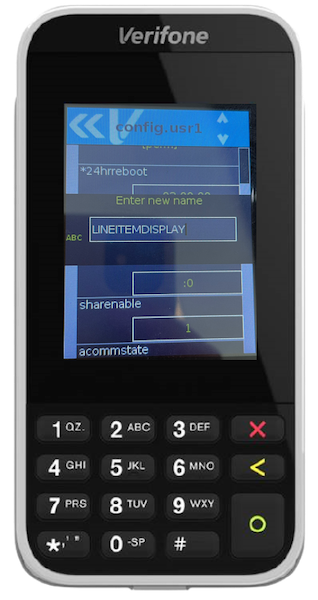
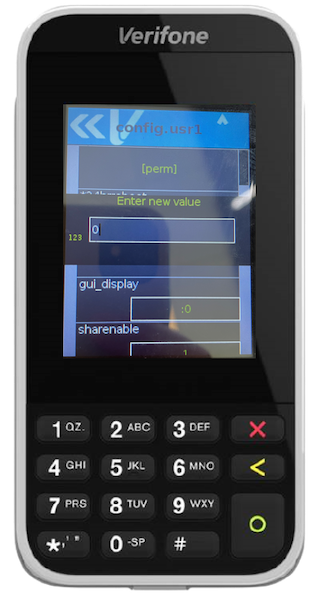
Reboot the terminal, the next time a payment is started the line item screen won't show.
Disable Pin Entry for Pairing
By default, terminals have been configured to ask for a PIN if a connection is started by the POS.
To turn off this functionality, follow the instructions described on Updating settings on
Terminal Configuration section to get into the configuration editor and in there add a value for on the [] section, assigning it to .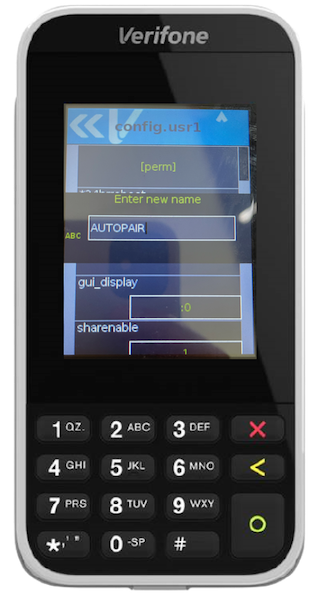
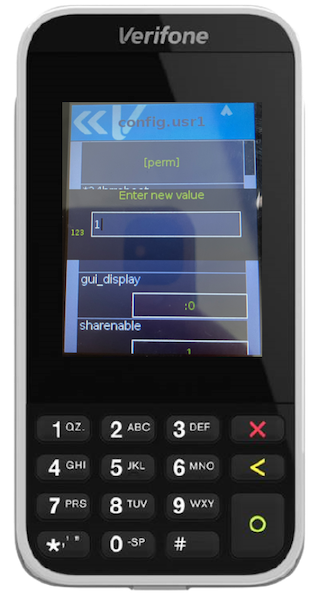
Reboot the terminal, next time a connection is started with the terminal, the POS will show the pin-entering message, but will be automatically dismissed and the pair will be established.
Exit SysMode
To exit from the SysMode menu and return back to the terminal, tap to the left upper
guillemet, this will open a new menu. Tap on the option, this will reset the terminal and return it to the default state.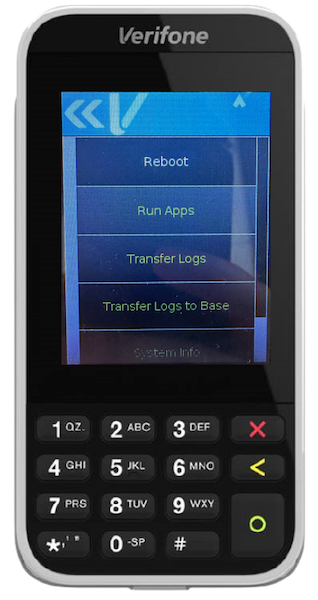
Verifone Terminal - Troubleshooting
Troubleshoot common issues with Verifone terminals in Point of Sale to quickly resolve problems.
Terminal Reboot
If the Verifone terminal screen is stuck due to network issues or other issues, the fallback solution is to reboot the terminal. This can occur if the line item display doesn't get cleared or if the screen shows "payment successfully captured" but remains stuck.
- Press 1+5+9 to open the terminal menu
- Go on Control Panel > Power Panel > Restart
- This will reboot the terminal
Network Diagnostics
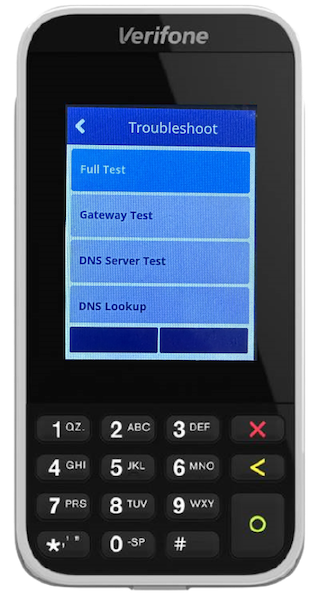
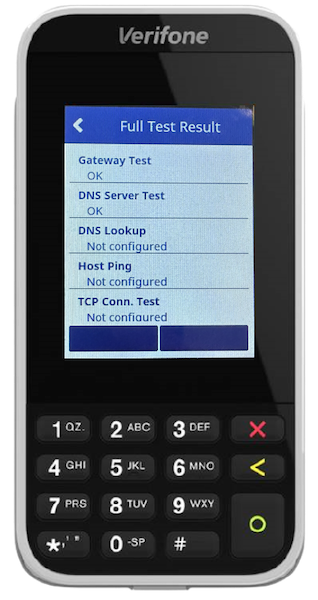
Run diagnostic tests on Verifone Payments terminals to check the terminal's connectivity. Press 1 + 5 + 9 to open the Terminal Menu. Go to and select the option . Go to and tap . After the test is completed, check for the results.
Initialization Failure
This error can happen if you connect to a new terminal or if you start the POS again and try
to connect to a connected terminal.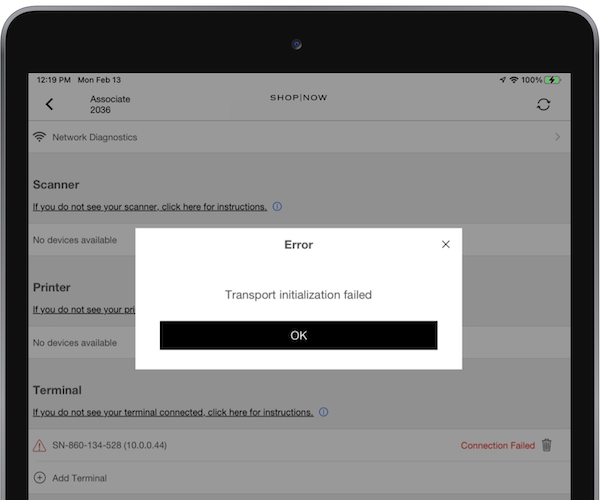
If this error appears:
- Verify the terminal is on.
- Verify that both iPad and terminal are connected to the same network.
- If the previous points were verified, try to reconnect to the terminal again by tapping on Connect on the Device Manager screen.
Terminal's preexisting configurations being cleared if an update is pushed into the terminal
If Verifone pushes updates or fixes directly into the terminal, the configurations set before this push are cleared. It is recommended to review the values configured on the terminal after the push and set them again if needed.