
Connect the Star mPOP receipt printer to your iPad via Bluetooth to print receipts. In Point of Sale CMS, configure the register by selecting Star mPop as the model and Bluetooth as the connection type.
iOS Setup
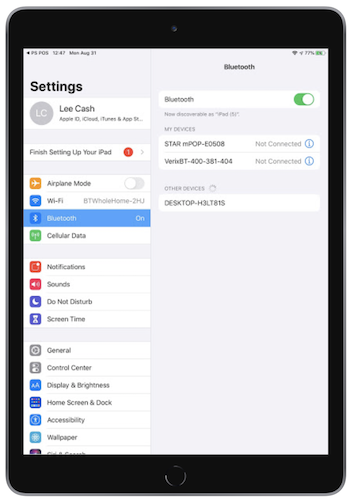
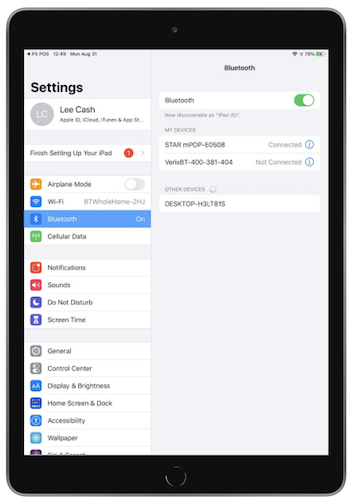
Go to the General Settings app on your iPad and tap Bluetooth, making sure that your mPOP is plugged in and switched on. Select the Star mPOP device by tapping it. It now shows that it is connected.
- Unconnected
- Connected
CMS - Configuration & Setup
Configure your device in CMS by going to .
Under Receipt Printer, select Star mPop for the Model and Bluetooth as the Connection
Type.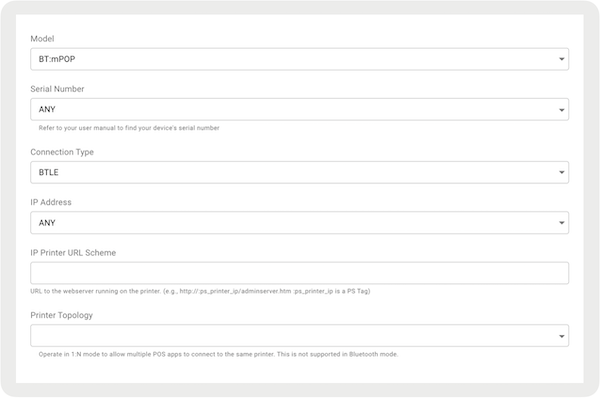

Important To access the Star mPOP printer via USB-C, configure your printer's connection type in CMS as Bluetooth, not USB.
POS App Flow
After you see your device in the device helper menu, you can select it to connect. A blue
check mark appears next to the device after it’s connected.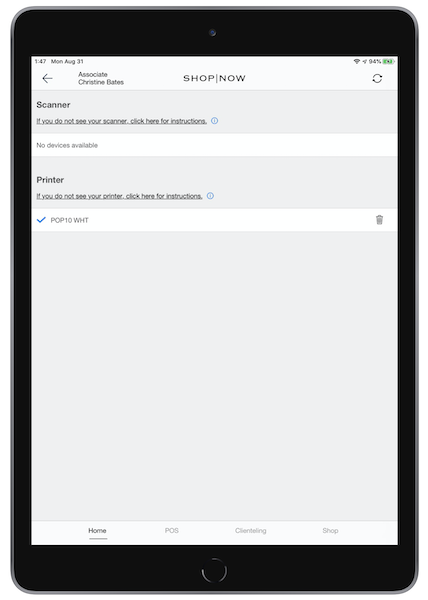
- Star mPop Hardware Troubleshooting
Resolve iPad and printer connectivity issues by ensuring proper power, Bluetooth connections, and Device Manager settings in Point of Sale.