
Connect Star Micronics mC-Print3 printers to your POS app to print receipts. Make sure your Point of Sale (POS) app meets the minimum build requirement before you configure app settings in the CMS.
Prerequisites:
- Modern POS App Build: 5.1.0 or later
- Platform Support: iPhone & iPad
- Offline Support: yes
Enable App Config Settings
- In CMS, go to .
- Edit a selected app config and go to .
-
Enable .

-
Under , select .

- Go back to CMS and go to .
- Select the pencil to edit the selected register.
- Under , select the Model as , and select the (if IP then select IP Address; if Bluetooth then select Bluetooth, and so on).
- Save your changes.
Setting Up the Printer
- Add a paper roll to the printer.
-
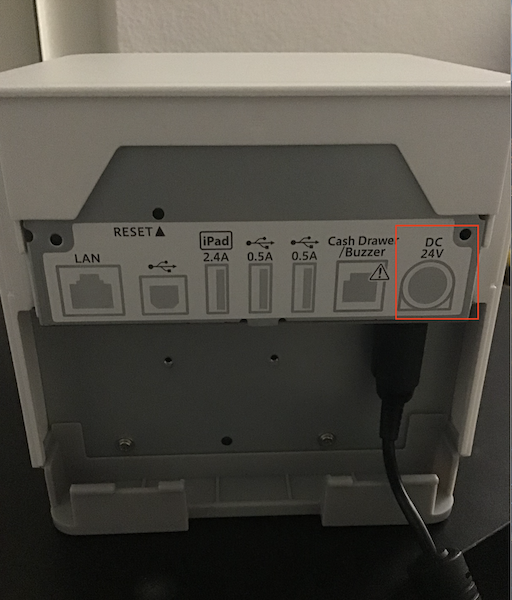
Plug in the power cord and switch on the printer.
For a USB Connection, make sure you're connected to the iPad dedicated port on the back of
your printer. The only model supported for USB Connection is mcPrint3.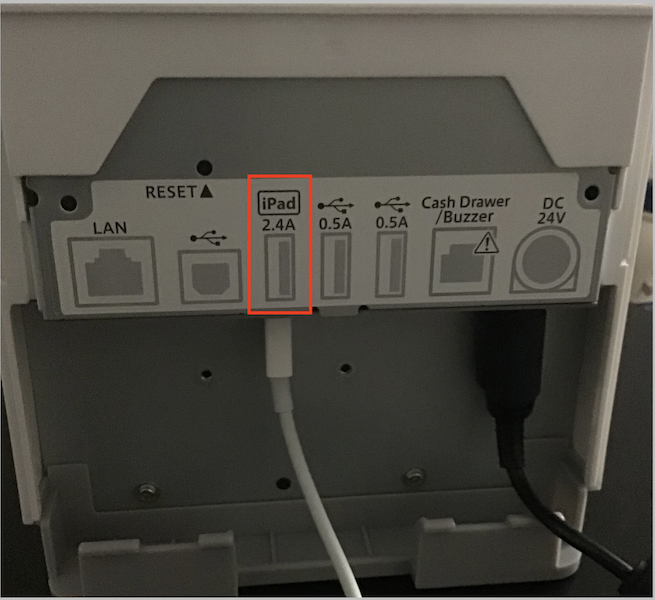

Connecting with POS App
- Open the POS app.
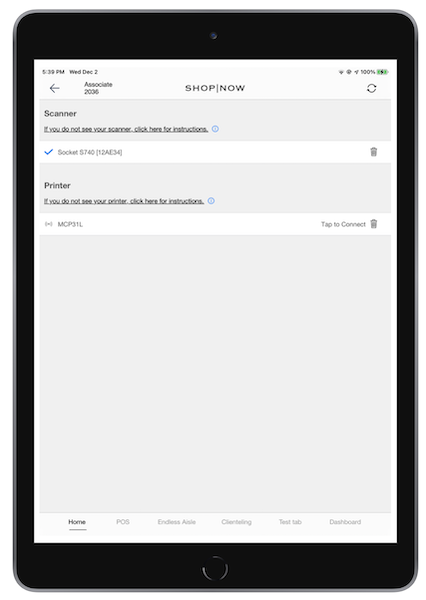
- Go to The printer name will be automatically detected and listed under printers.
-
Tap .
Resetting Printer
- Open the POS app.
- Go to . Remove the printer by clicking on the trash can, then go back to the home screen.
- If using USB, unplug the lighting cable from the iPad.
- Force a power cycle by removing the power cord from the back of the printer.
- Plug in the power cord back into the printer.
- If using a USB connection, plug in the lightning cable back into the iPad. Plug the USB connector into the printer's USB port designated for iPad. Make sure the iPad is charging.
- Go to the screen and check to see the printer entry.
- Tap .
Additional Information
Understand the limitations of Star Micronics printers to optimize your hardware setup.
Printer Topology Setup
For instructions on printer topology setup, refer to Hardware Topology Setup.
Troubleshooting
For information on troubleshooting and solutions, refer to Star Micronics Printer Troubleshooting.
Barcode Scanner Setup
For information on setting up the barcode scanner, refer to Zebra Scanner Support.
Known Issues & Restrictions
IP Star Printers with 1:N Topology don’t support barcode scanners plugged into the printer’s USB port.