
Configure your system to get the Point of Sale (POS) app to work. Grant permissions to make certain the app functions completely, turn on features like scanning QR codes and connecting to devices via Device Manager.
Modern POS Activation
To start, bootstrap with your brand credentials. After pressing the POS app icon on your device's home screen, follow the rest of the instructions in this article.
Permissions
To take advantage of all the great functionality within POS, dialogs appear that prompt you to approve or deny a permission. The list of permissions requested:
- Camera
- Bluetooth
- Network
- Location
- Notifications
The associate is expected to turn on all these permissions for the Modern POS app to
function completely. This is the screenshot of settings for a fully functional Modern POS
app.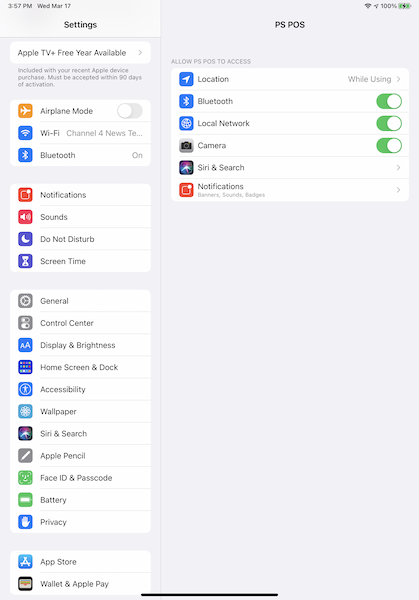
If for any reason your required permissions have changed, go to and adjust accordingly.
Camera Access
The POS app needs your phone's camera to scan the QR Code to start the app. It also needs bar codes to quickly find a product.
Bluetooth Access
If you have devices that connect to the POS by Bluetooth (scanners, printers, and so on), give the POS permissions so the connection can happen. Without this permission, devices will be unable to connect via Device Manager.
Network Devices
If you have wireless devices for the POS app to connect to, grant permission if presented with this prompt. Without this permission, devices can’t connect via Device Manager.
Location Tracking
Location tracking is encouraged to streamline your workflow so the POS app can suggest stores in your region.
Notification
If you want to receive notifications, you can optionally accept this prompt.
Checking Permissions In the App
The POS app allows associates to check the app permissions in real time. The associates see a list of the necessary permissions and their statuses and quickly identify any potential issues.
To access this screen, add the App permissions deep link to the Hamburger Menu inside your
App Config.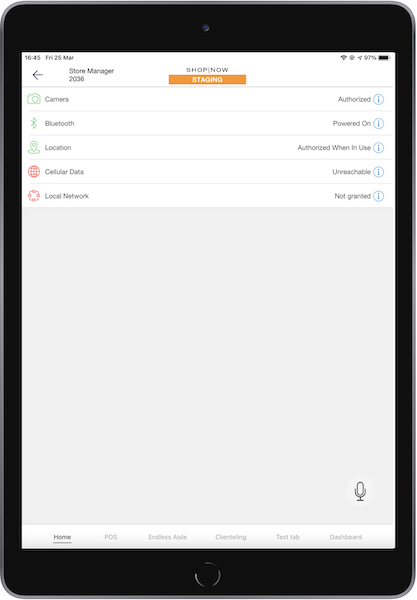
See the dedicated article for this feature.
Troubleshooting
“Initialization in Progress, please retry”
If an incorrect token is entered, the POS is unable to recover. To resolve, uninstall and reinstall the POS.