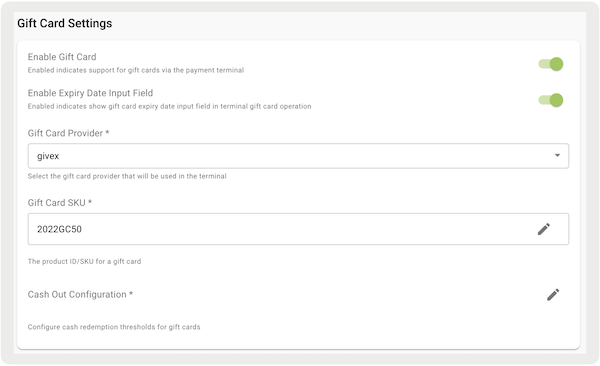
Configure gift card settings for Adyen and Verifone payment gateways so customers can use gift cards at your store. Enable gift cards, select a provider and SKU, and enter a cash-out configuration within Point of Sale CMS.
Set the Payment Gatway
- Go to .
- Create or edit a payment gateway (Adyen or Verifone).
- Go to .
- Turn on , which will expose additional settings in this section.
- Enable or disable . See Expiry Date Input Field next for more details. This switch is only supported for Adyen terminals; for Verifone. It is recommended to turn off it.
- Select a Gift Card Provider.
- Select a Gift Card SKU. See Create a Gift Card Product to learn how to create a gift card SKU/product.
-
Enter a Cash Out Configuration. SeeCash Out Config to learn more details of this setting.

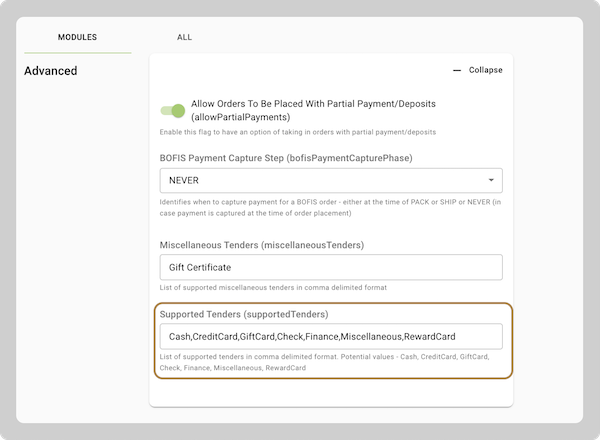
Don't add "" in . If this is configured, gift cards via the payment terminal won't function as
expected. You see this error on the POS app if trying to purchase a gift card: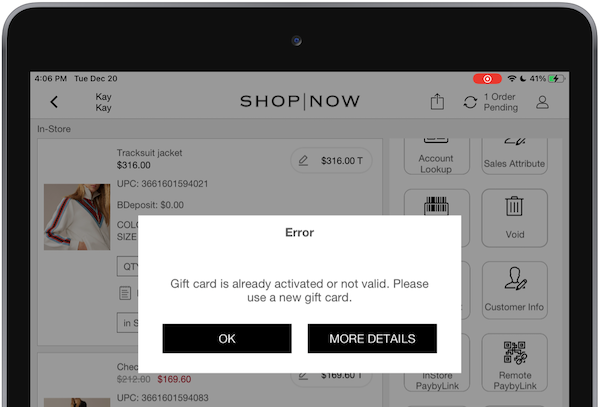
Create a Gift Card Product
For gift card purchases in the POS app, the gift card SKU or product needs to be entered into the POS system using either of the next options:
- : Add a gift card to the product feed. Important: Make sure to add its productClass with the value of GiftCard. Refer to Product Feed for more information.
- : refer to Create a Gift Card Product in Gift Card Support in POS.
- : To support gift card cash out, the GiftCard product class must be configured as returnable. Refer to Checkout Toggles in Set Up Non-Merchandise SKUs for more information.
Expiry Date Input Field

If the gift card provider sets the bin range for you correctly, you can enter the expiry date. The setting, , will toggle whether the UI will show an input field for the expiry date and send that value to the terminal.
The screenshot shows how a check balance gift card entry form looks without an expiry date
field: 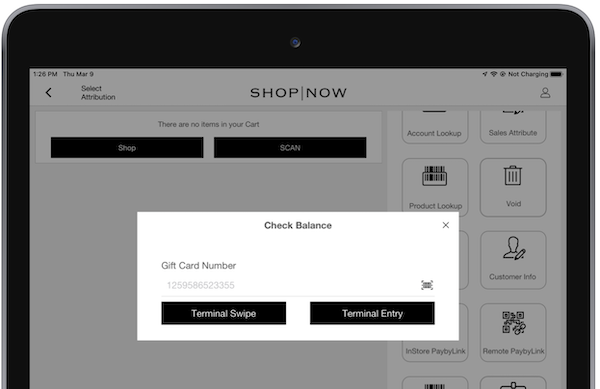
Cash Out Configuration
This configuration is used to determine the threshold to redeem cash with a gift card.
- Default Cash Redemption Threshold: Dollar amount specified for the cash redemption
- State-Specific Cash Redemption Thresholds: cash redemption limits for specific states. Select to add the states.
In California, customers can use their gift card as cash if the gift card is less than or
equal to $15. In the state of Texas, customers can redeem their gift card as cash if the gift
card is less than or equal to $25. For all other states, the threshold is $10, because it was
set as the default. 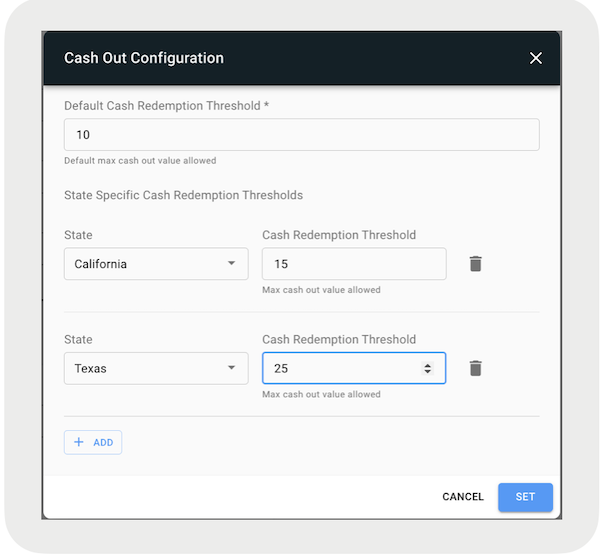
In the above example, in the state of California, customers can redeem their gift card as cash when the gift card is less than or equal to $15. In the state of Texas, customers can redeem their gift card as cash when the gift card is less than or equal to $25. For all other states, the threshold is $10 since it was set as the default.
Configure a Gift Card Deep Link for a Layout
- In CMS, go to .
- Edit your selected app config.
- Go to .
- Under , select .
- Save your changes and go back to your app config.
- While in editing layout mode, create a layout or use a preexisting one.
- Select a cell.
- Add the next deep link(s) for the specific use case:
| Use Case | CMS Deep Links |
|---|---|
| Gift Card as tender | Deep Link > Cart Options > Set Gift Card Tender |
| Purchase Gift Card | Deep Link > Products > Gift Card > Purchase a Gift Card |
| Add Value to Card | Deep Link > Products > Gift Card > Add to a gift card |
| Cash Out a Gift Card | Deep Link > Products > Gift Card > Cash out a gift card |
| Check gift card balance | Deep Link > Products > Gift Card > Check gift card balance |
It's recommended that these deep links are only configured as a cell in the cart options or advanced cart options layout.