Connect an Adyen terminal to a network so you can board it and complete the pairing process with the Point of Sale (POS) app.
Configure Network
-
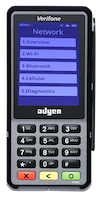
On select of , a screen appears with multiple options.
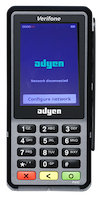
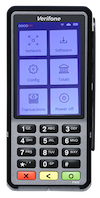
-
Select (+ icon appears at the bottom) to scan and view all the available network
options. Select the preferred network and connect by tapping on it and entering the network
password.
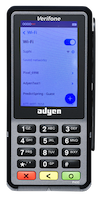
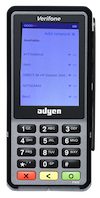
- After the network connects, select , which takes you back to the home screen.
-
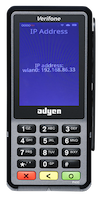
Make a note of the terminal’s IP, which is used in the iPad app for pairing. This can be
viewed under .

Boarding Ayden Terminal
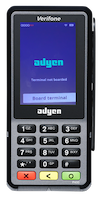
A new Adyen terminal needs to fetch the configuration set up from the portal during the boarding process.
- It needs to be first connected to a network to continue with the boarding process.
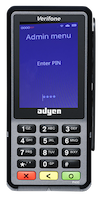
- If it’s boarded, you can go into the admin menu by clicking 9 and then O (green O).
-
Enter the admin menu password to continue configuring the network (reach out to the
terminal admin for this password).

New Device
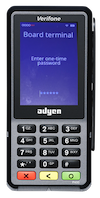
- If the terminal prompts for a one-time password, enter the one-time password to fetch the configuration associated with the terminal from the Adyen console.
-
If the terminal prompts to select a store, select the terminal’s store and
proceed.
Existing Device
- If it's an existing device, complete the reassigning process. The terminal can be accessed from the Adyen console.
- After the reassign is done in the console, press and then on the Adyen Terminal to go to the admin menu.
- Enter the admin menu password to view the admin menu.
- Select from the admin menu to fetch the changes in the console.
- The terminal updates and shows the Board Terminal option.
-
Select
- If the terminal prompts for a one-time password, enter the six-digit OTP, which you can receive from the adyen console. Be patient! This process will take about 10mins to process.
- The terminal updates to the reassigned new store.
Connecting to Wi-Fi
Connect the iPad and Adyen terminal to the same Wi-Fi to turn on communication between them. Make sure that the Wi-Fi network is a 2.4GHz network as most Adyen devices don't support 5GHz. Subpar network bandwidth impacts the device's performance and authentication.
- Press and then on the Adyen Terminal to go to the admin menu.
-
Enter the Admin password (reach out to the terminal admin for this password).
- To find the admin password from the Adyen portal:
-
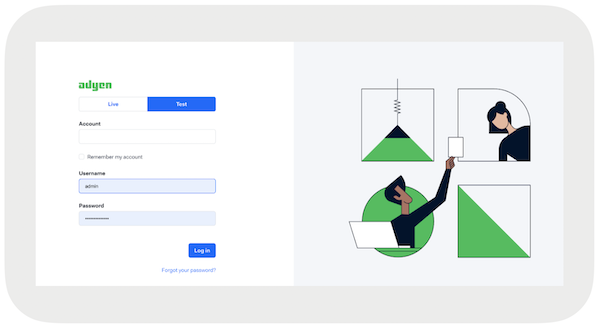
Go to: https://ca-test.adyen.com/ca/ca/login.shtml
-
Select .
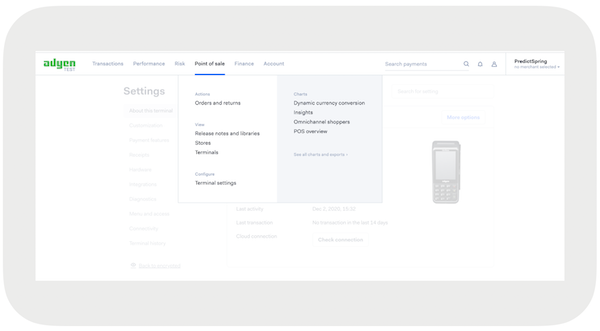
- Select the terminal.
-
Select
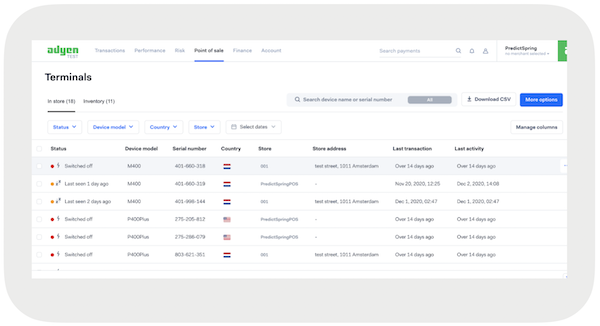 | Menu and in the side menu. Select at the bottom of the side menu to see the admin menu pin.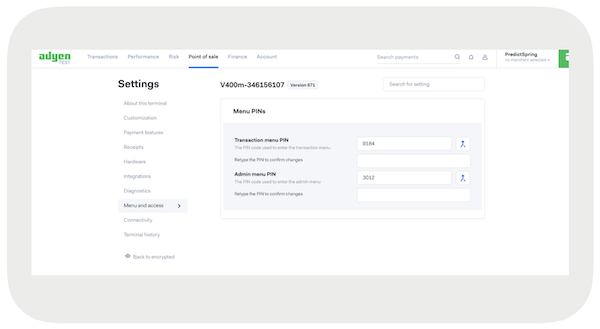
-
Select (+ is seen at the bottom) to scan and view all the available network options.
Select the preferred network and connect by tapping on it and entering the network
password.
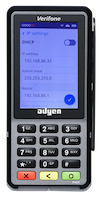
- Select and make a note of the IP in the terminal.
- Make sure to set a static IP before beginning to connect to the iPad app. The instructions are listed in the next section.
Setting Static IP Address
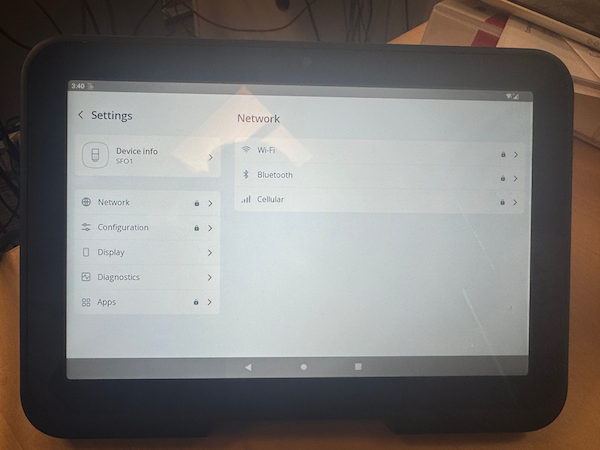
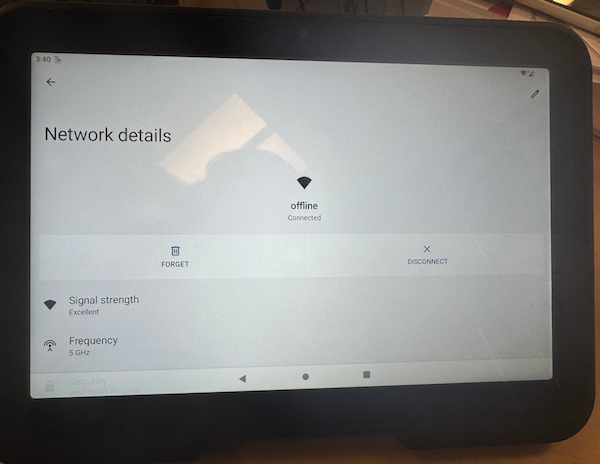
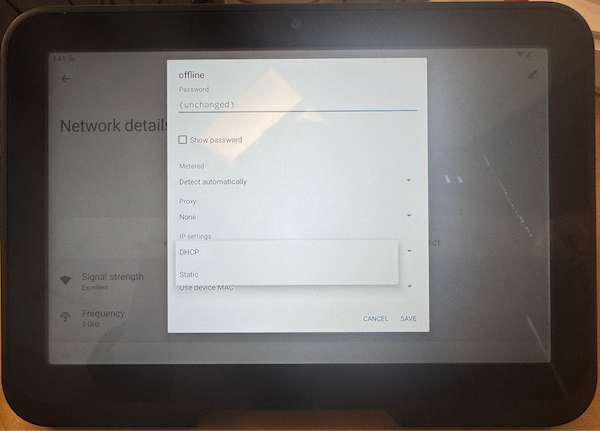
You can set up a static IP for a Wi-Fi network in the Adyen terminal by disabling DHCP. The IP will remain tied to the network until you reload Wi-Fi in the terminal or forget the network in the terminal. You will need to get the proper IP, Subnet, Gateway, and DNS from your internal network team.
- Follow the step for Connecting to Wi-Fi.
- Go to the menu by pressing and select .
-
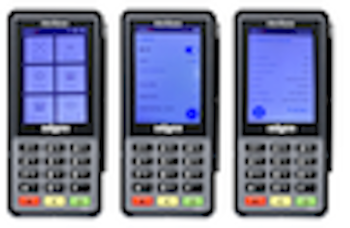
In the admin menu, select .
-
Deselect and enter the IP address to set the network connection.
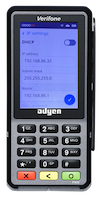
- Apply changes by choosing the tick mark at the bottom-right of the terminal screen.
Configure Ayden Payment Gateway
Before you can add a terminal to your POS, set up an Adyen Payment Gateway in your CMS. Follow the instructions in this article to learn how.
Connect Ayden to POS
- Go to .
- Edit the app configuration of your choice: .
- Set to ''.
-
Select .
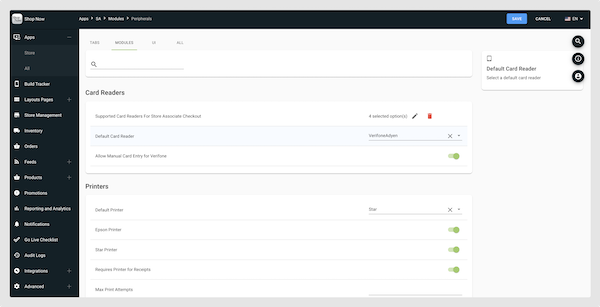
- Then, go to to manually add the Adyen terminal to the Modern POS.
-
Add the terminal option and it will show a popup to add the terminal ID and the IP
details.
-
Scan the IP number by selecting and in your Adyen terminal and scanning the QR code.
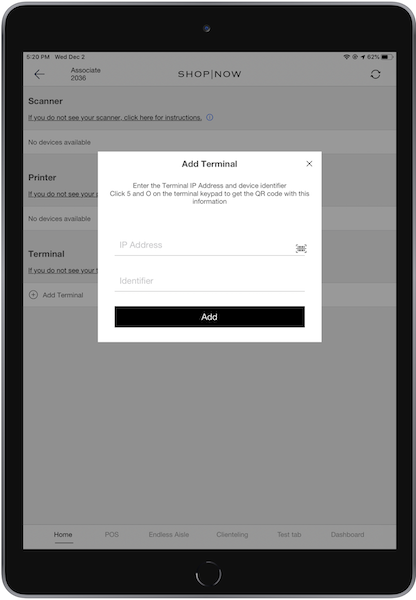
- You can also manually add it by entering the IP number.
- You can also manually add the terminal ID number. This step is only for terminal API implementation.
-
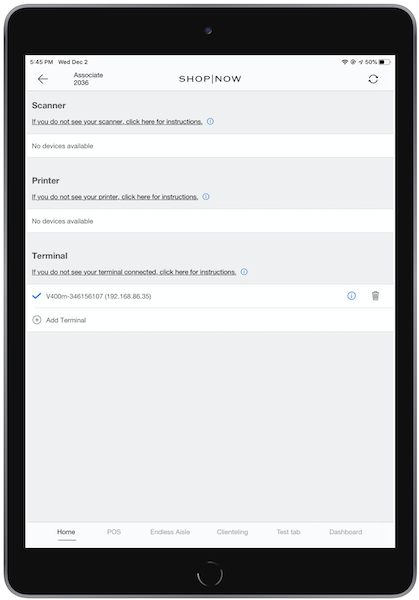
The added terminal is automatically connected to the POS app. The POS shows a blue check
mark to confirm the same.
-
Scan the IP number by selecting and in your Adyen terminal and scanning the QR code.
Update Terminal Logo
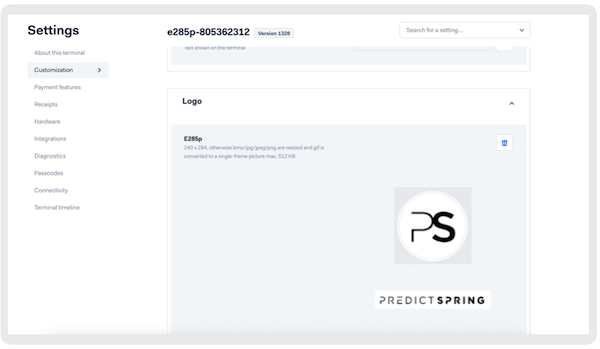
You can update the logo on Adyen terminals through the Adyen portal.
- Log in to your Adyen portal and go to your merchant account.
- Go to .
- Search for your specific device using its serial number and select the corresponding device row.
- Go to .
- Upload or replace the logo image and save your changes. After you upload an image at the merchant level, all terminals under your merchant account will inherit this logo.
-
On your Adyen terminal, go to and select . The device will restart and show the new logo.