
Scan a QR code to turn on the POS app on your device for the first time. Make sure you have CMS environment access and a POS device with the TestFlight app installed.
Before proceeding, make sure you have these requirements:
For setting up the first time, make sure that you have a POS device and CMS screen (pulled up on a laptop or desktop) on hand.
After you've downloaded the latest build via TestFlight, you can open the POS app. Make note of which POS app version (8.4.1, 8.1.1, and so on). Know which environment you want to turn on your app in (Staging, Dev, Prod). Using your device's camera, you'll be prompted to scan the QR code based on the app version.
The code can be found by:
- Go to your CMS environment of choice.
- Go to .
-
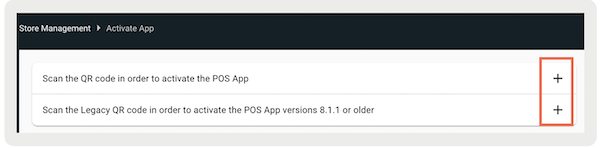
Expand the appropriate QR Code by clicking + to the right.
-
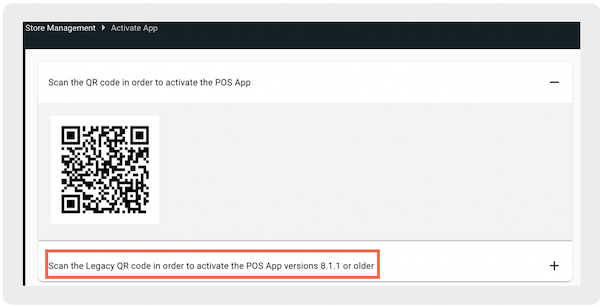
For Staging and Dev, that there are two QR Codes (for Prod, there's only one regardless of
app version). If your app version is older (8.1.1 or older) scan a different QR Code than if
your app version is greater than 8.1.1 (for example 8.4.1). Carefully read the labels before
scanning.
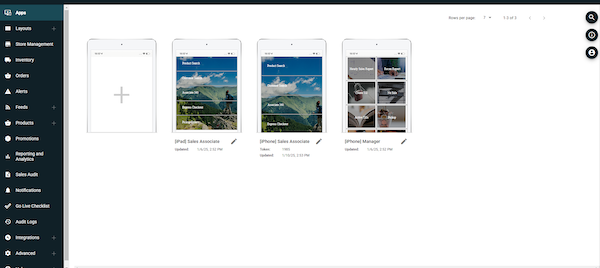
- After scanning the code, a screen appears where you enter a token from the app config. The token can be found under the app config by CMS by going to .
-
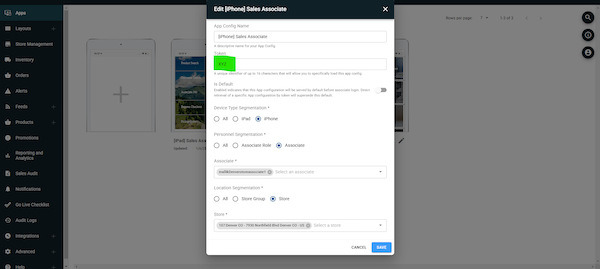
Select the edit icon to enter a token if it isn't set as shown.
-
List of apps on CMS app.
-
Enter Token in the respective field to be use for POS app activation.
-
List of apps on CMS app.
-
After you've entered a token, you'll be directed to the login screen.
-
For app builds less than 9.0.1, you have the option to either log in or enter the store.
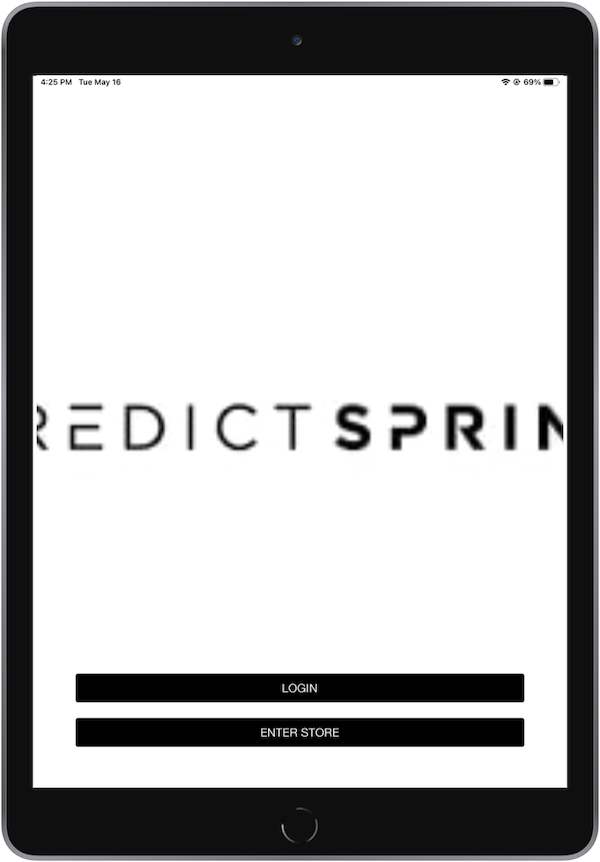
- Some POS actions don’t require you to log in and tap "Enter Store" to complete them. Other, such as reconciling tills, fulfilling BORIS/BOPIS orders, are limited until you log in.
-
For app builds less than 9.0.1, you have the option to either log in or enter the store.
For app builds 9.0.1 and later, enter your login credentials to interact with the POS app. After the initial login, you can be logged out if the app timeouts but still have limited access. To have full access to the POS app, log in again.