
Give merchants access to the EFSTA portal so they can download reports. You can manage Point of Sale user access to the EFSTA portal and confirm each user’s appropriate level of permissions.
This article will go over the process of granting merchant access to the EFSTA portal, allowing them to conveniently download reports. Follow these instructions to effectively manage user access to the EFSTA portal and confirm user permissions.
For merchants operating a single brand across multiple countries, it's advisable to establish country-specific accounts. For those managing smaller subsidiary brands, we recommend setting up each smaller brand as an independent company in each country within EFSTA.
- In the portal, go to the section on the right side and select the appropriate merchant company staging or PROD environment. It's crucial to avoid granting access to users from Company B to Company A.
-
Locate the specific Merchant name for which you want to add a user. Select displayed next to the highlighted Merchant name. The window will appear.
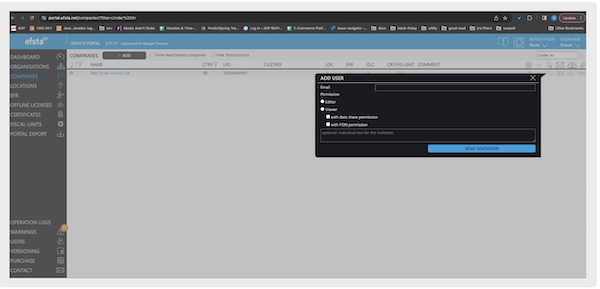
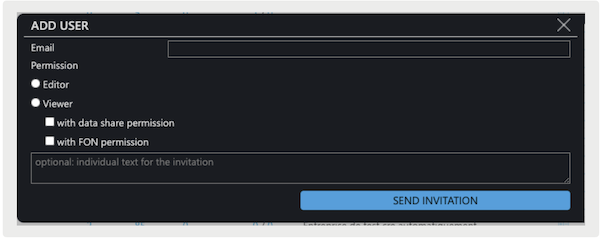
- Within the window, enter the email address of the user who requires access.
-
Select the appropriate permission level:
- For Admin users, set the permission level as with and .
-
For Store users who only need access to download data, grant them .

Important Provide access exclusively to official company/merchant email addresses.
Avoid granting access to personal, or nonofficial emails.