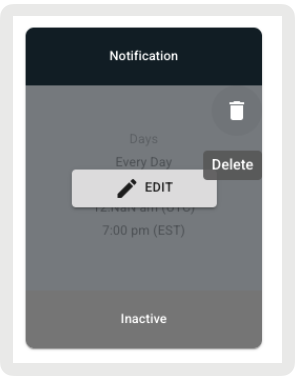
Schedule your data feeds in Point of Sale so that you have the most up-to-date data. Select a runtime that meets your business needs. Get advice on creating the schedule. When no longer needed, delete a schedule.
See Also
Create or Edit a Schedule

- Go to .
- To create a schedule, click the + icon. To edit a schedule, hover over a scheduled feed and click EDIT.
- Configure the Schedule, Source, and Auxiliary sections.
Schedule
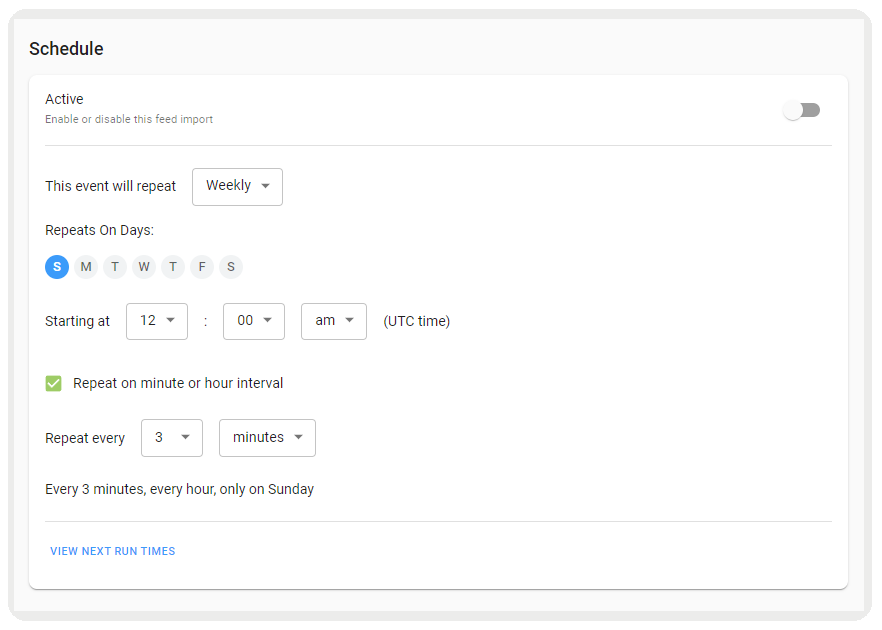
Complete the information in the Schedule panel on the top portion of the screen to configure the feed schedule. Behind the scenes, the Point of Sale platform generates and uses a cron string.
Time
Enter the time in UTC time (required by the cron string).
Enter the UTC time in the Schedule panel:
- Enter a value in hours.
- Enter a value in minutes.
- To run your schedule on particular days of the week, select Weekly, and then select (blue) or deselect (gray) days.
- To run your schedule on particular days of the month, select Monthly, and then select (blue) or deselect (gray) dates.

Repeat Interval in Hours
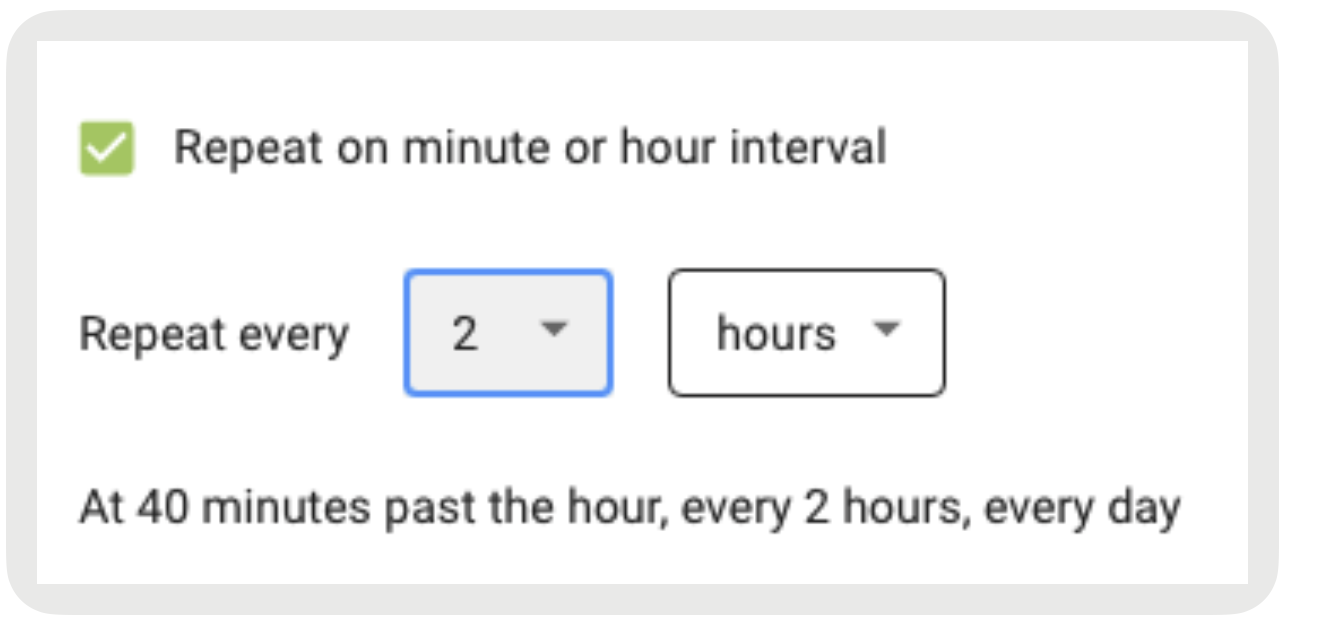
The Repeat input tells the scheduler to run that feed repeatedly during the day at the specified interval (in hours).
To run your schedule on a minute or hourly interval, select Repeat on minute or hour interval.
Active
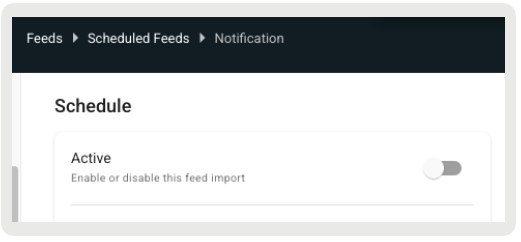
The Active switch indicates whether the feed is actively running. If Active is on, the system verifies the feed source before saving. If the feed source verification fails (for example, because the login credentials are invalid), changes to the schedule don't save.
Source
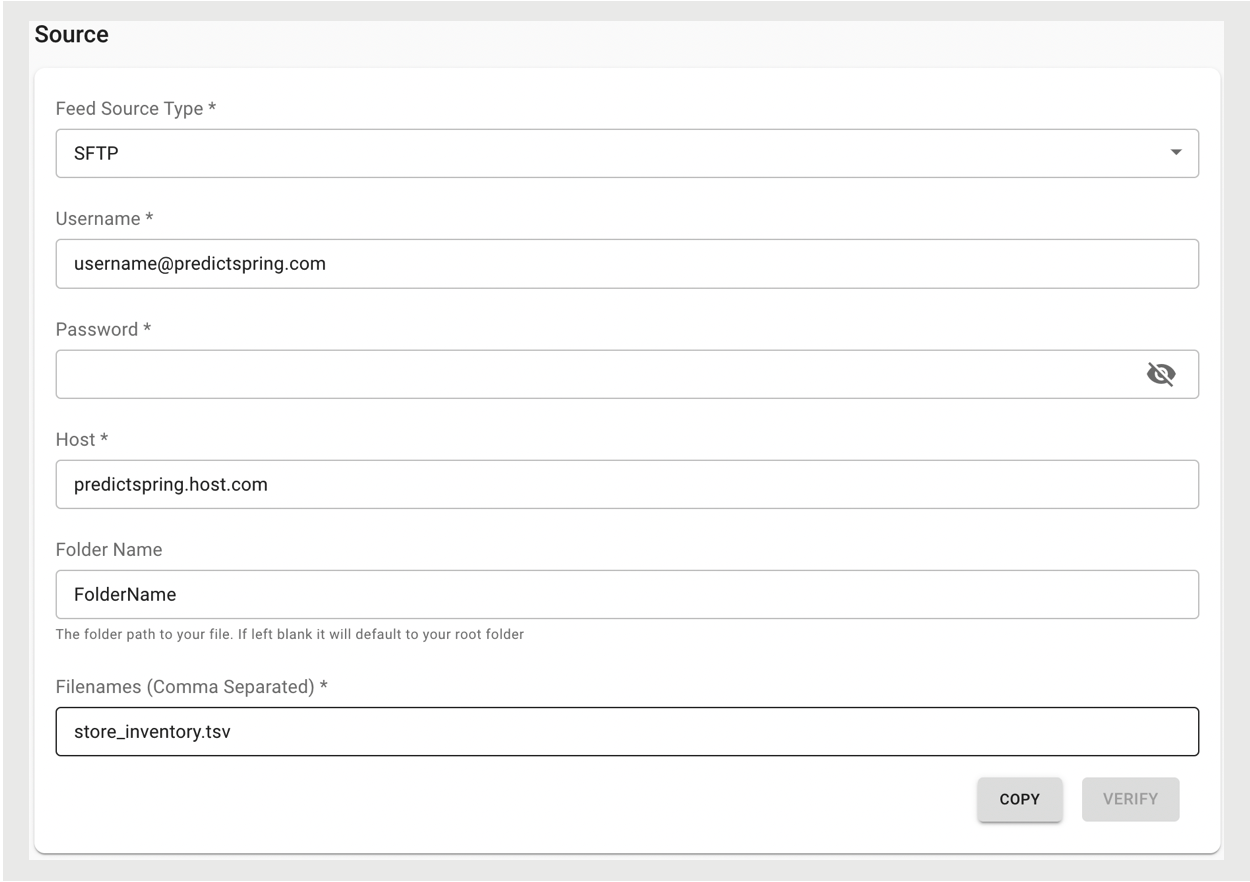
Next, complete the information in the Source panel in the middle portion of the screen to configure the feed source.
-
Select a Feed Source Type.
- FTP: Connects to a standard FTP server for retrieving files over an unencrypted FTP connection.
- SFTP: Connects by using Secure File Transfer Protocol (SSH-based) for encrypted file transfer.
- WebDAV: Connects to a WebDAV-enabled server so the feed can pull files over HTTP/HTTPS. Use this option to import products from another external system that exposes data via WebDAV.
- BrickFTP: Connects to a BrickFTP (now Files.com) environment for secure cloud-based file retrieval.
- Yext: Connects to Yext-hosted content exports made available for automated ingestion.
- Enter your Username, Password, and Host.
- (Optional) Enter the Folder Name, which is the folder path to your file.
- Enter your File names. For multiple files, use comma-separated values (for example, fileone.csv,filetwo.csv). The system pulls them simultaneously.
-
(Optional) To create a backup of the file, turn on Create Backup.
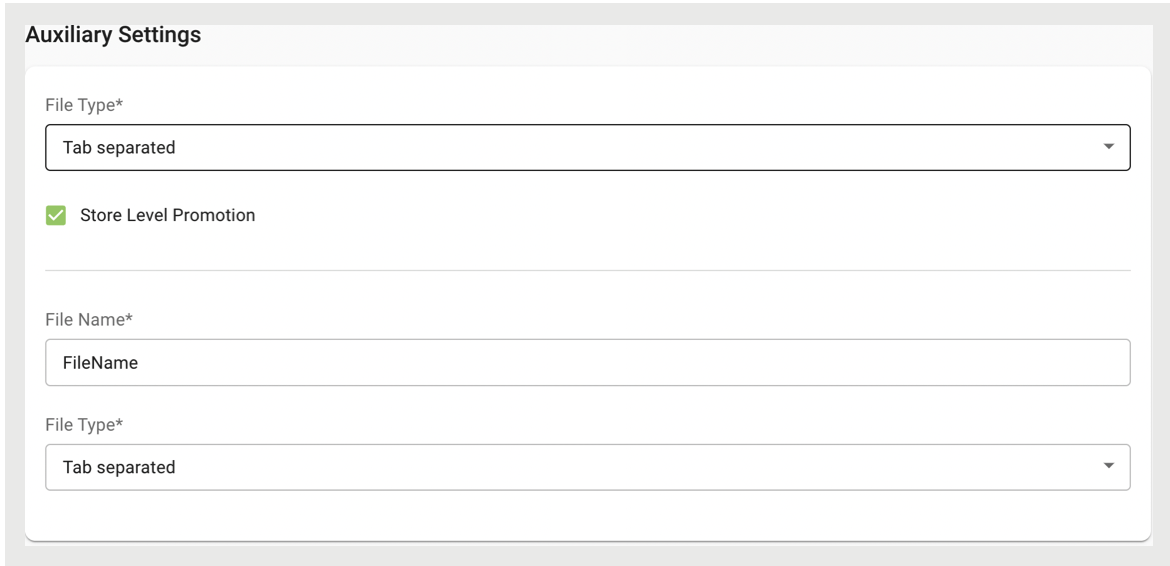
Auxiliary Settings
Finally, complete the information in the Auxiliary Settings panel on the bottom portion of the page.
- Select the file type.
-
(Optional) Check Store Level Promotion.
- Enter the file name.
-
Select the file type.
Delete a Schedule
Before you delete a schedule, deactivate it. Only users with a Feeds: Edit permission can perform this action.
- Edit a schedule.
-
Under Schedule, turn off the Active toggle.
- Save your changes.
- Go back to .
-
Hover over the deactivated feed, click the trash icon, and follow the prompts.