
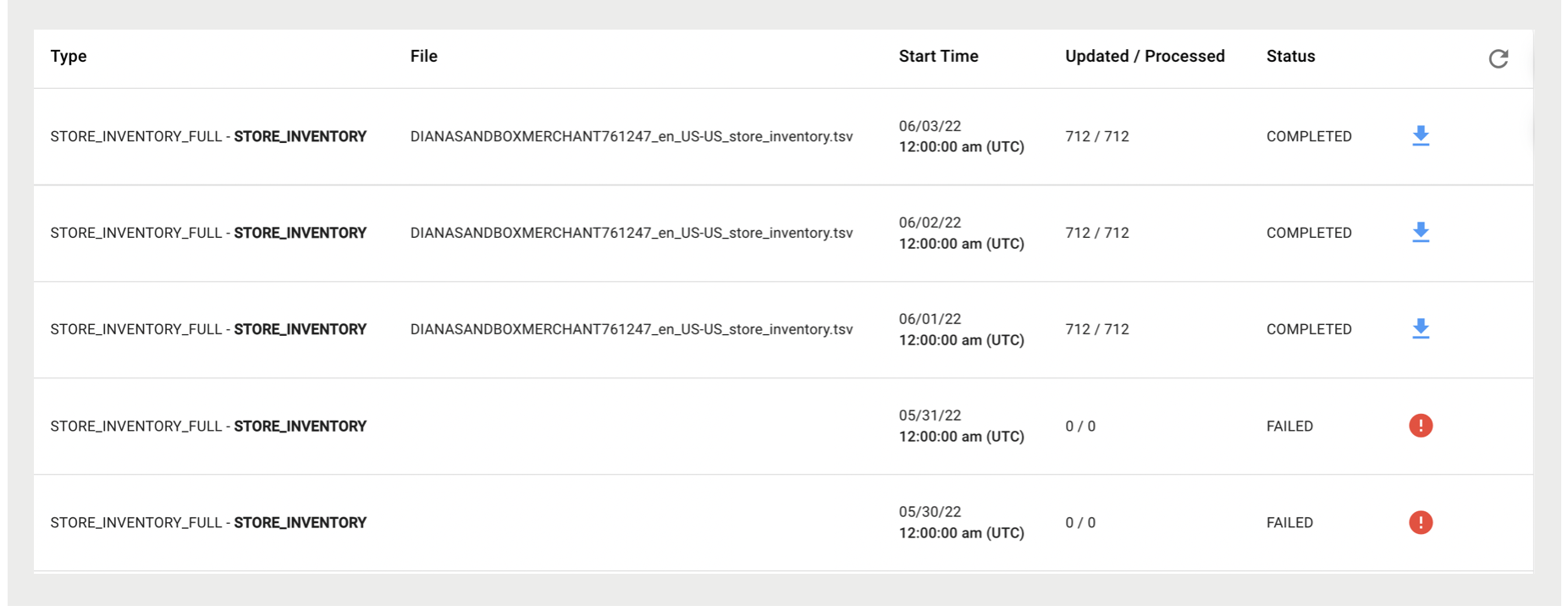
Quickly identify the success of Point of Sale data feeds by using feed logs. When you review feed logs, you can begin troubleshooting issues. The feed logs page shows the runs for each feed and their status.
View a List of Feed Logs
- In CMS, go to .
- From Feed Type, select the type of feed files you want to see.
- (Optional) Select the number of logs that you want to see per page with the dropdown in the upper right of the page.
-
(Optional) Click the blue download icon next to the feed file that you want to download.

Note Point of Sale retains logs for a maximum of 10 days, giving you access to logs within that
time frame. However, you can download a feed only within seven days of processing, because
Point of Sale archives processed feeds for seven days.
View Feed Errors
COMPLETED under the Status column indicates that a feed ran successfully. A red icon marks failed feeds.
To view feed errors:
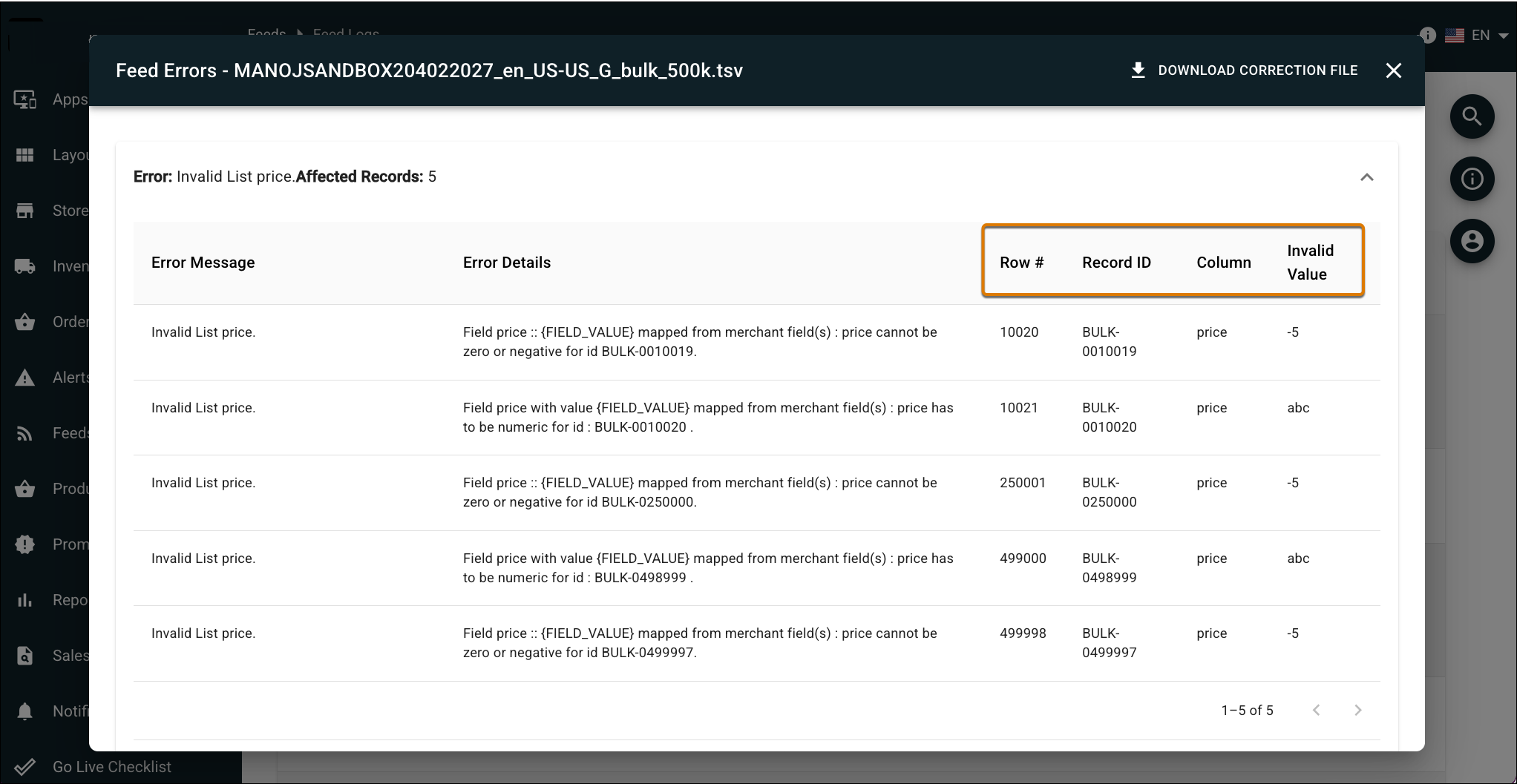
- Click the red icon to view the feed errors.
-
The window shows information about the error including a stack trace. For product full
feed uploads, the window lists the row number, record ID, affected column, and invalid value
for each error.
Diagnose Logs with No Error Details
If there are no error details, verify that you stripped the currency code from prices (see Transformations & Regular Expressions).