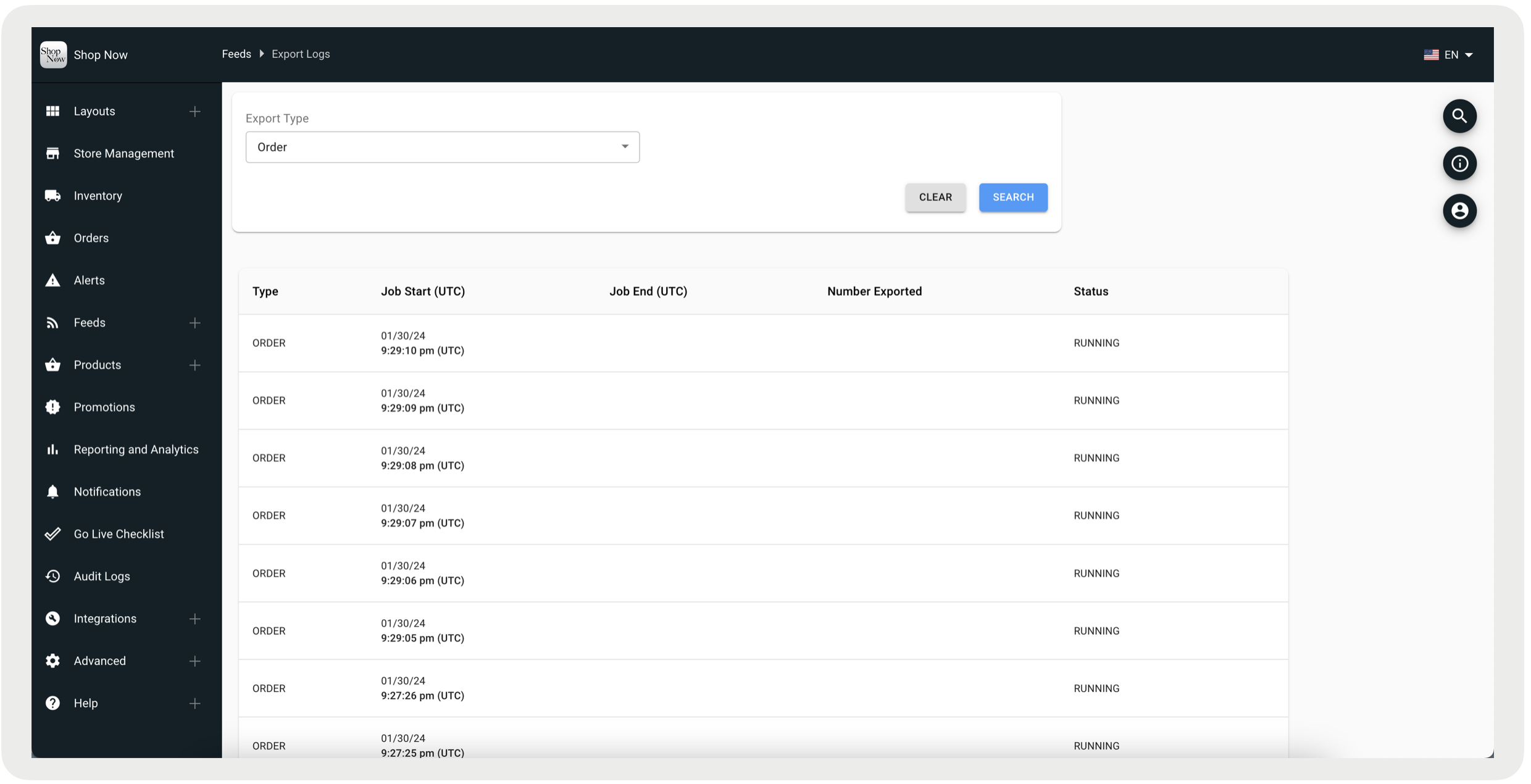
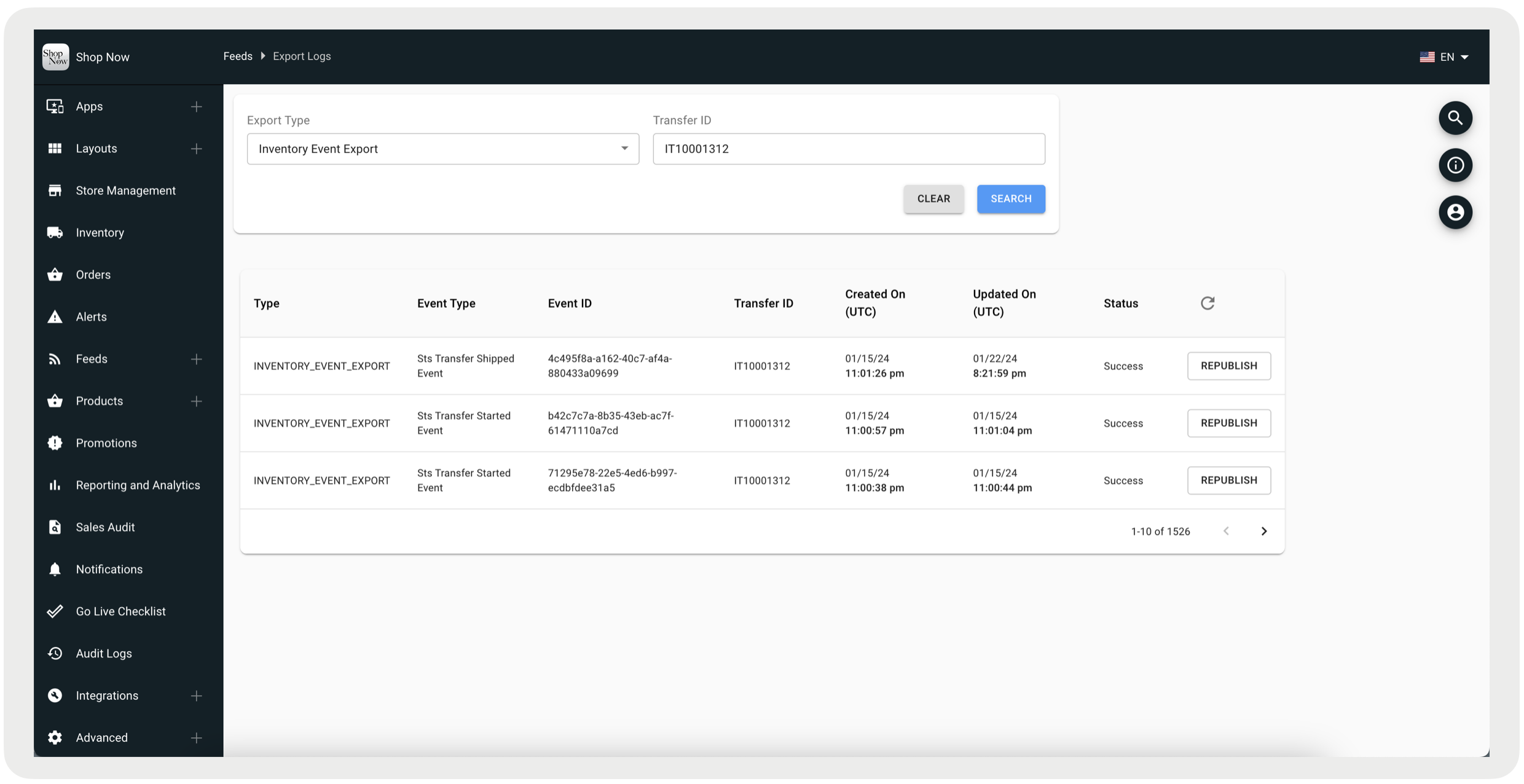
Use export jobs to extract data from Point of Sale by using Secure File Transfer Protocol (SFTP). Configure and schedule these jobs in CMS to automate data extraction, and monitor their progress in the Export Logs for timely, efficient data retrieval.
See Also
Create and Schedule an Export Job
- In CMS, go to .
- Click the + icon to create an export job.
- Select the type of job.
-
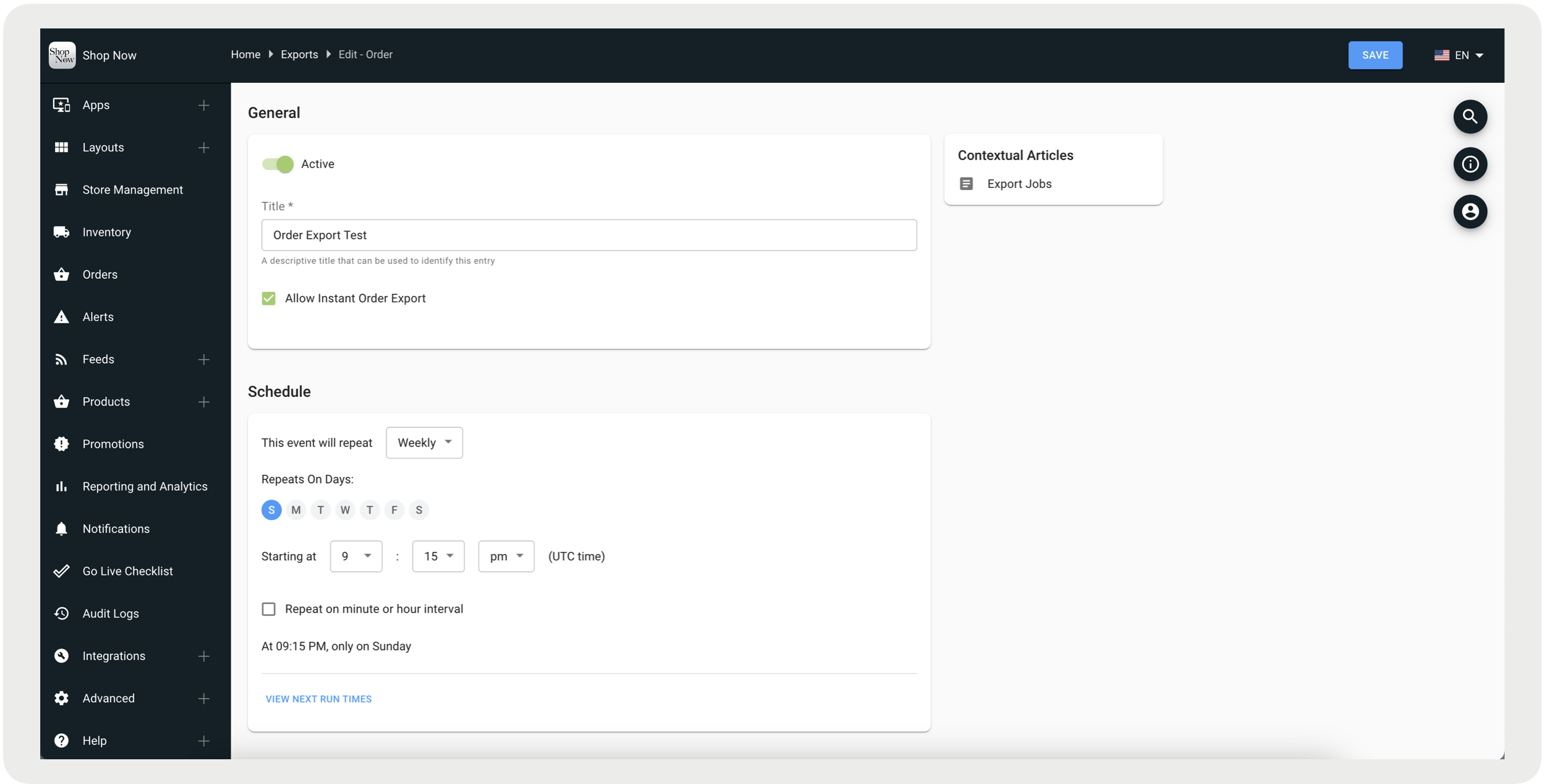
Configure the rest of the fields:
Field Description General Active Turn on to run this export. Not applicable for jobs that run only when you trigger them, such as Product Catalog Export. Title Enter a descriptive title for this export. Allow Instant Order Export Turn on to run real-time order exports. This setting is available only for order exports. Schedule Schedule Not applicable for jobs that run only when you trigger them, such as Product Catalog Export. Destination Protocol Select FTP or SFTP. SFTP is the default. Host Enter the export destination portal URL. Username Enter your username for the export destination portal. Password Enter your password for the export destination portal. Folder Enter the export folder path. Export File Type Select the export file type. CSV, TSV, and RetailNext formats include only limited subsets of order data. For full functionality, we recommend using JSON or XML formats. Filename Enter the export file name. Add Header Turn on to include a column header in the exported file. One Order Per File Turn on to match the export file to the CMS file.
Run an On-Demand Export
Some export job types, such as Product Catalog Export, run only when you trigger them. These types don't include an Active toggle or a Schedule section, and they don't require field mapping. Every column in the product table exports automatically.
- In CMS, go to , and open the export job.
- Click Export Now.
- Confirm the export in the dialog that appears.
Delete an Export Job
In CMS, admins with the Feeds: Edit permission can delete inactive export jobs.
- Highlight an inactive job.
-
Click the trash icon.
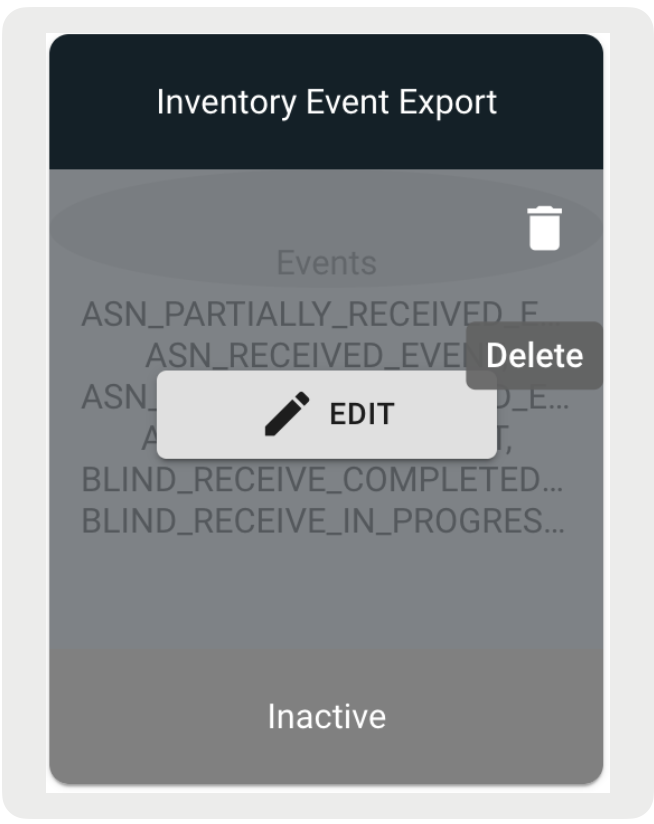
- Confirm the deletion by entering Delete.