
Use Case: Maintain Accurate Inventory Counts to Improve Sales and Customer Satisfaction
Use the Inventory app to keep your inventory counts accurate. Quickly and efficiently add or update individual records or import multiple records using a CSV or JSON file.
Required Editions
Streamline order fulfillment, reduce operational inefficiencies, and enhance the overall shopping experience by preventing overselling, stockouts, and backorders.
Each add, edit, and import method has limitations on the number of records you can work with. For example, you can add up to 20 records and edit up to 100 at a time. However, when you import the inventory in bulk, limitations are based on file size, not the number of items.
Watch this video to see how you can maintain accurate inventory counts.
If you can’t watch the video in full screen, open the video on a new tab: Maintain Inventory Counts in Commerce Workspace.
-
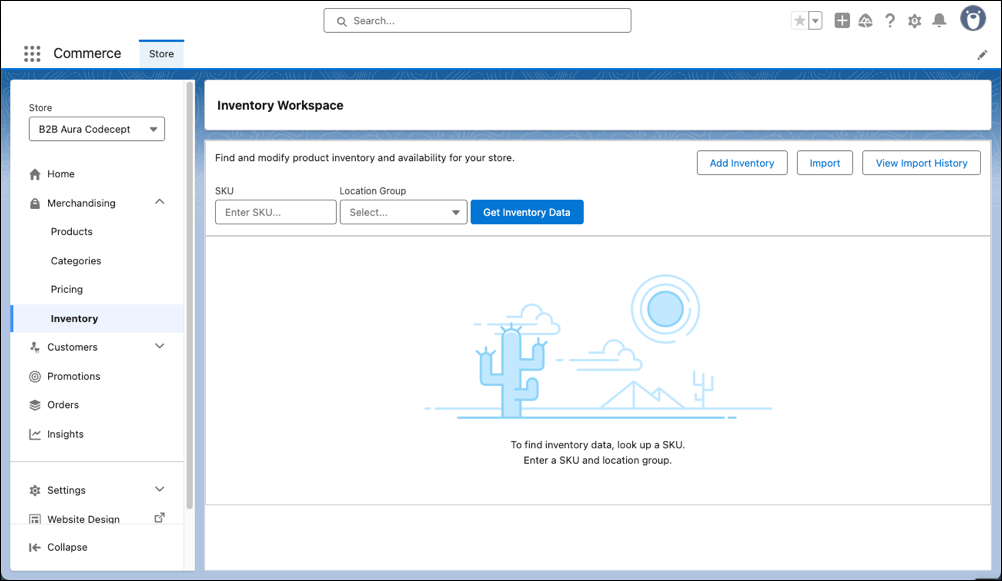
In the navigation sidebar, click Merchandising | Inventory.
-
Add an individual SKU.
- Click Add Inventory.
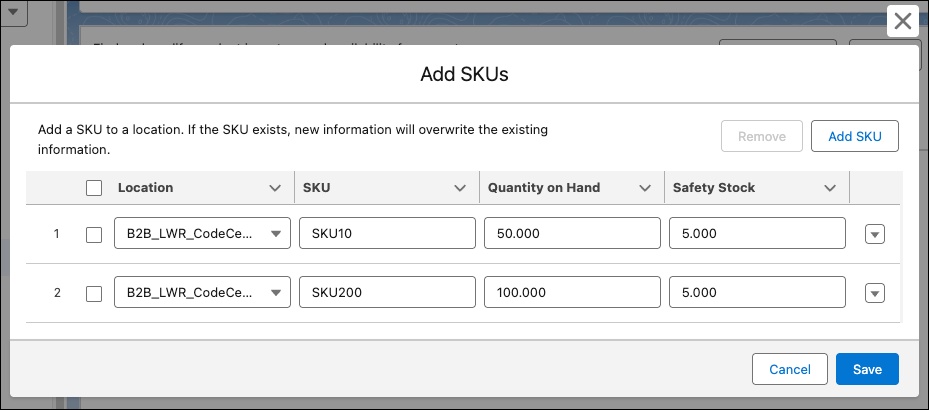
- Select the item's location, enter the new SKU, and add the quantity on hand and safety stock information.
-
Add another SKU.
- Click Add SKU and enter the information.
-
Click Save.
-
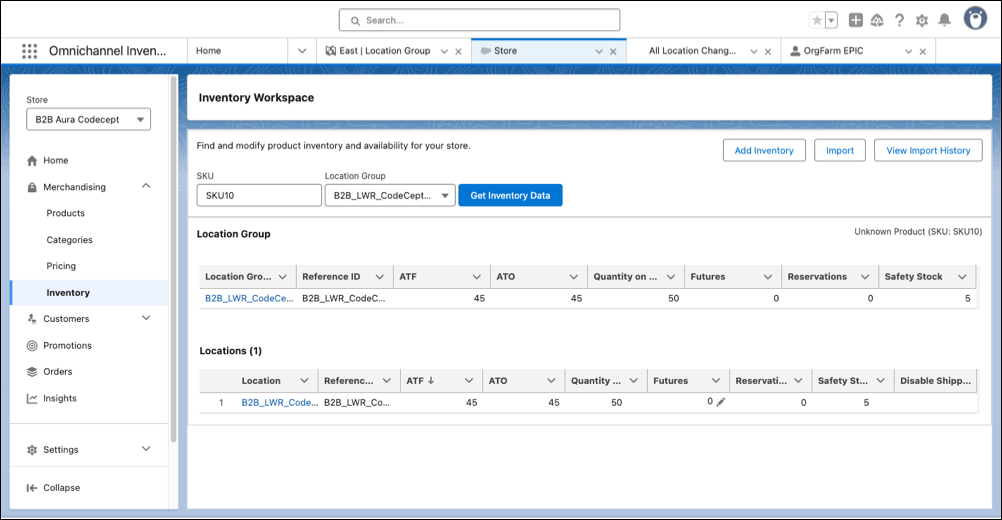
Look up one of the new SKUs to confirm that it was added.
- Enter the SKU.
-
Click Get Inventory Data.
-
Edit a SKU’s inventory count.
- Click in the Quantity on Hand field and update the number.
- Click Save.
Your inventory is updated in real time. Merchants and customers can see the current and accurate inventory levels for each product. -
Upload and edit the inventory in bulk.
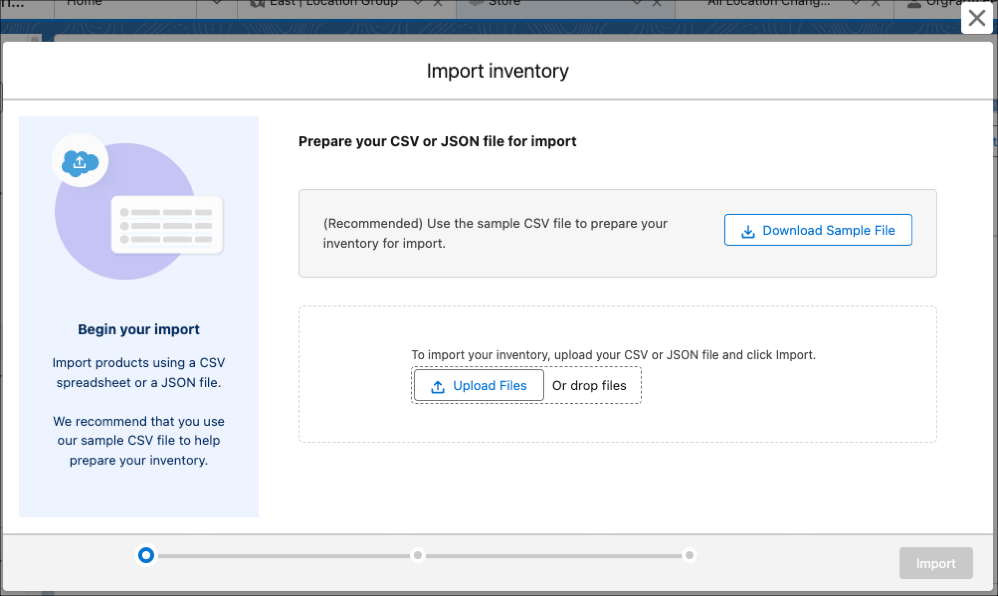
- Click Import in the Inventory Workspace.
-
If you haven’t created a CSV file, download the sample file and use it to prepare your
inventory. Otherwise, upload your file and click Import.
-
Monitor the progress.
- Click the refresh button.
- When the import summary appears, click Done
- To view the import details, click View Import History and select the latest import log entry.