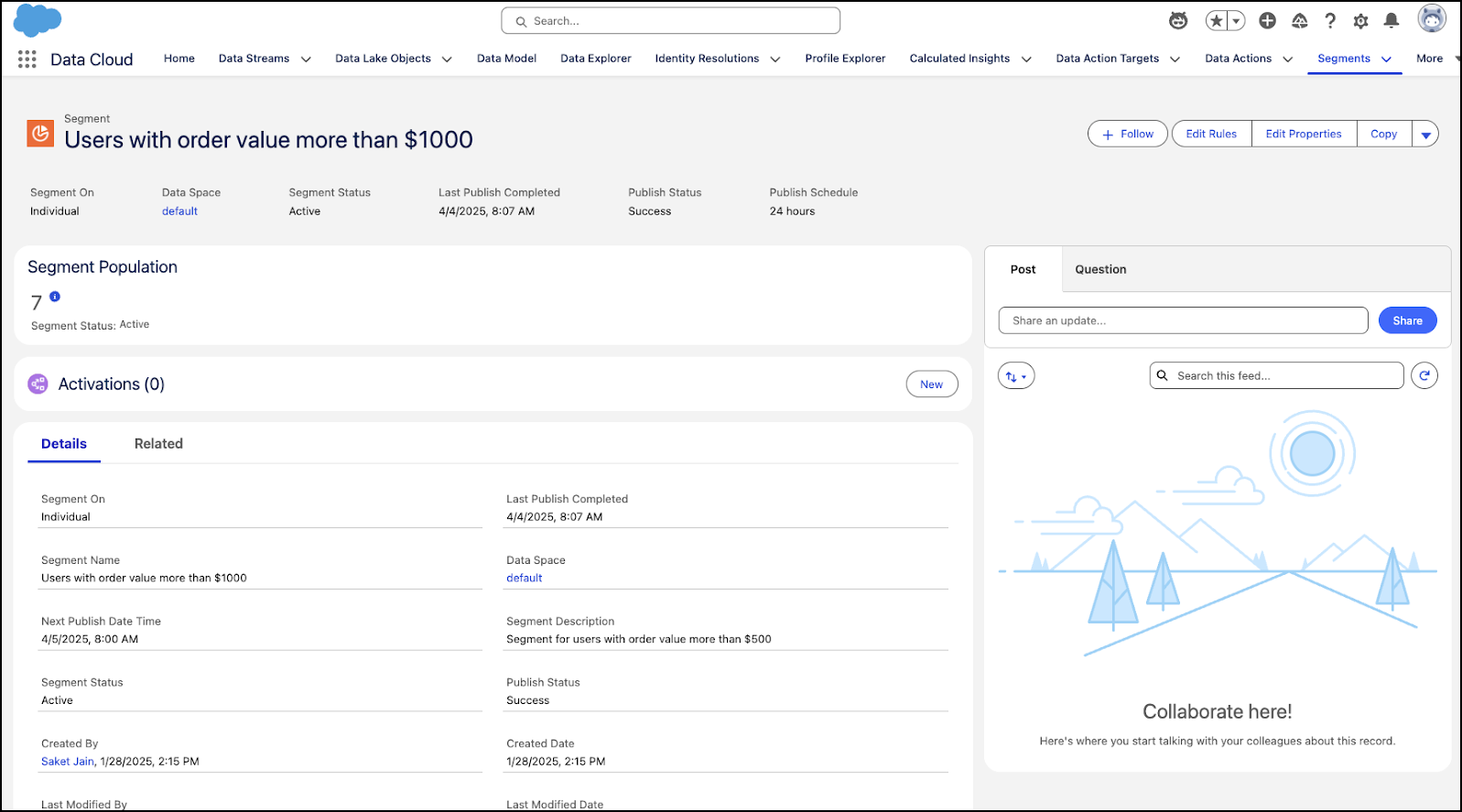
Use Data 360 to create customer segments based on buying frequency or
spending amounts. Offer these customer segments personalized promotions that target their buying
behaviors. For example, a B2B store offers a bulk discount to customers who consistently purchase
large quantities of a particular product. You can use these personalized promotions in B2B
stores.
Required Editions
As a merchant, I want to use Data 360 segments to connect with
customers based on how often they purchase or how much they spend. By creating customer segments
in Data 360, I can tailor promotions to customers in these segments
based on their previous interactions with my store. Using Data 360
segments to create personalized promotions sets my store apart from the competition and creates
a more personalized and engaging customer experience.
This video explains how to set
up event-triggered emails.
.
If you can’t watch the video in full screen, open the video on a new tab: Create a Promotion for
Customers Who Make Large Purchases.
The steps are also listed here.
-
In the App Launcher, find and select Data Cloud.
-
In Data 360, click Segments. Then click
New.
-
Select standard segment and click Next.
-
Select default data space, choose individual as Segment On
-
Enter a name for the segment. For example, Users with order value more that $1,000. Click Next.
-
Choose standard publishing.
The segment opens and you can add rules.
-
In the navigation sidebar, expand related attributes and select Sales Order Product.
-
Create a rule where the grand total amount is greater than $1,000 and the order data is later than January 01, 2025.
-
Activate the segment.
-
In the Commerce app, launch the Skills for Merchandising agent.
-
In the prompt field type "Create a promotion offering a 15% discount for orders over $1,000 and
associate it with the segment Users with order value more that $1,000 .
The agent creates the promotion for you.
-
Review the promotion and verify the details.
-
To activate the promotion, Click Activate and save your work.