
If you have a B2B store built using an LWR template, you can display a message on the search results page when there are no results. Use the No Results Layout component in Experience Builder to display and modify the message.
Required Editions
- In the navigation sidebar, select a store from the Store dropdown.
- Select Website Design, and then click Experience Builder.
- From the Pages dropdown menu, select Search.
- Select the No Results Layout component.
- Click the HTML Editor component and then click Edit Markup.
- Modify the page content in HTML format and click Save. You can change the text, image, and styling of the message.
- To display a message while search results are loading, drag an HTML Editor component into the Loading State component. Click Edit Markup, modify the page content in HTML format, and save your changes.
- Publish your site.

Example
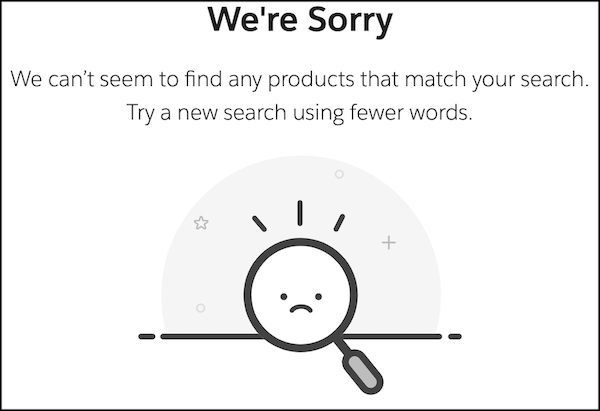
Here’s how the default HTML looks when you publish the page.
    <div style="display: flex; flex-direction: column; align-items: center; text-align: center; height: 50vh; justify-content: center;">
    <h1 class="slds-text-heading_large" style="margin-bottom: 20px; font-weight: bold;">We're Sorry</h1>
    <p class="slds-text-heading_small" style="margin-bottom: 5px;">We can't seem to find any products that match your search.</p>
    <p class="slds-text-heading_small">Try a new search using fewer words</p>
    <div style="background: url({!Site.basePath}/assets/images/empty-search.svg) center no-repeat; background-size: contain; margin-top:25px; height: 200px; width: 50%;"></div>
    </div>