---
schema_version: "1"
id: ee3250b3dec08a486da2e3a777ae7e7948d0e635bdd21057d179eb293290af9c
title: Create a No Search Results Message
collection: admin
version: current
locale: en-us
portal_url: https://docs.salesforce.com/admin/current/en-us/commerce/264-0-0/comm_search_no_results_lwr.md
canonical_url: https://help.salesforce.com/s/articleView?id=commerce.comm_search_no_results_lwr.htm&release=264.0.0&type=5
source_site: help.salesforce.com
content_type: documentation
content_hash: b3f1e68368c23913b46b09a1954d8a8ce93dc5128803006abaa726e520f0a0b5
description: If you have a B2B store built using an LWR template, you can display a message on the search results page when there are no results. Use the No Results Layout component in Experience Builder to display and modify the message.
products:
  - Commerce
  - B2B Commerce
release: "264"
---
# Create a No Search Results Message

If you have a B2B store built using an LWR template, you can display a message on the search results page when there are no results. Use the No Results Layout component in Experience Builder to display and modify the message.

### Required Editions

<table class="slds-table slds-table_bordered slds-max-medium-table_stacked slds-m-bottom_small edition"><colgroup><col></colgroup><tbody><tr class=""><td class="slds-cell-wrap" style="vertical-align:top;"><a href="https://help.salesforce.com/s/articleView?id=commerce.comm_editions.htm&amp;language=en_US" target="_blank">View supported editions</a>.</td></tr></tbody></table>

[Which Salesforce Commerce Product Do I Have?](https://help.salesforce.com/s/articleView?id=commerce.comm_what_product.htm&language=en_US)

1. In the navigation sidebar, select a store from the **Store** dropdown.
2. Select **Website Design**, and then click **Experience Builder**.
3. From the Pages dropdown menu, select **Search**.
4. Select the **No Results Layout** component.
5. Click the **HTML Editor** component and then click **Edit Markup**.
6. Modify the page content in HTML format and click **Save**. You can change the text, image, and styling of the message.
7. To display a message while search results are loading, drag an HTML Editor component into the Loading State component. Click **Edit Markup**, modify the page content in HTML format, and save your changes.
8. Publish your site.

![Example](https://sf-zdocs-cdn-prod.zoominsoftware.com/tdta-commerce-comm-264-0-0-production-enus/d863e308-482a-4dfa-8d20-2a94737d394a/images/icon_example.png)

Example

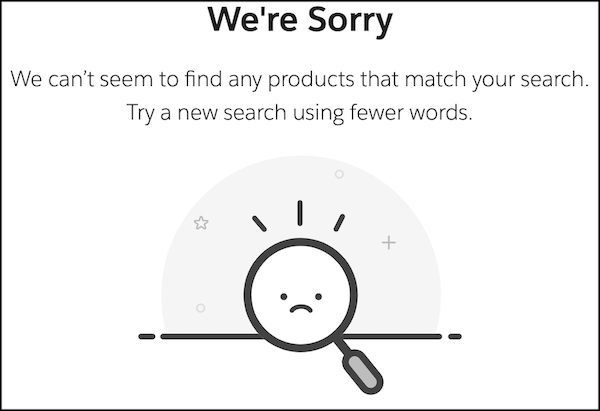
Here’s how the default HTML looks when you publish the page.

```html

    <div style="display: flex; flex-direction: column; align-items: center; text-align: center; height: 50vh; justify-content: center;">
    <h1 class="slds-text-heading_large" style="margin-bottom: 20px; font-weight: bold;">We're Sorry</h1>
    <p class="slds-text-heading_small" style="margin-bottom: 5px;">We can't seem to find any products that match your search.</p>
    <p class="slds-text-heading_small">Try a new search using fewer words</p>
    <div style="background: url({!Site.basePath}/assets/images/empty-search.svg) center no-repeat; background-size: contain; margin-top:25px; height: 200px; width: 50%;"></div>
    </div>
   
```

![Default no results message.](https://sf-zdocs-cdn-prod.zoominsoftware.com/tdta-commerce-comm-264-0-0-production-enus/d863e308-482a-4dfa-8d20-2a94737d394a/comm/images/comm_search_no_results.png)