When you’ve familiarized yourself with the basics of creating a promotion, here are a few ways to customize them.
Required Editions
Add More Discount Targets
A promotion can target a single category or include multiple product discounts. For example, “Spend $50, get $10 off product X or $10 off product Y” or “Spend $50, get $10 off category Z.”
To target multiple categories for a discount, set up multiple promotions, one for each category. For example, in this promotion, “Spend $150, get $10 off category Z and D”, set up separate promotions in the Z and D categories.
Add More Qualifiers
Multiple qualifiers can make a promotion more flexible or more restrictive, depending on your qualifier criteria. If a customer must meet only one qualifier, select Any. To require that a customer meets every qualifier to receive the promotion, select All.
Apply Quantity or Cart Limits
To restrict the number of times a product can receive a promotion, in the discount settings, enter the quantity limit. To restrict the number of times a promotion can apply to a cart, in the promotion details, enter a maximum application per cart. To create more sophisticated promotions, combine these limits. To require that a customer meets the quantity limit before receiving the discount, select Apply discount only when a cart reaches the quantity limit.
Create a Basic BOGO Promotion Deal
To offer a buy-one-get-one (BOGO) deal, use the same product or product category as your discount and qualifier. Because the customer must buy a product at full price to receive the discount on an additional product, in the promotion details, select Exclude qualifying items from discounts.

- Add a qualifier for both categories.
- In the discount details, enter a quantity limit of 1.
- In the promotion details, set the qualifier criteria to Any.
- In the promotion details, enter a Maximum Applications Per Cart value of 1.
- Add a qualifier for Alpine Medium Roast Coffee, and enter a minimum quantity of 5.
- Add a discount for Alpine Medium Roast Coffee.
- In the discount details, enter a quantity limit of 2, and select Apply discount only when a cart reaches the quantity limit.
- In the promotion details, select Exclude qualifying items from discount.
Create Advanced BOGO Promotion Deals
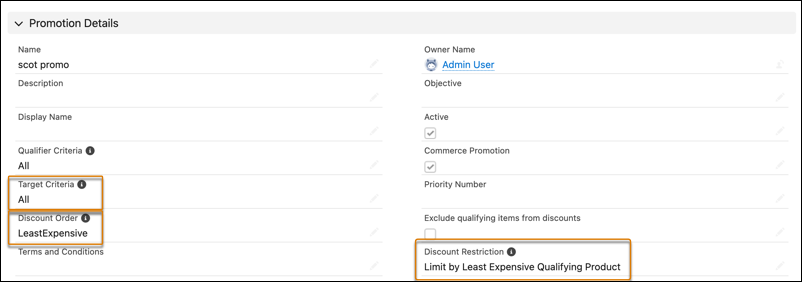
Sometimes merchants or manufacturers require that a discounted item can’t cost more than the least-expensive qualifying item.
- Create your promotion, and set the discount restriction to Limit by Least Expensive Qualifying Product.
- Add a promotion qualifier.
- Qualifier: Category > Shirt
- Qualifier Type: Product category
- Minimum Quantity: 1
- Add a discount target.
- Target: Category > Pants
- Target Type: Product category
- Adjustment Type: Percentage Discount
- Adjustment Percent: 50
- Quantity Limit: 1
By default, the most expensive items are discounted first, followed by the less expensive items. You can reverse this strategy and discount the least-expensive items first.
- Create your promotion, and set the discount order to Least Expensive.
- Add a promotion qualifier.
- Qualifier: Category > Shirt
- Qualifier Type: Product category
- Minimum Quantity: 1
- Add a discount target.
- Target: Category > Pants
- Target Type: Product category
- Adjustment Type: Percentage Discount
- Adjustment Percent: 100
- Quantity Limit: 1
You can create a multiple-discount promotion that requires all discount types to be met before the promotion is applied.
- Create your promotion, and set the target criteria to All.
- Add a promotion qualifier.
- Qualifier: Category > Shirt
- Qualifier Type: Product category
- Minimum Quantity: 1
- Add a discount target.
- Target: Product > Pants
- Target Type: Product
- Adjustment Type: Percentage Discount
- Adjustment Percent: 50
- Quantity Limit: 1
- Add another discount target.
- Target: Product > Shoes
- Target Type: Product
- Adjustment Type: Fixed Amount Off Unit Price
- Adjustment Percent: 10
- Quantity Limit: 1