
Use tiers to create progressive discounts for a promotion. You can add tiers only to a promotion that was created as a tiered promotion. All discounts within a tier must be of the same type. You can create up to 10 tiers per promotion.
Required Editions
- In the navigation sidebar, select a store from the Store dropdown.
- Select Promotions, and select a tiered promotion.
- On the Tiers tab, click New.
- Enter a promotion tier name.
- Select the promotion that you want to assign the tier to.
- Enter a rank to specify which tier applies first. The lower the number, the better the discount.
- Click Save.
- Select the promotion tier you created, and click the Related tab.
- To add discount details for the tier, click New next to Discounts. See Edit a Promotion Discount for a B2B Store.
- To add qualifier details for the tier, click New next to Promotion Qualifiers. See Edit What Qualifies for a Promotion for a B2B Store.
- Repeat these steps for each tier that you want to create.

Example To entice shoppers to purchase more, you want to give a better discount as the shopper
adds more to their cart. You create three promotion tiers that give the shopper 10% off a $50
purchase, 20% off a $100 purchase, or 30% off a $200 purchase. When you create your promotion,
select Tiered Promotion and then: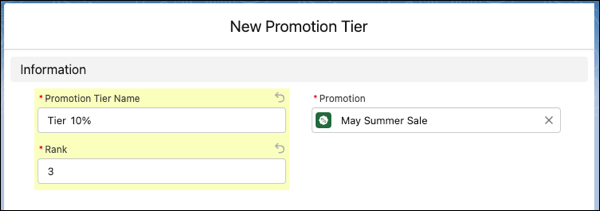
- Create a tier for each discount level and associate it with the tiered promotion.
- Assign the best discount to the lowest rank.
- Add your discounts and promotion qualifiers to each tier.