
Personalize your customers’ shopping experience by combining the power of Data 360 segments and Commerce buyer groups. Build a targeted customer group using Data 360 segments and associate it with a Commerce buyer group. You can then deliver personalized promotions and content that directly caters to customer needs and interests.
Required Editions
| View supported editions. |
Which Salesforce Commerce Product Do I Have?
Deploy Commerce B2B data bundles in your org. See Commerce Data Bundle Mappings.
Before you begin, set up Data 360 for Commerce.
-
In the App Launcher, find and select Data 360, and then create and publish a data segment by applying filters to
capture the data you need.
You need
Data 360
Admin access to complete this step.For example, you can use the Sales Order data model object filters to create a data segment of customers who made at least one high-value purchase in the past year. See Create a Segment in Data 360. - If your org is using a version before Summer ’24, add the Data 360 Segment component to the Buyer Group page.
-
Create a buyer group.
- In the navigation sidebar, select a store from the Store dropdown.
- Select Customers | Buyer Groups.
- Click New.
-
Enter the information, and for the role, select Data 360 Segments.
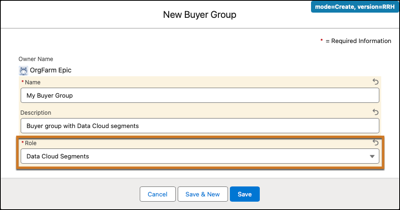
- Click Save.
- In the Related section, under Data 360 Segments, click Assign.
-
In the Assign Data 360 segments window, select one or more
data segments, and click Assign.
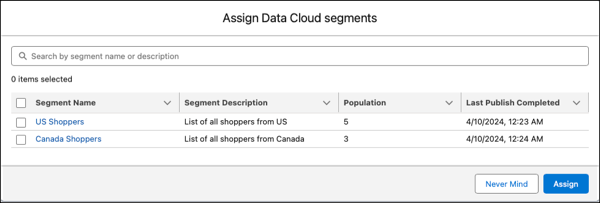

You can now create targeted promotion campaigns and associate them to the segmented buyer group. See Add a Promotion Segment.
You can also create targeted content on your storefront and make it visible only to the specific buyer group. To configure dynamic visibility rules for storefront components, see Control When a Component Is Visible.