
When your managed SSL certificate expires, or you update the hostnames assigned to a managed SSL certificate, update the certificate in Business Manager for B2C Commerce.
Which Salesforce Commerce Product Do I Have?
For the DNS mapping rules and validation methods, see DNS Mapping for eCDN Zones.
To update the hostnames assigned to a certificate in a proxy zone, add a new certificate with all the hostnames, verify the hostnames, and then delete the old certificate. Adding all hostnames before you delete the old certificate avoids availability gaps.
To switch a hostname from
a self-managed (custom) certificate to an eCDN managed certificate, use the CDN Zones
API updateCertificate method with the certificate type set to
automatic. See updateCertificate.
-
In Business Manager, click App Launcher
 , and then select .
- Select a zone from the hostnames list and click Certificate.
-
On the Crypto tab, select the zone from the list.
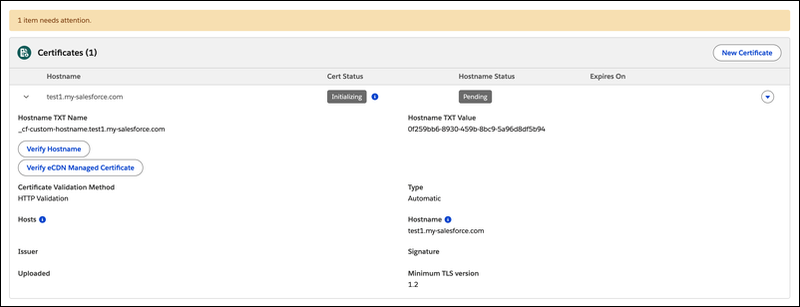
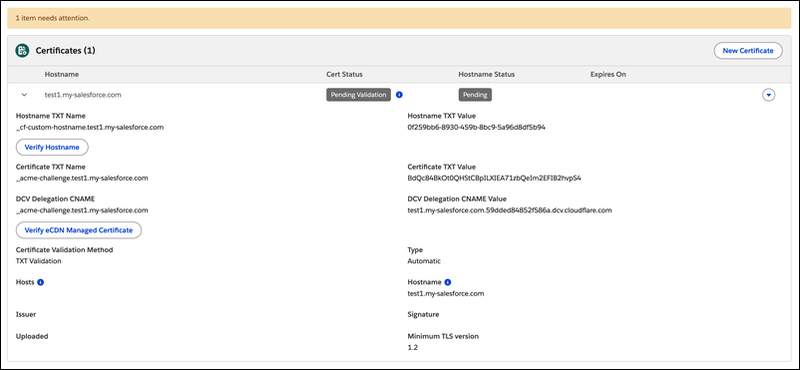
To view certificate details, click the chevron at the start of a certificate row. The expanded view shows certificate type, hosts, issuer, validation method, expiration details, and any TXT or CNAME records or verification actions required for unverified certificates.
- From the certificate row actions menu, click Edit on the certificate you want to update.
-
Select eCDN Managed Certificate.
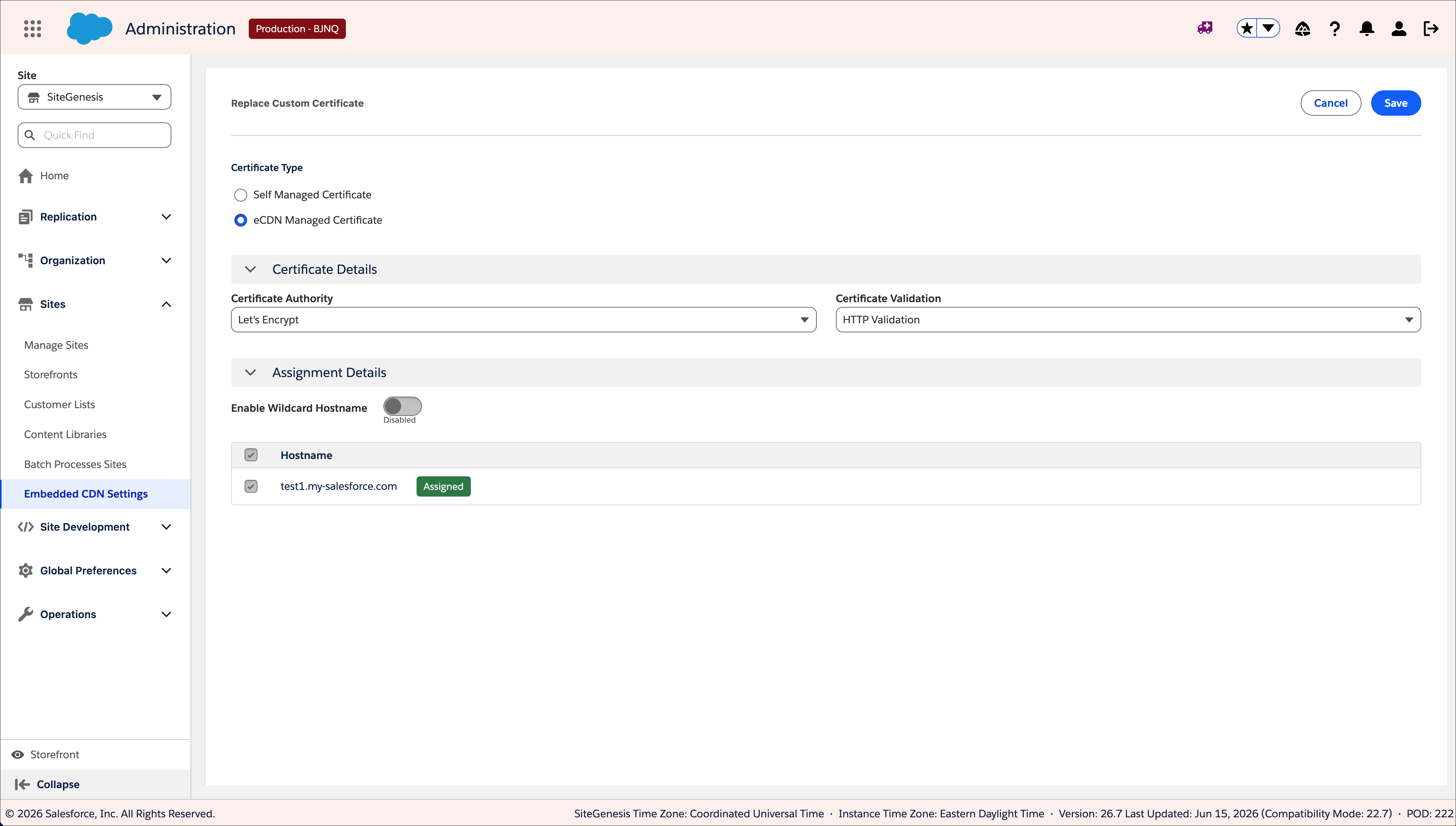
- From the SSL Certificate Authority dropdown, select Lets Encrypt (default) or Google.
- From the Certificate Validation Method dropdown, select HTTP Validation (recommended) or TXT validation.
- Select the hostname to which you want to assign the SSL certificate.
- Click Replace Certificate.
-
Copy the verification text for your chosen validation method into your own DNS
portal.
-
HTTP Validation (recommended): Copy the displayed hostname verification text.
-
TXT Validation: Copy the displayed certificate and hostname TXT verification text, including the DCV Delegation CNAME.
 Note Wildcard hostnames use TXT validation and can renew automatically with DCV delegation. For details, see Configure Wildcard Custom Hostnames.
-
-
To check the status of hostname validation, click Verify
HostName.
Verification can take up to six hours.
-
(TXT validation only) After the hostname is active, click Verify eCDN
Managed Certificate to validate the certificate through the TXT
record.
Verification can take up to six hours.
-
Map DNS so that the hostname's traffic routes to the new zone.
See Map DNS to an eCDN Zone. After the CNAME record points traffic to the new zone, click Verify eCDN Managed Certificate to check the certificate validation status. Verification can take up to six hours.