
If you’re missing Log Center notifications in B2C Commerce, check these likely causes and fixes.
| Problem | Likely Causes | Fix |
|---|---|---|
| Alert notifications are missing. | The alert status is set to Inactive, the threshold is configured too high, or no matching log data exists. | Verify that the alert status badge is Active. To check for data availability over the
past 60 minutes, click Preview. Lower the threshold or adjust filters if data is
missing.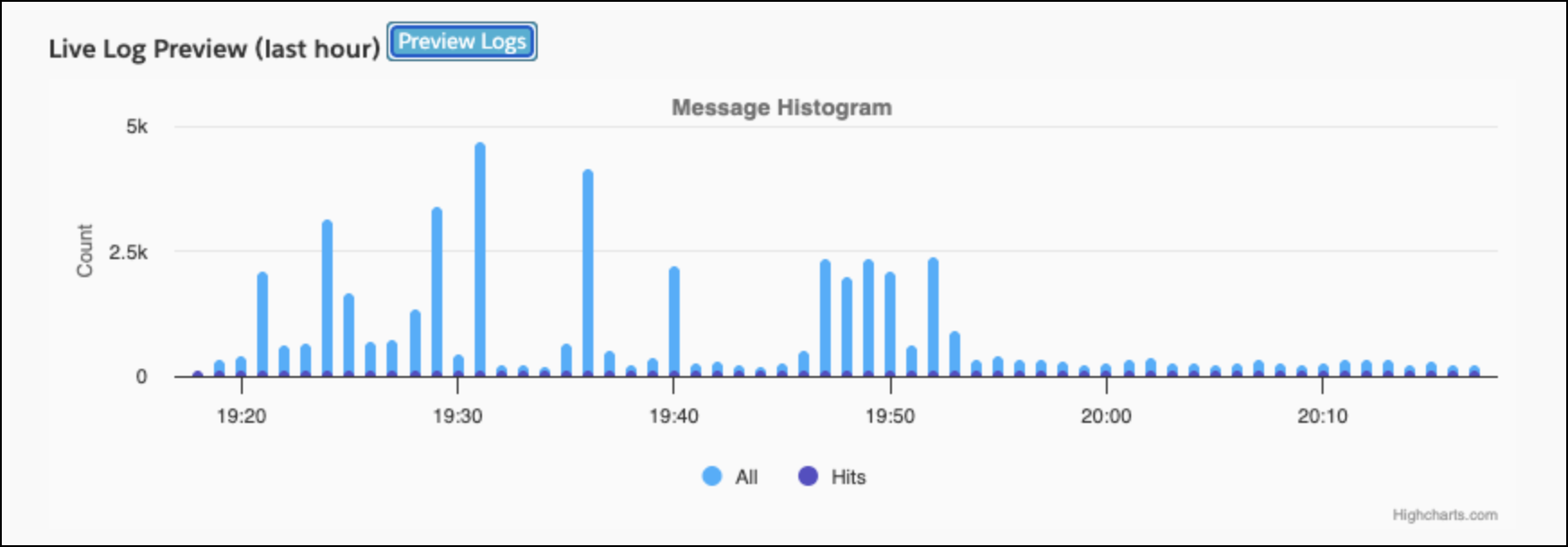 |
| Slack alerts fail to deliver. | The Slack incoming webhook URL is invalid, or the target Slack channel has been archived. | Verify that the target Slack channel exists and is active. Test the webhook configuration URL, and reenter it if necessary. |
| PagerDuty fails to trigger. | The PagerDuty routing key is invalid, or the target service is disabled. | Verify the Events API v2 integration key in your PagerDuty instance. Ensure that the PagerDuty service is active and enabled to receive events. |
| Microsoft Teams alerts fail to deliver. | The notification channel is turned off for the alert’s realm, the alert doesn’t use the Microsoft Teams notification channel, or the URL for the Power Automate workflow is outdated. | See Troubleshoot Microsoft Teams Notifications. |
| A notification channel isn’t visible. | The configured channel realms don’t encompass all of the alert’s selected realms. | In Notification Channel Configurations, edit the channel and add the missing realm. A notification channel must be assigned to at least one realm. |
Troubleshoot Microsoft Teams Notifications
If a Microsoft Teams notification channel doesn’t receive Log Center alerts, then check the following.
- Confirm that the notification channel is turned on and assigned to the alert’s realm.
- Confirm that the alert is turned on, that its trigger conditions are met, and that it’s configured to use the Microsoft Teams notification channel.
- Verify that the Power Automate workflow is turned on and still posts to the intended Microsoft Teams chat or channel.
- Verify that the workflow URL in Log Center is the current generated URL. Workflow URLs can change when you recreate or replace a workflow.
- Confirm that the workflow accepts HTTP requests and can process the Adaptive Card request body that Log Center sends.
- Check the workflow run history in Power Automate for failed or rejected requests.
- Confirm that the Microsoft Teams account that owns the workflow still has access to the destination chat or channel.
- If the workflow URL was exposed, then create a new workflow URL and update the Log Center notification channel configuration.
If the issue continues, then provide Salesforce Support with the alert name, affected realm, approximate alert time, notification channel name, and any error from the Power Automate workflow run. Omit the workflow URL from the support request.