
Create a Shopper Agent with the automated tool available in Setup. Enter your configuration details on one page, and setup creates the agent.
Before you run the automated setup, make sure you complete these tasks.
- Find your Org ID and Short Code in your Salesforce Commerce API Settings.
- Log in to Business Manager.
- Click App Launcher
 , and then go to .
- Enable Agentic Commerce Search. See Enable Agentic Commerce Search for the Shopper Agent.
The automated setup configures components for the agent to run correctly. Don’t create the Shopper Agent manually in Agentforce Builder. After the setup creates the agent, you can modify the configuration.

-
In your Salesforce org, at the top of the page, click
 and select Setup.
- In the Quick Find box, enter and select Commerce Shopper Agent Setup.
-
Enter your configuration details.
Agent Details Field Description Agent Type Indicates the agent template that the setup uses. Set to Agent Script (Enhanced Search) to use the latest Agentforce Builder and Agentic Commerce Search. Agent User Specify an agent user that has the required permissions. Setup creates an agent user by default. To reuse an unused license, select an existing agent user. Agent Name Name for the agent. This name is visible in Setup, and in the Agent Builder. 255 character maximum. Company Your business name. Optional context used in agent instructions. Salesforce Commerce Cloud (B2C) Field Description Storefront Type The storefront type. Select PWA Kit for Composable Storefront or Storefront Next. Select SFRA for a Storefront Reference Architecture (SFRA) storefront. Site ID ID of the B2C Commerce site that the agent serves, for example, RefArch. Org ID B2C Commerce org ID, for example, f_ecom_xxxx_01. Locale Default locale for the storefront. Example: en-US. The locale corresponds to the XML code version of the locale values in B2C Shopper Agent Language and The XML code uses a hyphen and not an underscore. For example, use locale code en-US and not the B2C locale code of en_US. Storefront URL The customer-facing URL of your storefront. For SFRA, it is the B2C Commerce domain. For Composable Storefront and Storefront Next, it is the Managed Runtime domain. CDN Hostname (Optional) The CDN hostname used to serve storefront media, such as product images. This hostname is added as an org-level trusted URL. It is also added to the Digital Experience site so that images render in the chat window. SLAS Configuration Field Description Commerce API URL Shopper Login and Activity Service (SLAS) API UR. Format: https://<shortcode>/api.commercecloud.salesforce.com SLAS Client ID Client ID of your private SLAS application. Client type can be backend-for-frontend (BFF) or Web App. Created in the SLAS Admin UI. For more information, see Shopper Login and API Access Service (SLAS) Overview. SLAS Client Secret Client secret generated when creating the private SLAS application. Shown only during creation. The SLAS client ID and secret are securely stored in the Salesforce org in named credentials. -
Select Create Agent.
Setup creates the agent and its supporting configuration. The page shows the status of each item.
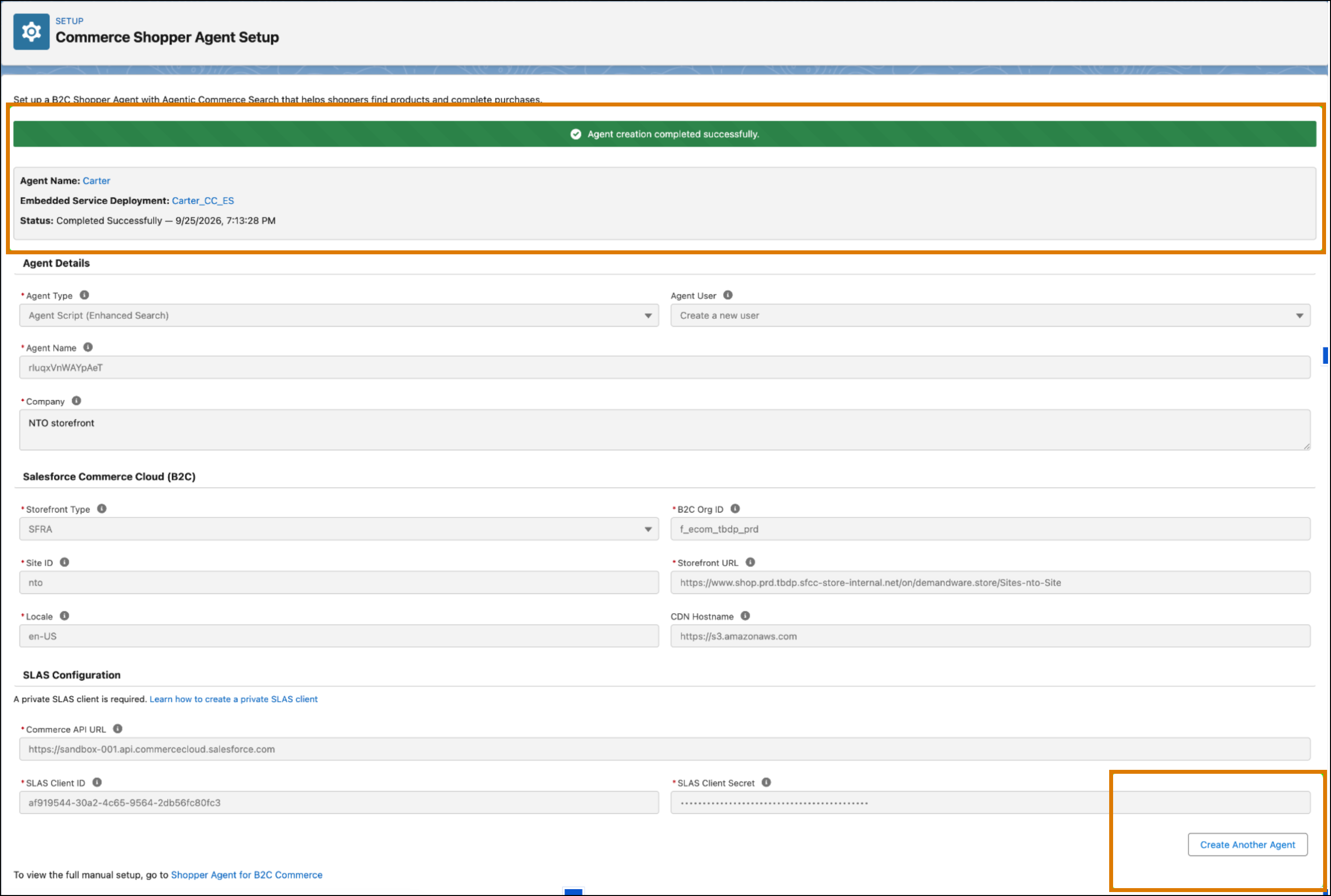
- Review the results, and correct any item that reports an error. Agent setup can take up to 5 minutes to complete. If agent setup encounters issues, it automatically retries up to 5 times. Refresh the Commerce Shopper Agent Setup page for the latest status.
When the setup finishes, your org has these items.
- A Shopper Agent, and the agent user with the right permissions.
- Embedded Service Deployment with the messaging channel.
- Named credentials that the agent uses to make API calls to your B2C instance.
- Messaging session variables.
- Omni-Channel flow with routing configuration.
To create another agent, enter a different agent name. If you run setup again with the same agent name and values, and a previous setup for that agent paused, setup resumes from where it left off.
Your Shopper Agent is ready. Next, deploy the Agentforce Commerce Client to your storefront so that shoppers can start the agent.