
Identify unusual log patterns in B2C Commerce Log Center and optionally send alerts when anomalies meet your alert threshold. Log Center continuously analyzes incoming log data and compares the data with learned baseline behavior. When data deviates from the baseline and meets your thresholds, Log Center flags the anomaly.
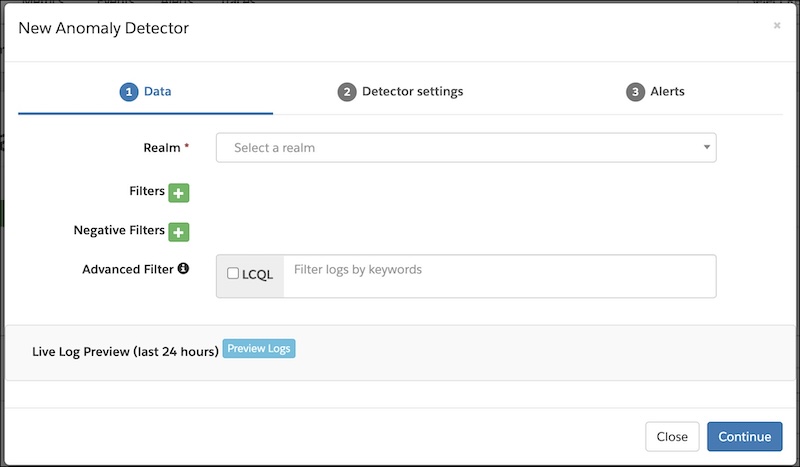
The New Anomaly Detector wizard has three steps: Data, Detector settings, and Alerts. To create a detector, complete the steps in order and click Continue to advance. To edit a detector later, reopen the wizard, where all three steps are prefilled.
- Log in to Log Center. For the ways to access Log Center, including from Business Manager, see Access Log Center.
-
On the Anomaly Detection tab, click Anomaly Detector Configurations,
and then click the plus (+) icon to open the New Anomaly Detector wizard.
-
On the Data step, define which logs the detector analyzes.
- Select the realm where the detector runs.
- To narrow the logs, add include filters. To exclude logs, add negative filters. To refine further, enter an advanced LCQL filter.
- To check which logs match your filters, click Preview Logs. Log Center applies your realm and filters to the last 24 hours of logs and shows a histogram of the matches. Adjust the filters until the preview reflects the logs you want, and click Continue.
-
On the Detector settings step, enter a name and an optional description. Then set how the
detector runs.
- For Anomaly Detection Time Interval, select how often Log Center checks for anomalies (5, 10, 15, 20, or 30 minutes, with a default of 10 minutes). Shorter intervals detect anomalies sooner. Longer intervals smooth out short-term noise.
- For Detection Sensitivity, set how strict the detector is. The scale runs from Low (1) to High (10), with a default of 6. Higher sensitivity catches more anomalies but can increase false positives. Lower sensitivity flags only larger deviations.
- To start detection when you save, select Enable Real-time Anomaly Detection. To create the detector without running it yet, leave this option cleared. Then click Continue.
-
(Optional) On the Alerts step, set up notifications.
- Select Enable Alerting.
- Set the alert severity threshold (0.0 to 1.0) and the alert time interval. The alert time interval must be greater than or equal to the detection time interval. Log Center sends an alert when it detects an anomaly within the alert time interval that has a severity greater than the alert severity threshold. A severity level equal to the threshold doesn't trigger an alert.
- Choose where to send alerts. Enter up to five email addresses. The detector creator is always included as a recipient and isn't counted as one of the five. Select a Slack, Microsoft Teams, or PagerDuty notification channel. To create a channel, click Set up a notification channel.
- Click Save. If you enabled real-time detection, the detector starts running immediately.