
A product list shows the products for your site. Create multiple product lists and customize them to find the information that’s the most relevant to you. Product lists are shared across all users in your site. When you delete a product list, you delete the list for all users.
Create or Clone a Product List
To preserve your column and filter configurations, create or clone a product list. If you don’t create or clone a product list, the default configuration appears the next time you view the list.
-
In Business Manager, click App Launcher
 , and then select .
-
Click List Actions and then select New or
Clone.
New creates a product list with the default column and filter configurations. To duplicate the columns and filters that you added, select Clone.
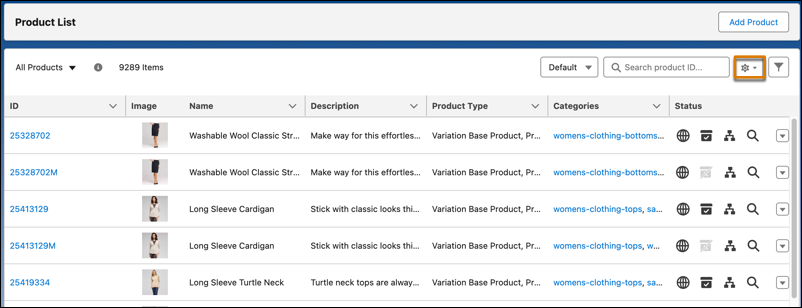
- Enter an ID and name.
- Save your changes.
Search for Products in a Product List
A B2C Commerce product list contains either all the products in your site or a filtered list of products. To search for a specific product, use the product ID or all or part of the product name, or search for multiple products at once using product IDs.
-
In Business Manager, click App Launcher , and then select .
-
In the Search dropdown menu, select the type of search.
To search for a single product, select Name or ID, and enter the name or ID.
If you're searching by product name, make sure that you select the correct locale from the dropdown list. The search results show only the products in the selected locale. By default, the locale configured in your user profile is selected.
To search for multiple products at once, select List of IDs, and enter up to 1,000 product IDs separated by spaces, commas, colons, semicolons, or line breaks. If your product IDs contain special characters, separate the product IDs by line breaks.
Delete a Product List
When you delete a product list, users can no longer access it. You can’t delete the default product list.
-
In Business Manager, click App Launcher , and then select .
- Select the product list that you want to delete.
- Click List Actions and select Delete.
Organize Product List Columns
Add, remove, and reorder columns in a product list. To save the column configurations, clone the product list.
-
In Business Manager, click App Launcher , and then select .
- Select the product list.
-
Click List Actions and select Manage
Columns.
- Make your changes, and save.
Add or Remove Product List Filters
Add and remove filters in the product list. To save the filter configurations, clone the product list.
-
In Business Manager, click App Launcher , and then select .
- Select the product list.
-
To add a filter, click the filter icon and select Add Filter.
- Select the filters that you want to use.
- Save your changes.
- Click Apply.
-
To remove a filter from the product list:
- Click the filter icon and select either Remove Filter to remove one filter or Remove All to remove all filters.
- Click Apply.
Perform Bulk Actions on a Product List
Copy or delete multiple products at a time.
- In Business Manager, click App Launcher, and then select .
-
Select the products that you want to copy or delete.
Copy up to 1,000 products and delete up to 200 products at a time. Deleted products can't be restored.
-
From the quick actions menu, select the bulk action.
To monitor the status, go to .
Export Products from a Product List
Export product data from a product list to a CSV or XML file, or both. You can export search results, an entire catalog, or up to 1,000 selected products.
- In Business Manager, click App Launcher, and then select .
- (Optional) Use filters to narrow the product list.
- Click Export.
-
Select the export scope.
The amount of time needed to export depends on the size of the catalog and the applied filters.
-
To check the status, go to .
If the export includes products from multiple catalogs, B2C Commerce creates a separate export job for each catalog.