Pause, resume, edit, or delete the eCDN notification rules that target a zone on your B2C Commerce storefront. The Notifications table shows every rule that targets the current zone, along with the destination it delivers to, the full zone list, and an Enabled toggle.
Which Salesforce Commerce Product Do I Have?
To create the rules that appear in this table, see Create a Notification Rule.
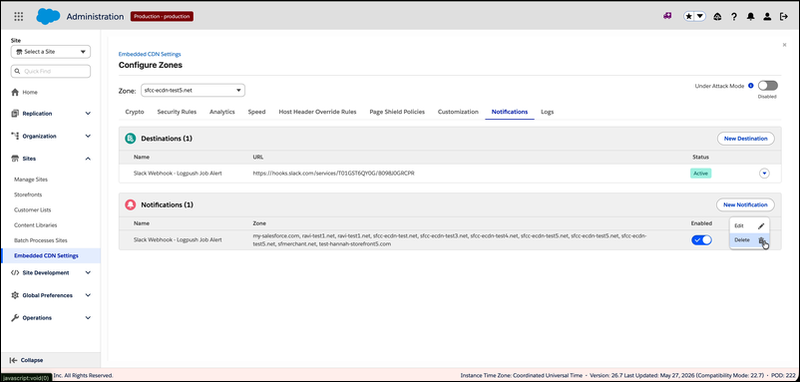
- On the Notifications tab, find the rule you want to manage in the Notifications table.
- To pause or resume delivery without losing the rule, flip the Enabled switch on the row.
- To change the destination, zone selection, or enabled state, open the row's actions menu and select Edit.
-
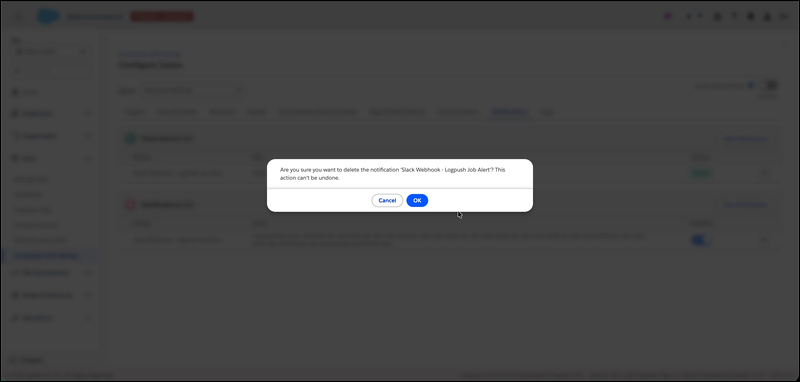
To remove the rule entirely, open the row's actions menu, select
Delete, and confirm.
Deletion asks for explicit confirmation because it can't be undone. If you only want to mute the rule temporarily, use the Enabled toggle instead.