
View, edit, pause, resume, and delete anomaly detectors in B2C Commerce Log Center, and create a detector from a log search you already ran. What you can change depends on your Log Center role and the realms you can access.
Who Can View, Edit, and Delete Detectors
Access to anomaly detectors depends on your Log Center role and the realms you can access.
View Results
View the results and status of any detector in a realm you can access, regardless of who created it.
Edit and Delete
What you can change depends on your role.
| Role | Can edit or delete |
|---|---|
| Log Center user | Only the detectors you created |
| Log Center external admin | Any detector in the realms you can access |
| Salesforce administrator or support | Any detector |
Considerations
- Create detectors only for realms you can access.
- Each user can configure up to ten detectors. Administrators aren't subject to this limit.
- Detectors that analyze security logs are available only to users who have access to security logs.
- Pausing a detector doesn't free up a slot. To create a new detector when you reach your limit, delete one that you no longer need.
Edit a Detector
- On the Anomaly Detection tab, click Anomaly Detector Configurations.
- Find the detector, and open it for editing.
- Update the Data, Detector settings, or Alerts step. Log Center prefills all three steps with the current values.
- Click Save.

Pause or Resume Detection
To stop a detector from checking for anomalies without losing its configuration, turn off Real-time Anomaly Detection for that detector. Log Center asks you to confirm. To resume, turn on Real-time Anomaly Detection again.
Delete a Detector
Deleting a detector permanently removes it and its configuration. Log Center asks you to confirm before it deletes the detector. You can't undo this action. Delete only the detectors that your role allows you to delete.
Create a Detector from a Log Search
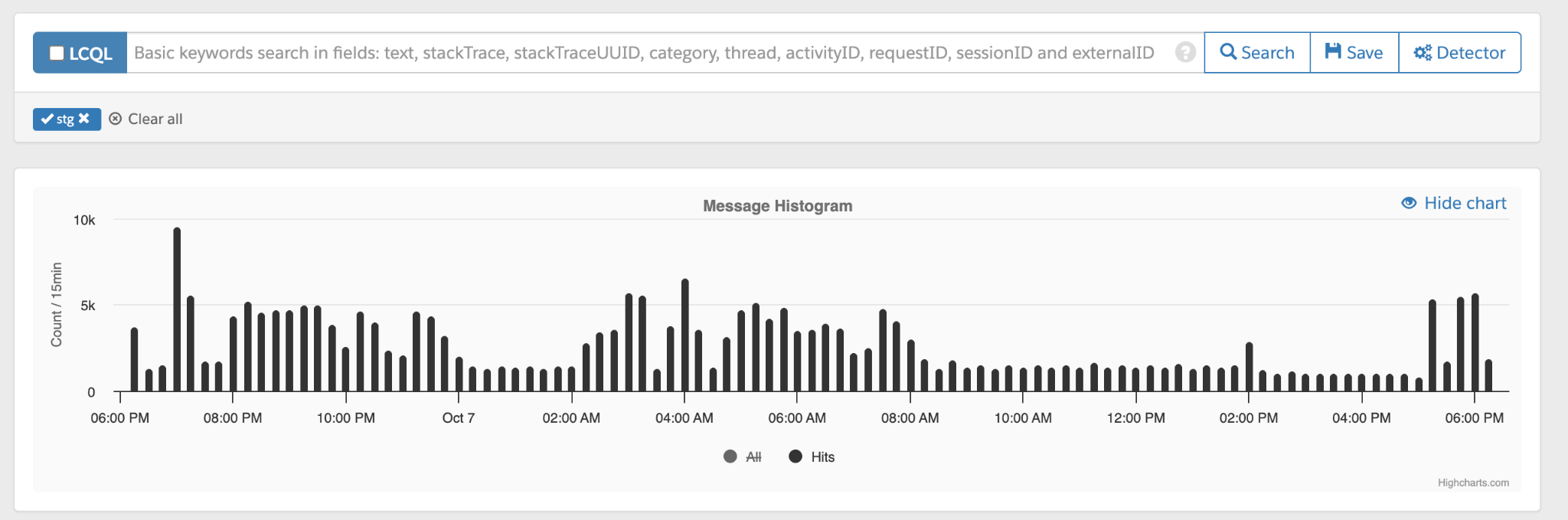
If you've already built a search that finds the logs you care about, you can turn it into a detector.
- In Log Center, run your search.
- Click Detector. The New Anomaly Detector wizard opens with your search filters already applied on the Data step.
- Review the filters, click Preview Logs to check the matches, and complete the remaining steps.
This is a quick way to start with filters that you've already tested. The Detector button appears only when the current search can be turned into a detector.

Salesforce-Managed Detectors
Salesforce can create some detectors for you, for example, to monitor security-related activity. For these detectors:
- The Data and Detector settings steps are read-only.
- Change the Alerts step to choose who is notified and how.
- Users who can access the detector's realm can update alerting, even if they didn't create the detector.
View Detector Alerts
When alerting is turned on, anomalies that meet your alert threshold also appear on the Alerts page as Anomaly Detector alerts. From there, review the alert and open its settings.
Manage Notification Channels
- Send alerts to email addresses, Slack channels, Microsoft Teams chats or channels, and PagerDuty services.
- To create a channel, click Set up a notification channel on the Alerts step.
- You can't delete a notification channel that a detector uses. Remove the channel from the detector first, and then delete it.
Availability
The Anomaly Detection tab has been generally available since August 2026.