
When you migrate a legacy zone to a proxy zone, a certificate is automatically created
with the validation method set to "http". If you need a different validation method, delete the
generated certificate and add a custom one. Create the custom certificate in Business Manager
for B2C Commerce or use the addCertificateForZone API.
This task is part of the proxy zone migration sequence. See Proxy Zone Migration Overview.
Complete this task only if the auto-generated, HTTP-validated certificate doesn't meet your needs, for example, when you require a specific validation method or you're using a certificate from your own Certificate Authority (CA). Replace the generated certificate with a self-managed (custom) certificate on the new proxy zone.
-
In Business Manager, click App Launcher
 , and then select .
- Select the proxy zone from the hostnames list and click Certificate.
- On the Crypto tab, select a zone from the list.
- Click the settings icon on the certificate you want to update.
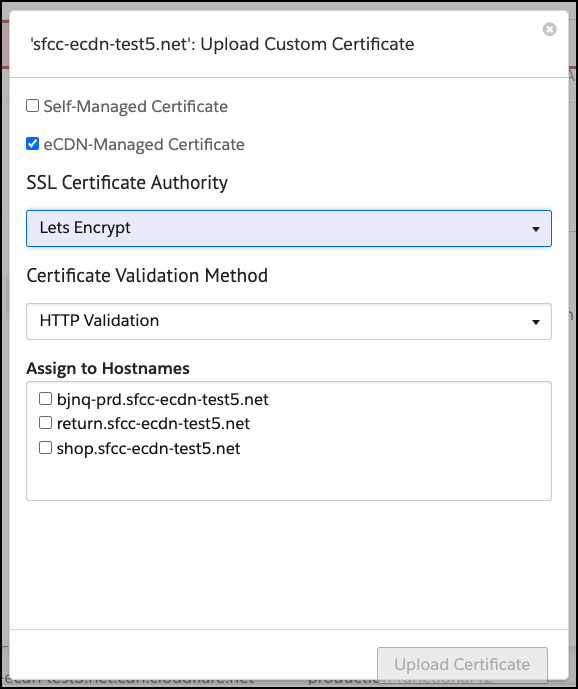
- Select Self-Managed Certificate.
- Paste the certificate and private key information from your Certificate Authority provider.
- Select the hostname to assign the certificate to.
-
Click Update Certificate.
Continue with Update Authoritative DNS.