
To support a single hostname across multiple realms, create a Host Header Override Rule for B2C Commerce sites that use an external content delivery network (CDN). This rule replaces unique hostnames with a common hostname to maintain the single-hostname setup. If you reuse a hostname, traffic can be unintentionally served from a different realm.

Use host header override rules when your origin expects a different host value than the shopper-facing hostname. This setup is common for customers using stacked CDNs or custom origin-routing patterns.
Proxy zones don’t support the same subdomain/hostname across zones, so a unique hostname is required in each zone with the appropriate custom hostname and certificate.
Before you create a host header override rule, make sure that you have your own stacked CDN configuration. CDN stacking is a prerequisite for directing traffic to appropriate eCDN zones based on locales or regions.
The Host Header Override Rules tab is part of the Configure Zone screen; for the full set of zone security controls, see eCDN Zone Security Rules.
Create host header rules for each locale. To create a host header override rule:
-
In Business Manager, click App Launcher
 , and then select .
-
Locate the zone you want to configure, and select Configure Zone
from the dropdown menu.
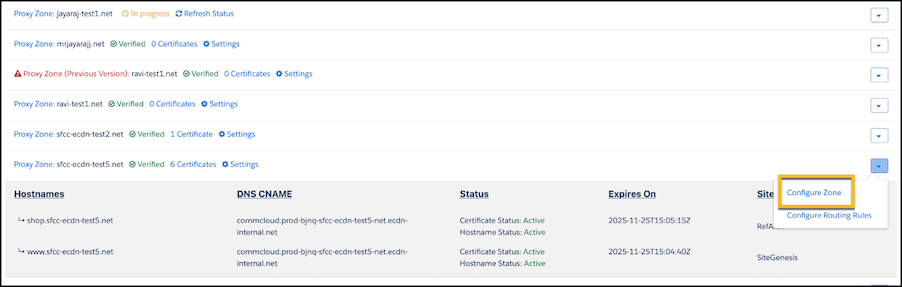
- Select the Host Header Override Rules tab, and then select New Rule. To switch to a different zone from this tab, select another name from the Zone dropdown menu.
-
Enter the Host Header Override Rule details:
-
Enter the rule expression using the visual dropdown interface to select a field,
operator, and value. This expression specifies the host header of incoming requests where the
traffic goes. For example,
Hostname equals shop.alpine.net. - (Optional) If you want the rule to be active when you save it, select Enable Host Header Override Rule Upon Saving. If you’re not ready to activate the rule yet, create it first. When you’re ready, return to the Host Header Override Rules tab and enable your rule from the list.
- The Rule Name is automatically filled based on the rule details.
- Click Save. Upon saving, a check makes sure that the rule’s host header ends with the same hostname as the current zone.
-
Enter the rule expression using the visual dropdown interface to select a field,
operator, and value. This expression specifies the host header of incoming requests where the
traffic goes. For example,
- Modify your external CDN to route traffic to the proxy zones for each locale.