
Any URL that is already configured in service credentials is automatically added to your allowlist. Follow this process to configure new endpoints and add them to your allowlist.
-
Contact Salesforce Customer Support, and request a firewall rule. Include up to five
IP: Port combinations in your request.
For example, a request contains these details.
- IP: Port combination: 35.221.89.15: port 20112, 35.221.89.15: port 20122, 35.221.89.15: port 20132
- POD: POD164
- Group ID: bchg
- Realm: Fun.ap02
 Note It takes 3-5 business days for a firewall rule to be reviewed and added to your allowlist.
 -
In Business Manager, click App Launcher
 , and then select .
-
Under Configure New Endpoint, enter the scheme or protocol, hostname, and (optional)
port of your allowed connection, and click Allow. For example,
enter
https://example.com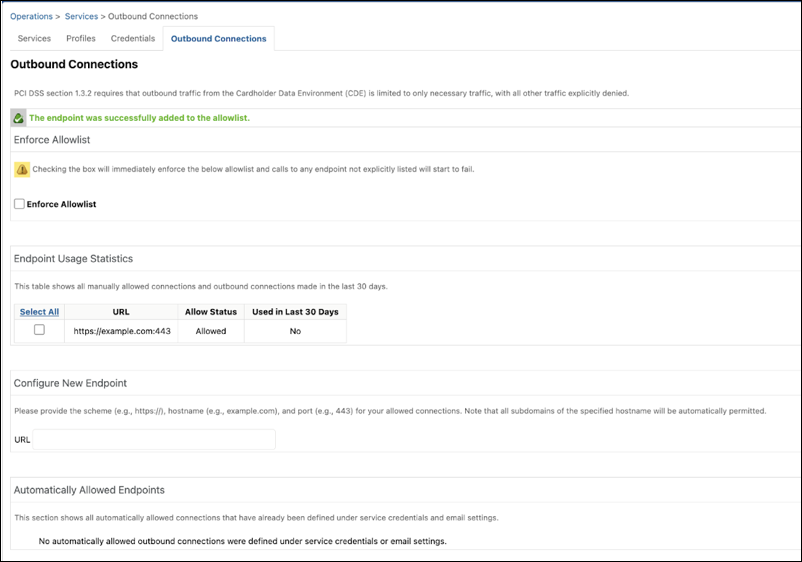
-
To permit connections to endpoints that are explicitly listed, select
Enforce Allowlist, and click Apply.
Note If this option isn't selected, the system generates warning logs for connections made to unlisted endpoints.
- Confirm your selection.
- To verify automatically allowed endpoints defined in service credentials or email settings, verify the endpoints under Automatically Allowed Endpoints.