The embedded CDN (eCDN) configuration is organized around zones. A zone represents a
root or apex domain (for example, example.com). A hostname is a subdomain of
a specific zone (for example, www.example.com). Create a zone in Business
Manager to route your B2C Commerce storefront traffic through the eCDN.
Which Salesforce Commerce Product Do I Have?
How zones are derived. Salesforce B2C Commerce examines the hostname alias files for all your development, staging, and production instances across all your realms. B2C Commerce then aggregates this information and derives the names of zones from the hostname entries in your alias files. For example, if the hostname alias file for your Production instance contains an entry for www.example.com, B2C Commerce creates the zone example.com.

Before you begin:
- Register your domain name with your DNS provider before you create a zone. For example, register www.example.com before creating the zone example.com.
- eCDN settings are per-instance. Manage dev, staging, and production instances independently. Create and verify zones for each instance type separately.
- After you create a zone, you can't delete it in the user interface. To remove a zone, contact Salesforce Support.
- It can take up to 24 hours for B2C Commerce to create and verify a proxy zone.
- Your ODS realm must be eCDN-enabled before zone creation succeeds. If you see
CDN-API default-domain/hostnames call failedin the Storefront Fast Setup job, your realm hasn't been provisioned yet. Contact Salesforce Support.
-
In Business Manager, click App Launcher
 , and then select .
-
Click Add Hostname.
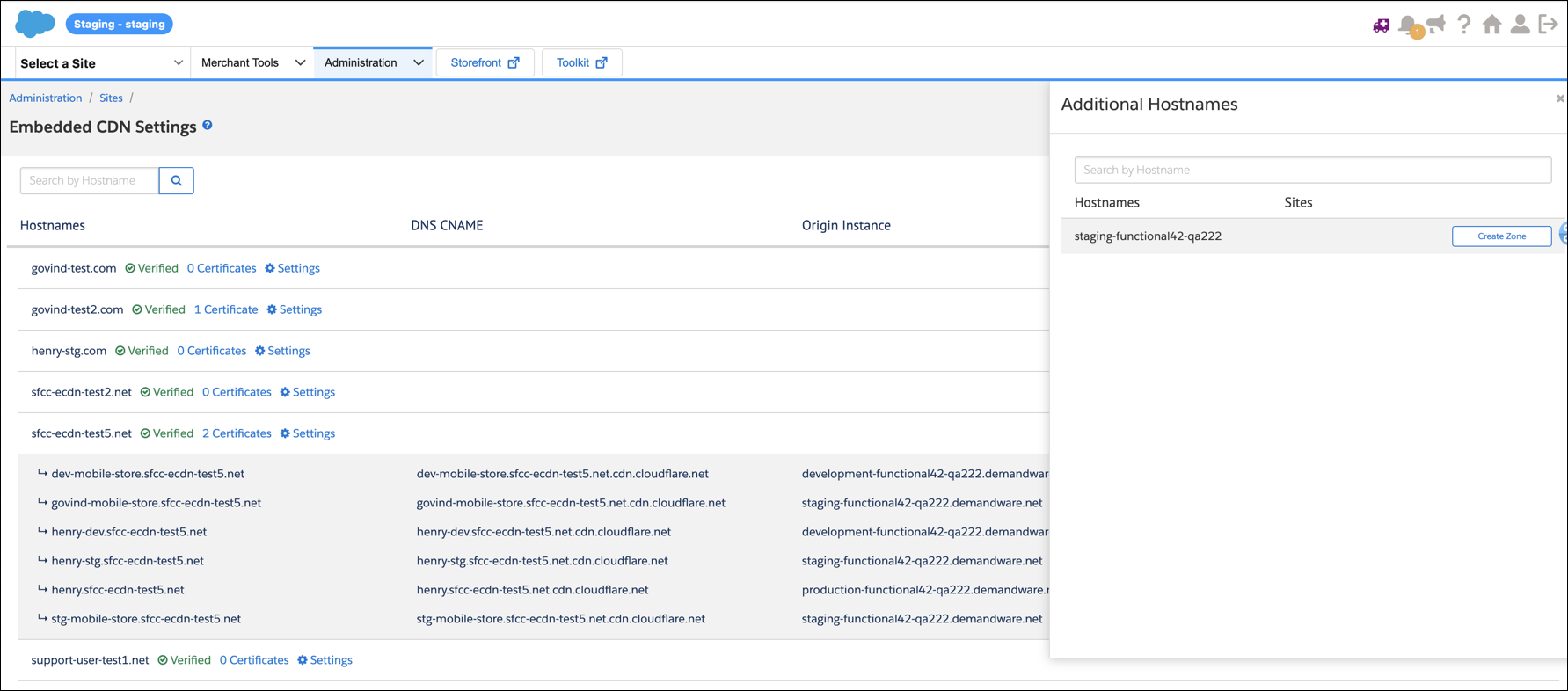
The Embedded CDN Settings page shows your Default Zone and any existing hostnames.
- For each hostname in the list that you want to add, click Create Zone.
-
On the confirmation dialog, click Create Zone.
B2C Commerce automatically adds hostnames after you create and configure the zone and set the zone status to verified.
-
If you're creating a new zone, refresh the status of the individual zone with the
Refresh Status link while zone creation is in progress. To
check the status of hostname validation, click Verify
Configuration.
Verification can take up to 24 hours.
- After the zone is verified and the certificate is active, map DNS so that your custom hostname points directly to the eCDN zone hostname.
The zone is created and verified, and its hostnames are served through the eCDN. Next, add an SSL certificate and configure the zone's settings.
Watch a demo: Create a Proxy Zone and Add a Hostname.
Next steps
- To create zones with the CDN Zones API instead, see CDN Zones in the developer documentation.
- Add an SSL certificate to the zone. See Manage SSL Certificates for eCDN Zones.
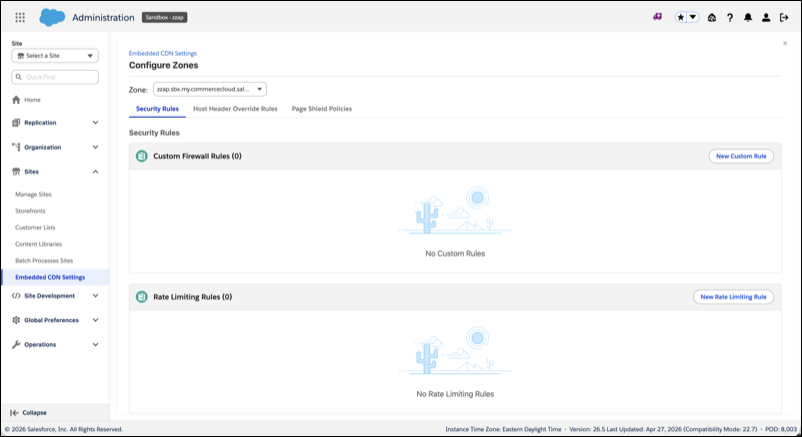
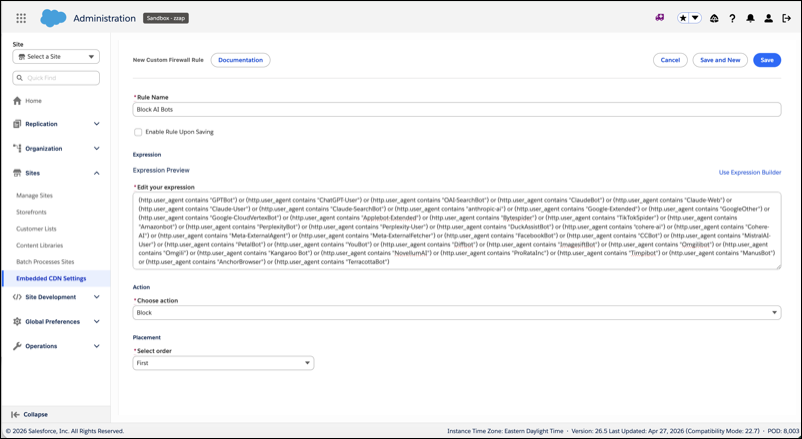
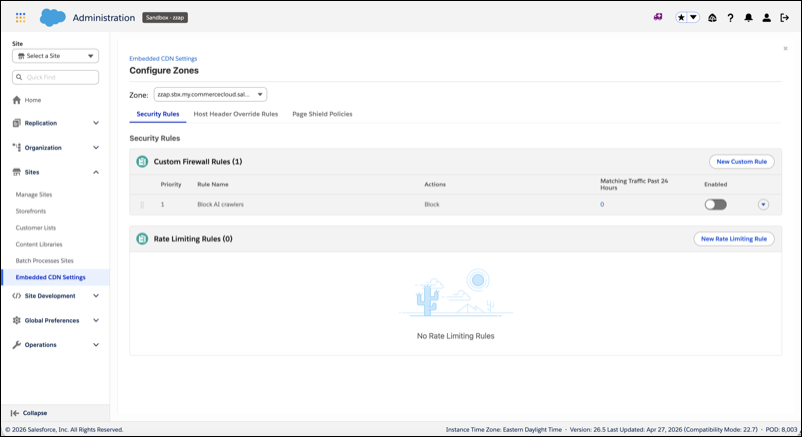
- Manage security rules, web application firewall (WAF), analytics, host header override rules, and Page Shield policies for the zone. Click Configure Zones and select the zone from the dropdown.