
Register a webhook destination that receives eCDN notification payloads for your B2C Commerce storefront, such as a Slack incoming webhook or a custom HTTPS endpoint. A destination is reusable across multiple notification rules and across zones.
Which Salesforce Commerce Product Do I Have?
A destination is a single webhook endpoint that the eCDN sends notification payloads to. Salesforce Commerce Cloud sends a JSON body to the URL you register. What happens to that payload (Slack message, ticket, alert) is up to the receiving system. For an overview of how destinations and notification rules work together, see eCDN Zone Notifications.
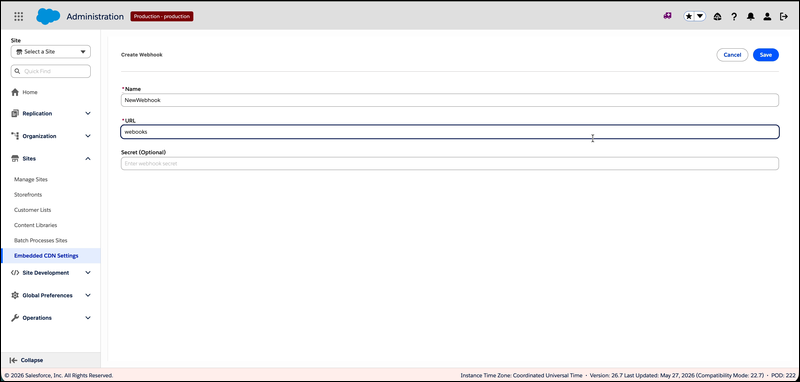
Each destination uses these fields.
- Name (required): Human-readable destination label shown in notification rules and lists.
- URL (required): Webhook URL. The value must start with
http://orhttps://. Use HTTPS for sensitive traffic. - Secret (optional): Shared secret used to sign the request body so that your receiver can verify the source and integrity of each request.
- In Business Manager, click the App Launcher, then select .
- Locate the zone you want to configure, and select Configure Zone from the actions menu.
- Click the Notifications tab.
-
In the Destinations section, click New Destination.
The Create Webhook screen opens.
-
Enter a Name.
The name is the label that appears in the Webhook dropdown when you create a notification rule.
-
Enter a URL.
The field accepts only valid HTTP or HTTPS URLs. If the URL is malformed, the field shows an inline error and the form blocks the save until you correct it.
-
(Optional) Enter a Secret.
The eCDN uses this value to sign request bodies. Configure your receiver to verify the signature before it trusts the payload.
- Click Save.
The destination appears in the Destinations table with the status Active. You can select the same destination in multiple notification rules and across multiple zones.
To deliver events to this destination, create a notification rule. See Create a Notification Rule.