
Create a Logpush job to stream eCDN request, security, and Page Shield logs from your B2C Commerce storefront continuously to a customer-owned destination. The New Logpush Job wizard walks through destination setup and job configuration in two steps.
Which Salesforce Commerce Product Do I Have?
For the fields each destination type requires, see eCDN Logpush Destination Settings. Each zone supports up to 2 active Logpush jobs, one per dataset.
- In Business Manager, click the App Launcher, then select .
- Locate the zone you want to configure, and select Configure Zone from the actions menu.
- Click the Logs tab.
-
In the Logpush section, click New Logpush Job.
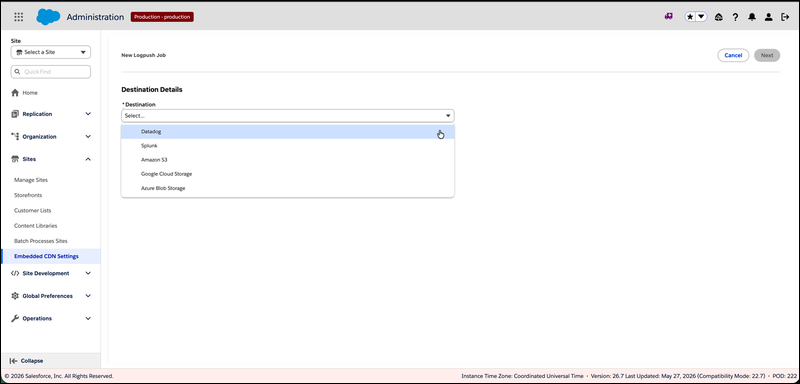
The New Logpush Job wizard opens on the Destination Details step.
-
On the Destination Details step, choose a Destination and a
Dataset, fill in the destination-specific fields, and click
Next.
For the required and optional fields for each destination type (Amazon S3, Google Cloud Storage, Azure Blob Storage, Datadog, and Splunk), see eCDN Logpush Destination Settings.
-
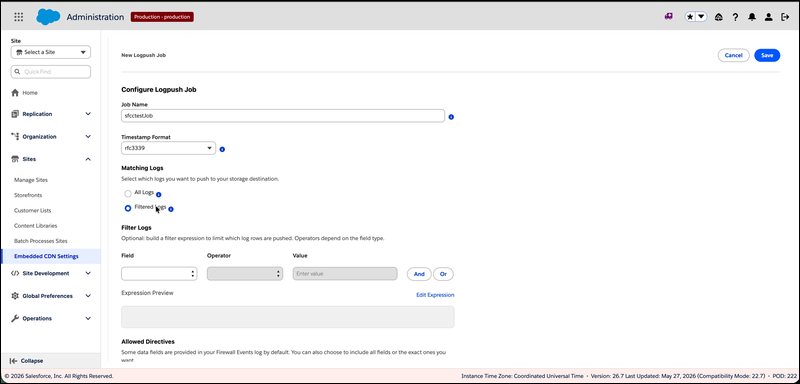
On the Configure Logpush Job step, set the job options.
-
Enter a Job Name.
This free-form label appears in the Logpush table and in the destination's path and metadata.
-
Choose a Timestamp Format.
Choose
rfc3339(default ISO-8601 string),unix(epoch seconds), orunixnano(epoch nanoseconds). -
For Matching Logs, choose All Logs to push every record, or
Filtered Logs to build a filter expression.
When you select Filtered Logs, a Filter Logs builder appears. Build the expression row by row by choosing a Field, an Operator (equals, does not equal, contains, does not contain, matches, does not match, starts with, does not start with, ends with, does not end with, is in, is not in), and a Value. Click And or Or to add another row. Click Edit Expression to switch to a raw-JSON view, then click Use Expression Builder to return to row-based editing.
- Under Allowed Directives, choose which fields to include: All, or a specific subset.
- Click Save.
-
Enter a Job Name.
-
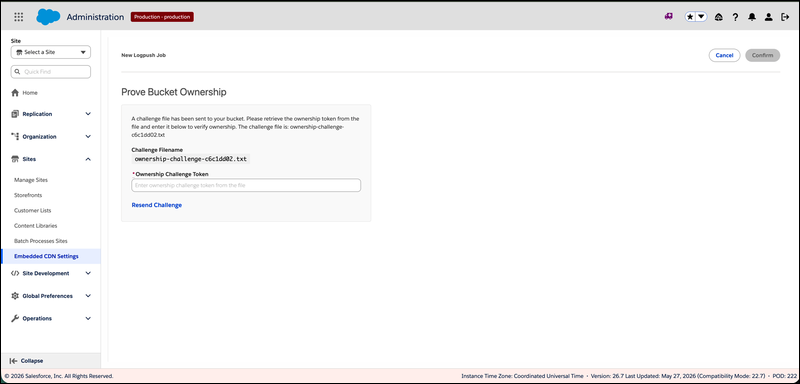
If you chose Amazon S3 or Google Cloud Storage, prove that you own the bucket.
For Amazon S3, after you fill in Bucket and Region, the screen displays an AWS Resource Policy JSON snippet. Copy it and attach it to your bucket so that the eCDN Cloudflare Logpush principal can write to it. For Google Cloud Storage, follow the in-product instructions to grant the Cloudflare Logpush service account write permission on the bucket.
-
Open the bucket in your storage console.
For Amazon S3, a new file named ownership-challenge-<id>.txt appears at the bucket root, or under the configured path.
- Open the challenge file and copy its contents.
-
Paste the token into Ownership Challenge Token in the Prove Bucket Ownership dialog,
and click Confirm.
If the token can't be found yet, click Resend Challenge to request a new file.
-
Open the bucket in your storage console.
When the job saves successfully, a toast confirms the change and the job appears in the Logpush table on the Logs tab. Logpush jobs continuously deliver eCDN logs to your destination on a schedule.
To edit, pause, or delete jobs, see Manage Logpush Jobs. To get alerted when a Logpush job fails, set up a notification rule. See Create a Notification Rule.