
Configure a custom firewall rule to control incoming traffic to your B2C Commerce storefront based on specified request parameters.

-
In Business Manager, click App Launcher
 , and then select .
-
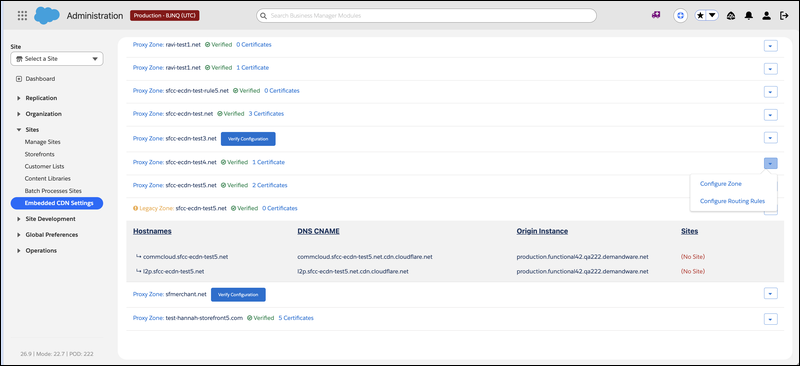
Locate the zone you want to configure, and select Configure Zone
from the dropdown menu.
-
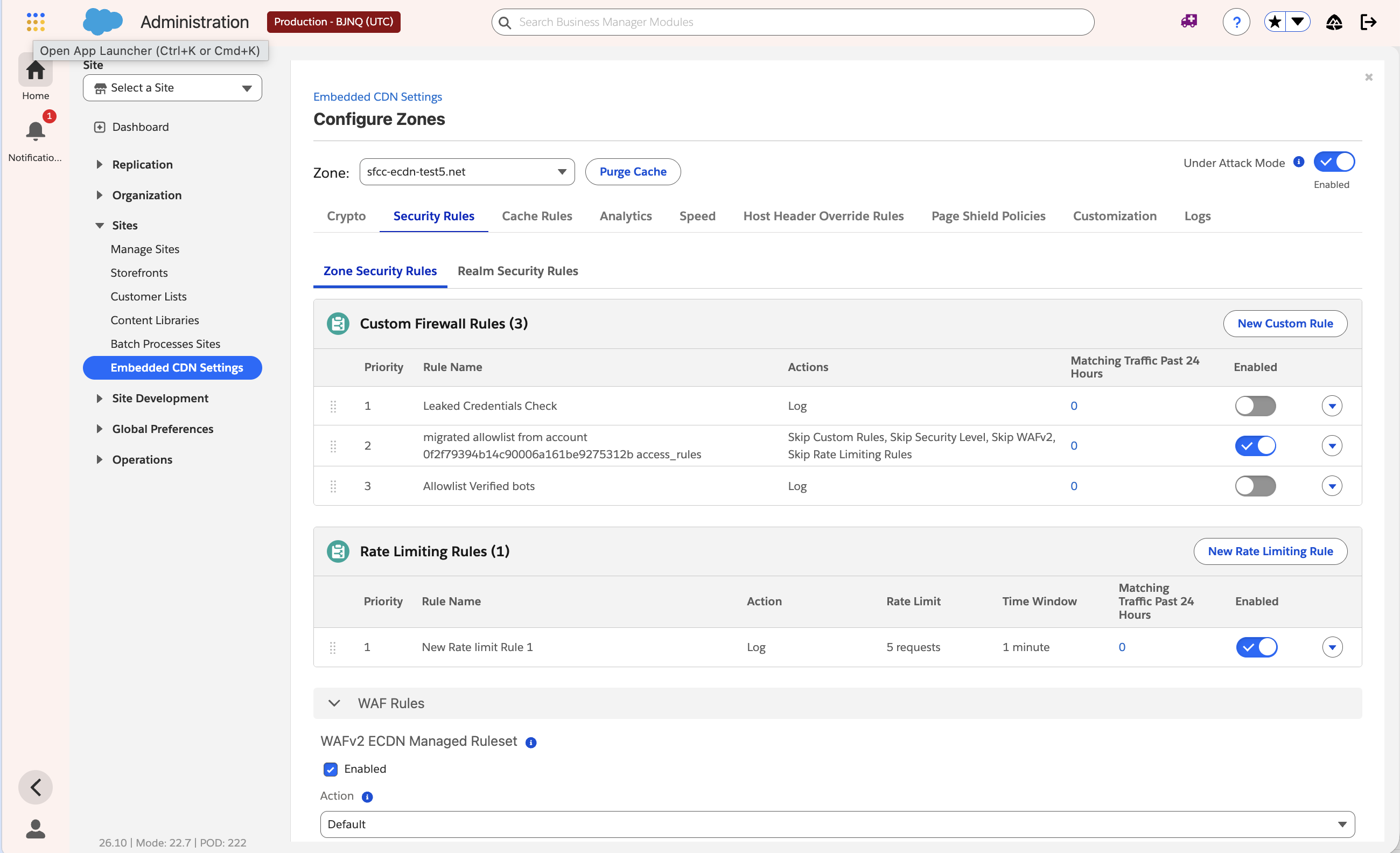
From the Security Rules tab, click New Custom Rule. Also, to
switch to a different zone from this tab, select another name from the
Zone dropdown.
-
Enter a Rule Name. For example, "Block requests from
user_agent_x."
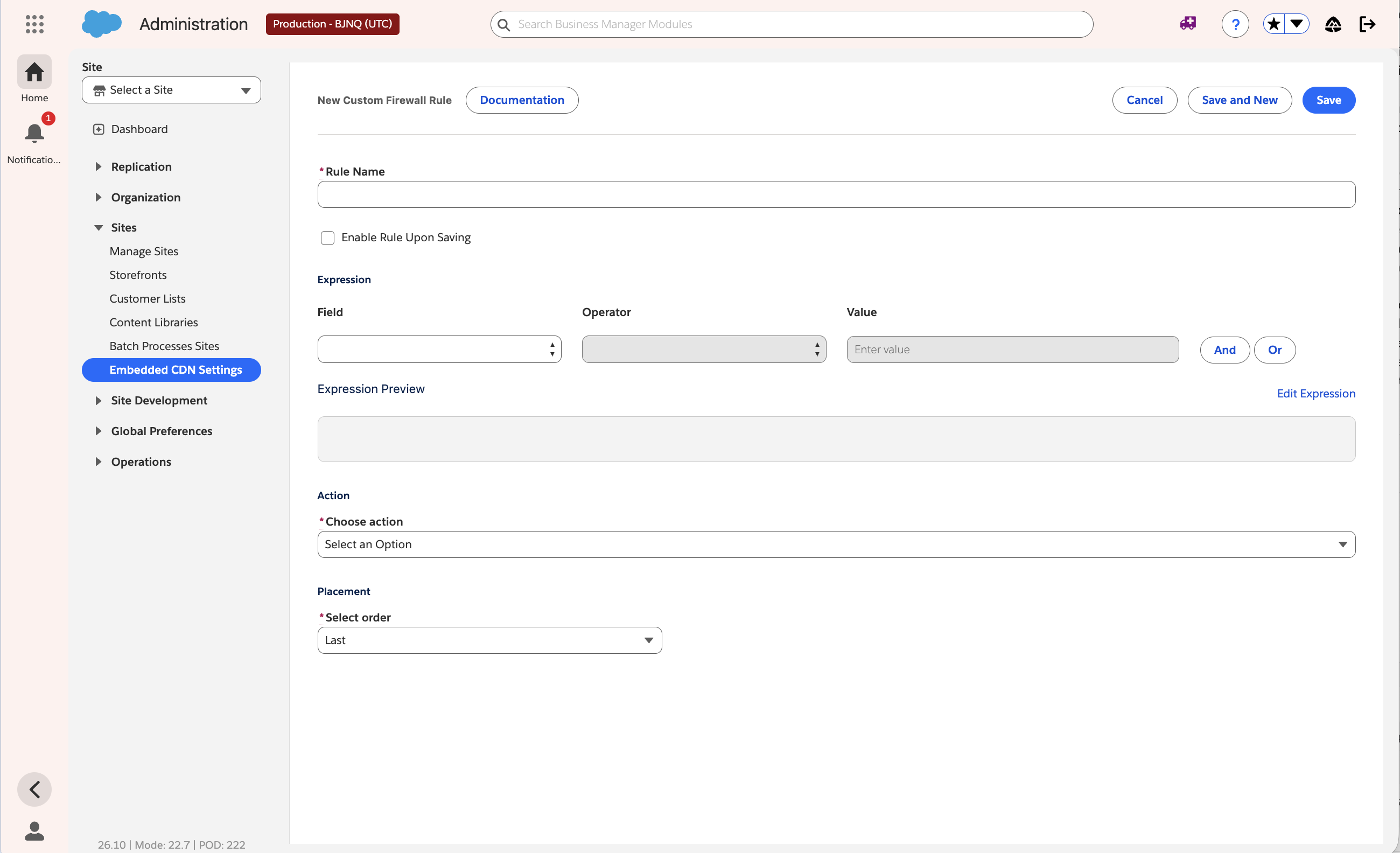
- (Optional) If you want the rule to be active when you save it, select Enable Rule Upon Saving. If you’re not ready to activate the rule yet, create it first. When you’re ready, return to the Security Rules tab and enable your rule from the list.
-
Enter the rule expression using the visual dropdown interface: select a
Field and an Operator. If the field uses a
Value, then select or enter it. To add conditional logic, use
the And or Or buttons. To manually
enter the expression, click Edit Expression.
To match verified bots or leaked credentials, select one of these fields.
- Known Bot
- Verified Bot Category
- Authentication Detected
- Username Leaked
- Password Leaked
- Username and Password Leaked
- Similar Credentials Leaked
Boolean fields, such as Known Bot and the leaked credentials fields, don't include a Value. Select is or is not. If the field matches the request, then the rule action applies. For Verified Bot Category, select an operator such as is in, then select a category from Value.
Known Bot and Verified Bot Category aren't Bot Score or other Cloudflare Bot Management fields. Bot Score and the
cf.bot_management.*fields require your own Cloudflare setup (orange-to-orange, or O2O) and a Cloudflare Bot Management entitlement.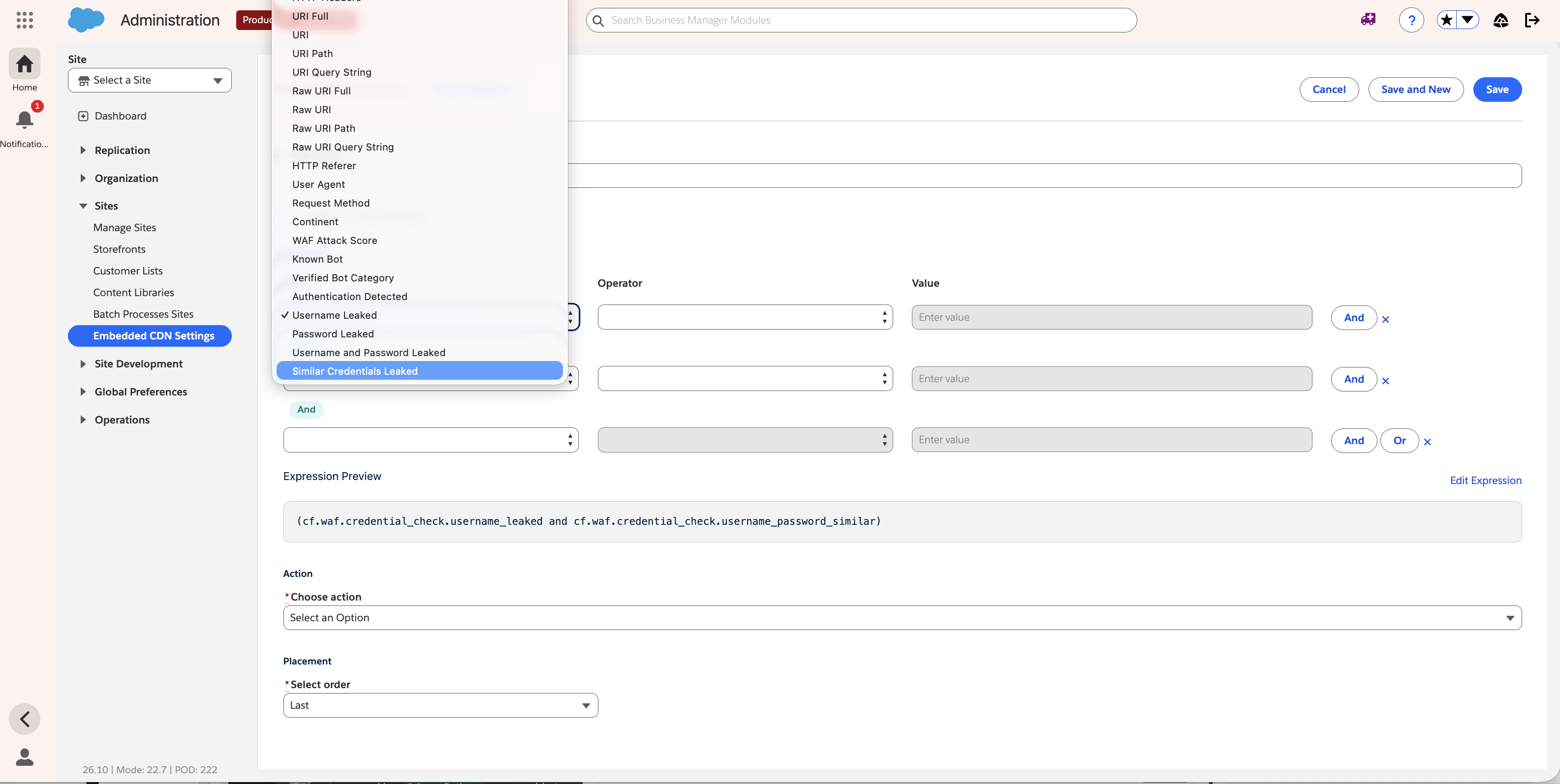
-
From Choose action, select an action. For example,
Log,
Skip, or Block. For more information, see Rule Actions in the B2C Commerce API Developer Guide.
To monitor matching traffic, select Log. After you review the results, change the action to Skip (to allowlist matching verified bots so later custom rules, rate limiting rules, or WAFv2 rules don't apply), challenge, or Block.
-
In Placement, select a value from Select
order.
- If you select First, the eCDN evaluates your rule before any existing rules.
- If you select Last, the eCDN evaluates your rule after any existing rules.
- If you select Custom, place the rule after another existing rule.
- Click Save.

When you author a rule expression in Business Manager, select these fields. The same fields are available for custom firewall rules and rate limiting rules.
- Known Bot (
cf.client.bot) — Boolean. True when the request is a verified search-engine crawler (Googlebot, Bingbot, and so on). Returns the same result ascf.bot_management.verified_botbut, unlike thecf.bot_management.*fields, doesn't require a Cloudflare Bot Management entitlement. Use Known Bot for verified bot detection. - Verified Bot Category (
cf.verified_bot_category) — String. Identifies the purpose or type of the verified bot and, like Known Bot, is available without a Cloudflare Bot Management entitlement. Select a category from Value, such as Search Engine Crawler or AI Crawler. Use an operator such as is in to match one or more categories. - Authentication Detected (
cf.waf.auth_detected) — Boolean. Cloudflare detects authentication material on the request. - Username Leaked
(
cf.waf.credential_check.username_leaked) — Boolean. The submitted username appears in a known leak. - Password Leaked
(
cf.waf.credential_check.password_leaked) — Boolean. The submitted password appears in a known leak. - Username and Password Leaked
(
cf.waf.credential_check.username_and_password_leaked) — Boolean. The exact username and password pair appears in a known leak. - Similar Credentials Leaked
(
cf.waf.credential_check.username_password_similar) — Boolean. A similar version of the username and password credentials detected in the request was previously leaked.
cf.bot_management.* fields require your own Cloudflare setup
(orange-to-orange, or O2O) and a Cloudflare Bot Management entitlement.
Pair Known Bot and Verified Bot Category with a custom robots.txt file. Publish crawl policy for AI crawlers in robots.txt, then enforce it with a custom firewall or rate limiting rule. See Generate a Robots.txt File with Business Manager for B2C Commerce.
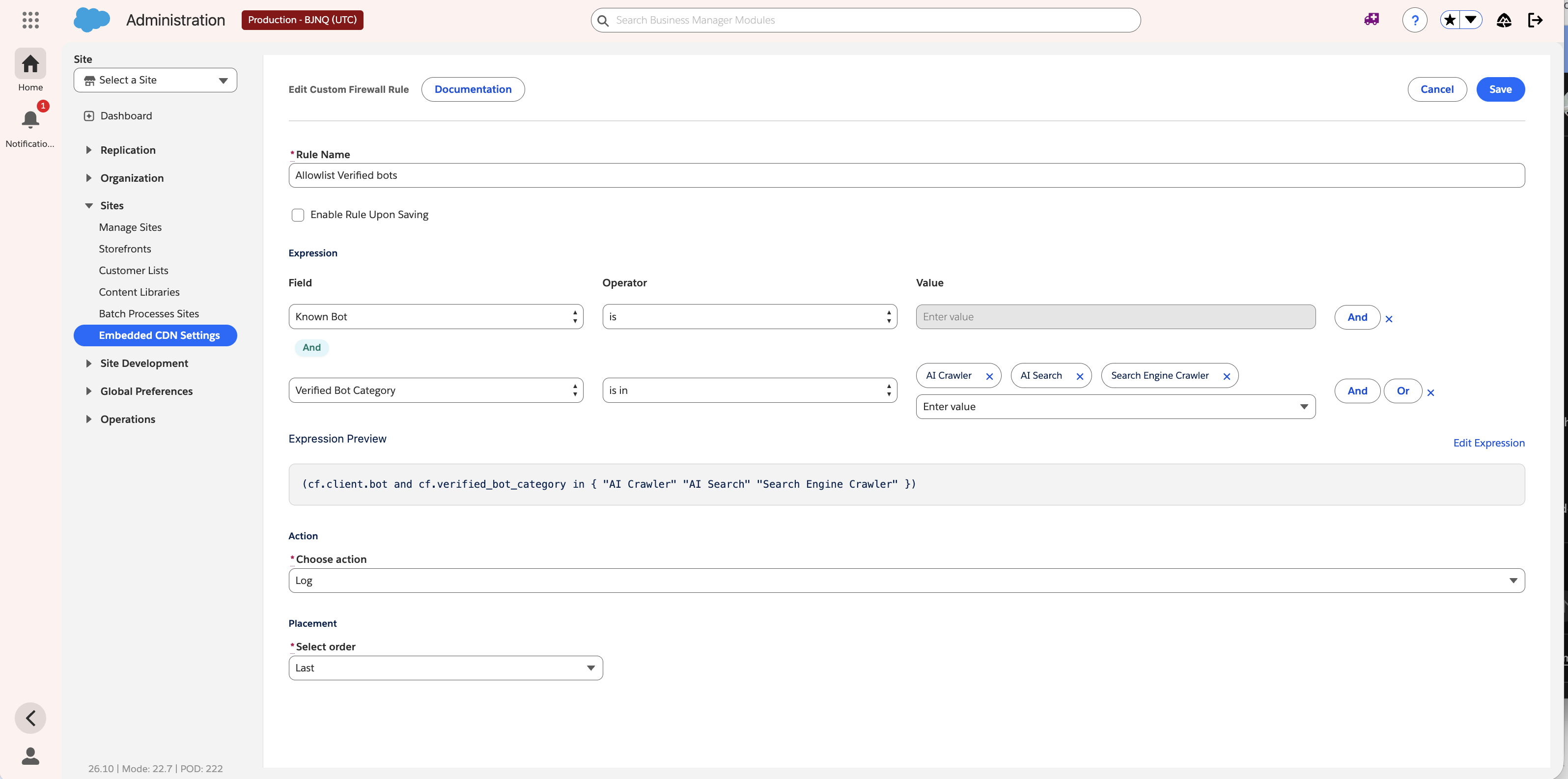
This custom firewall rule uses Known Bot with is, and Verified Bot Category with is in. The Value dropdown lists verified-bot categories.
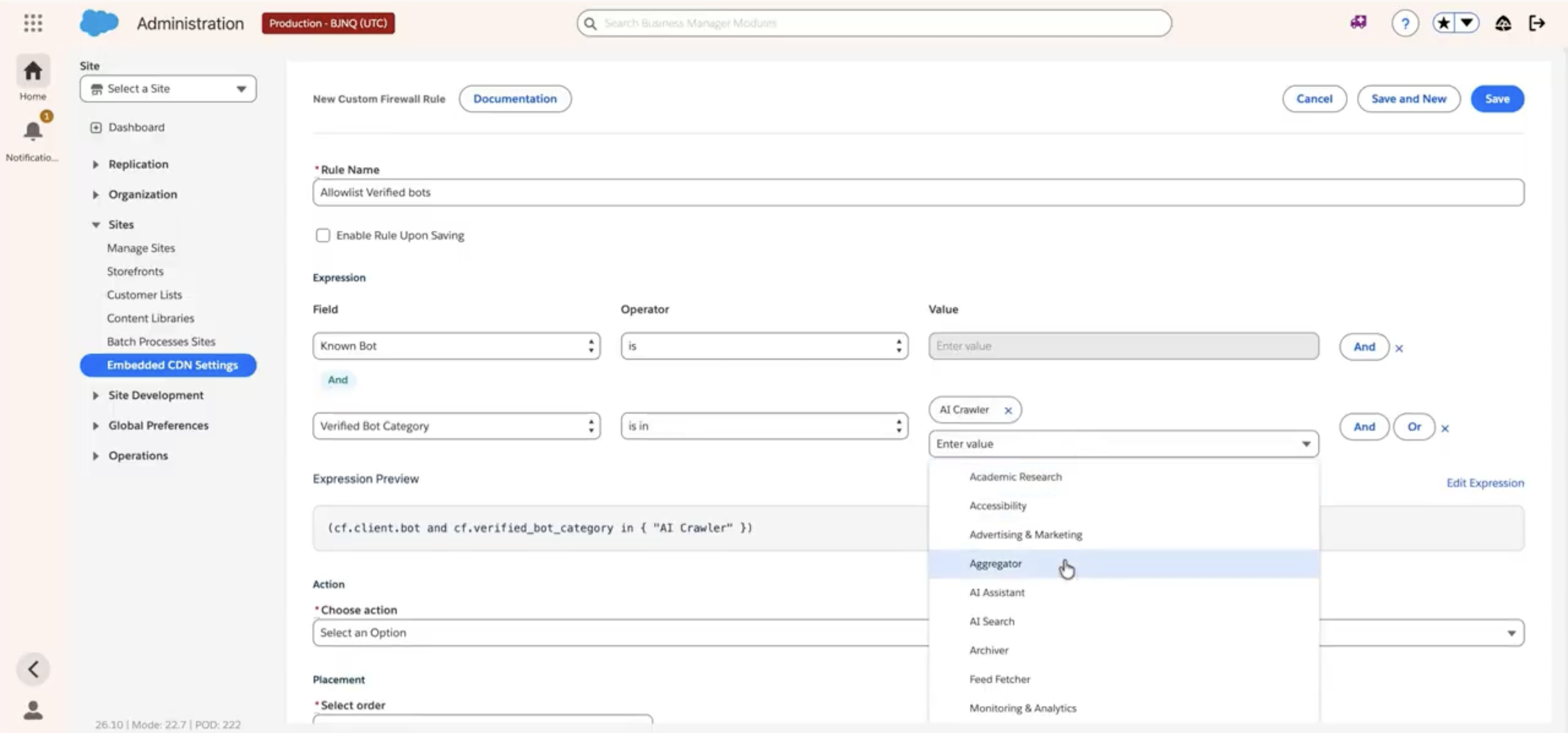
A completed expression matches Known Bot and the AI Crawler, AI Search, and Search Engine Crawler categories. This example uses Log to monitor matching traffic. After you review the results, change the action to Skip to allowlist those bots.
Authorization
header for HTTP Basic Authentication credentials. For browser-based form logins (SFRA
/Account-Login and storefront /login), Salesforce
registers a custom detection location on the zone so that the same fields populate for
those form logins. Apply the leaked credentials fields on SFRA
/Account-Login, storefront /login, OCAPI login
endpoints, and SLAS login (for example,
/shopper/auth/v1/organizations/{organizationId}/oauth2/login). These
fields cover the classic storefront login form and headless integrations. For OCAPI or SLAS
logins, a challenge page isn't presented to the shopper. Handle the API response so the
shopper receives instructions to reset their password.
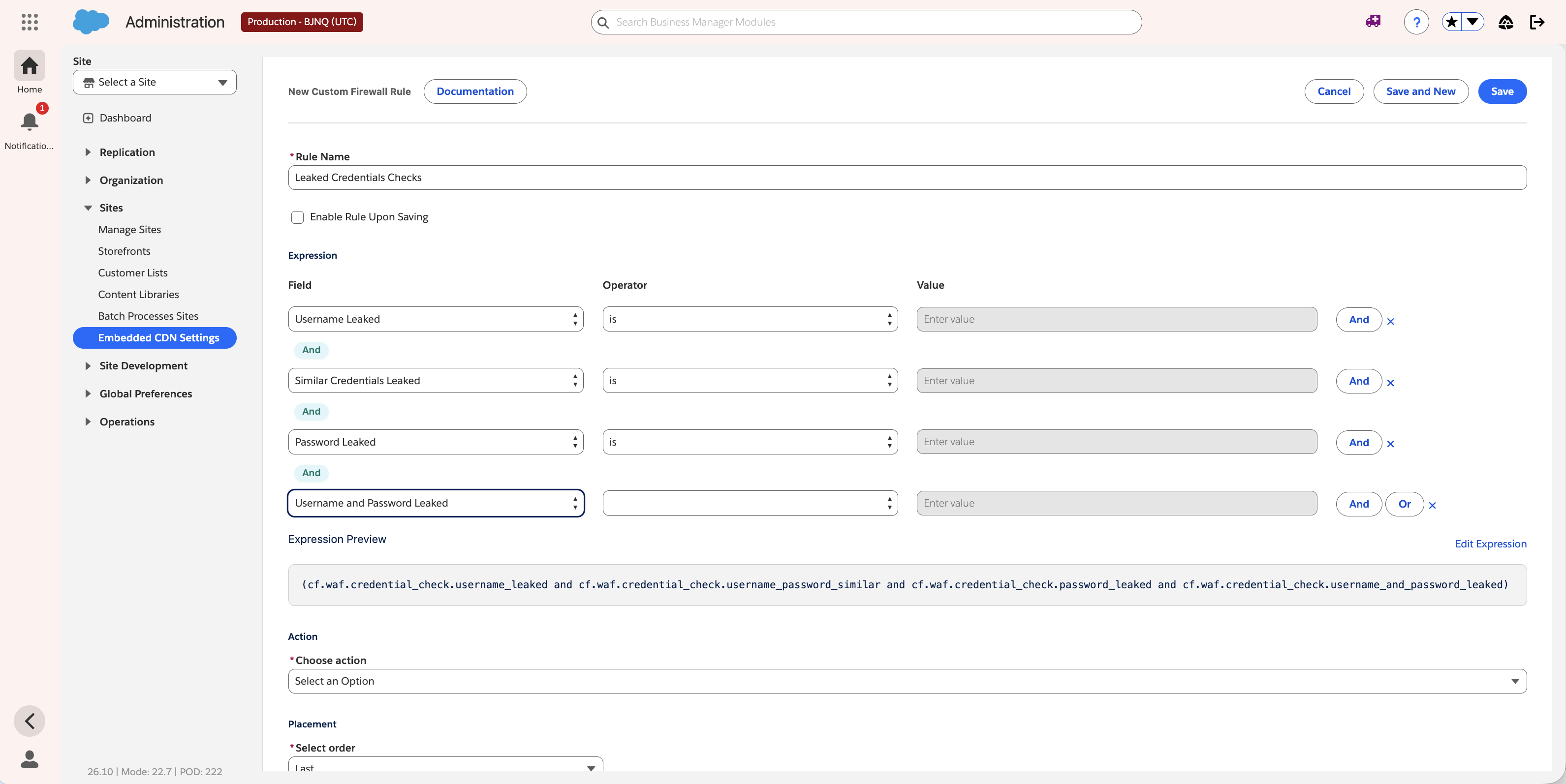
This custom firewall rule uses leaked credentials fields joined by And. Boolean fields leave Value empty.
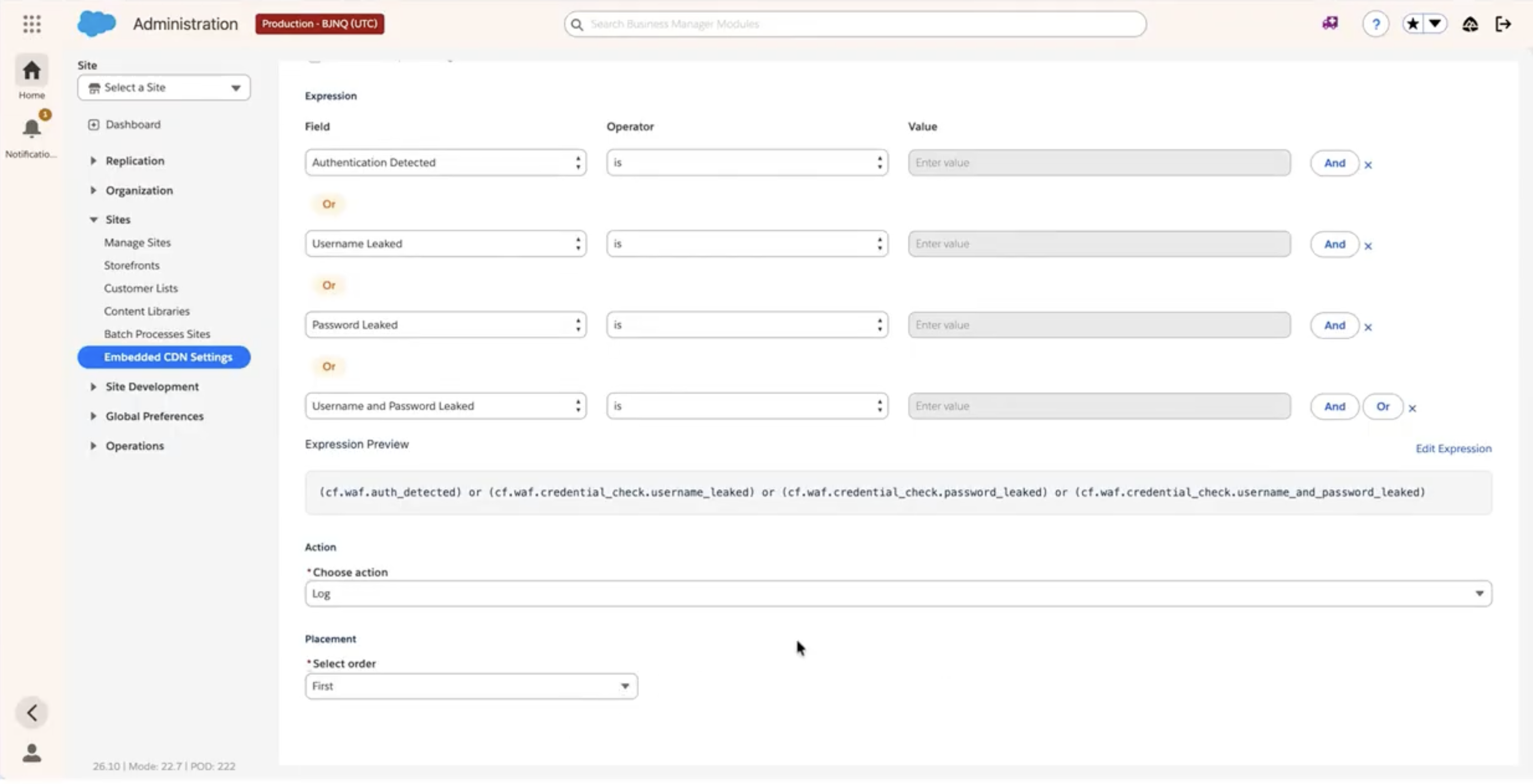
Join leaked credentials fields with Or and select Log to monitor matching traffic. After you review the results, change the action to Skip, challenge, or Block.
Challenge non-verified bots that hit the storefront cart endpoint, with the
managed_challenge action.
(http.request.uri.path contains "/Cart-AddProduct" and not cf.client.bot)Allow verified search engines through a country-based block, with the
block action.
(ip.src.country in {"CU" "IR"} and not cf.client.bot)Challenge login requests where the submitted password matches a known leak, with the
managed_challenge action.
(http.request.uri.path contains "/Account-Login" and cf.waf.credential_check.password_leaked)After you create the rule, it appears in the list of custom firewall rules on the Security Rules tab. From the list, you can turn the rule on or off (if you selected Enable Rule Upon Saving, your rule is on by default). The Custom Firewall Rules list also shows the number of requests that matched each rule in the past 24 hours. Click this number to view detailed traffic analytics. See Analyze HTTP and Security Traffic for an eCDN Zone