
Monitor conditions and send notifications in B2C Commerce Log Center. Catch behavioral anomalies early, get notified when a log delivery pipeline fails, or create an alert for a specific incident.
- In Log Center, on the Alerts tab, go to Alert Management.
- Click Create Alert.
-
Select your alert mode: New Alert, Saved Search, Log Streaming, or Anomaly
Detector and enter the information.
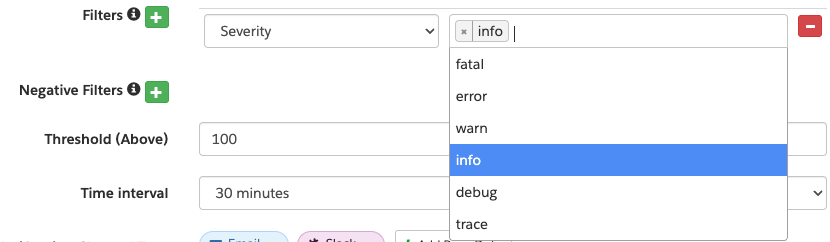
You can create up to 50 alerts. Notifications are automatically emailed to the alert creator’s email address. You can add up to five email recipients per alert.If you’re creating a new alert, select which realms to apply the alert. Users can view alerts if they have access to the realm regardless of who created the alert. If you need to change the realms that apply to an alert, delete the alert and create a new one.If you’re creating a Log Streaming alert, any user in the log stream’s Edit Permission List can edit or delete the alert.When you set criteria in the Filters field, the field suggests values that were previously seen for that category. If you enter a value that wasn’t seen before, it’s marked with a yellow-tinted highlight as a reminder to confirm that the value is correct.

- Click Create.
To keep your teams aligned during incidents, set up a Slack, Microsoft Teams, or PagerDuty channel.