Create a trusted data exchange between your B2C Commerce instance and a Salesforce org. This connection gives you access to agentic and cross-cloud experiences, such as Shopper Agent, Merchant Agent, Shopper Profile Sync, and Shopper Notifications.
Connecting B2C Commerce to a Salesforce org requires an Enterprise or Unlimited edition Salesforce org. To log in to the B2C Commerce instance, you must be a Business Manager Administrator. Authorizing the connection in the Salesforce org requires the System Administrator profile, or a profile or permission set with equivalent access, in that org.
The B2C Commerce instance has a one-to-one relationship with the Salesforce org. A B2C Commerce production instance pairs with a Salesforce production org. All other B2C Commerce instances pair with Salesforce sandbox orgs as listed in the table.
| B2C Commerce Instance Environment | Salesforce Org Type |
|---|---|
| Any Production | Any Production |
| Any Nonproduction | Any Sandbox |

-
In the navigation sidebar, click App Launcher
 , and then select .
-
Click New Connection.
If you’re logged in to a B2C Commerce sandbox instance, a Salesforce sandbox login page appears. If you’re logged in to a B2C Commerce production instance, a Salesforce production login page appears.
-
Log in to Salesforce with the credentials for the org you're connecting to.
Use the credentials that match the paired org type shown in the earlier table. If you connect your B2C Commerce development or on-demand sandbox instance to a Salesforce sandbox org, enter your Salesforce sandbox credentials rather than your Salesforce production credentials. A Salesforce sandbox org's login URL differs from a production org's URL and can include a custom domain, so confirm you're on the correct login page.
If the login page prompts for your email address instead of your username (now the default login experience), use the environment-type dropdown in the upper-right corner of the page to select the correct environment before you log in.
If your Salesforce org and B2C Commerce instance are in different regions, or B2C Commerce can't verify the region, an advisory message appears. Review the message and verify that your configuration meets privacy and data requirements.
-
When prompted, click Allow to authorize the connection.
After connecting, the Trust and Compliance Documentation applicable to that Salesforce service applies. For assistance, contact Salesforce Customer Support.
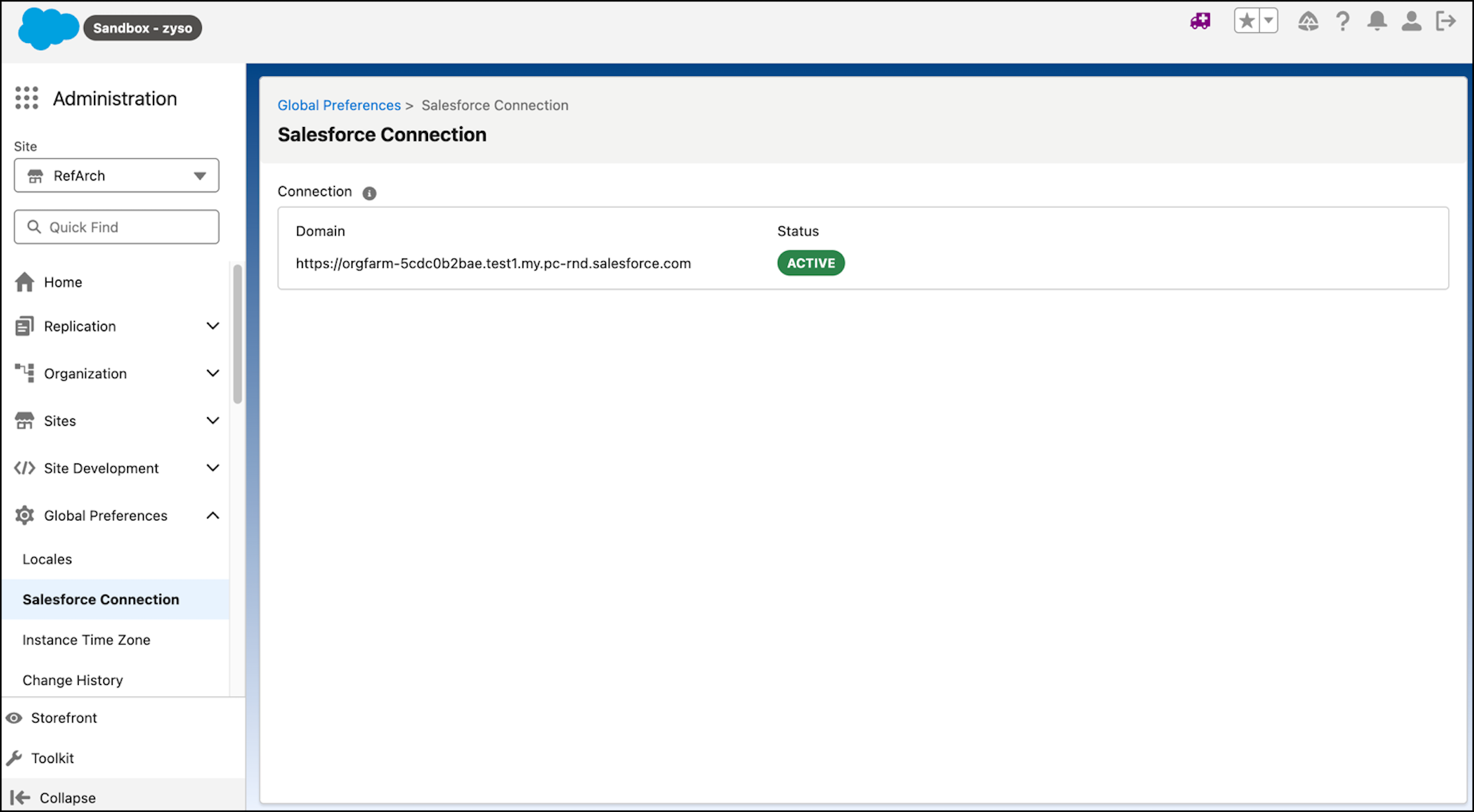
After the connection is successful, the connection information appears on the Salesforce Connection page.